

How to manage the positive list in Velocity?
This document presents how
- View the positive list;
- Create a new item in the positive list;
- Delete items from the positive list.
How to view the positive list
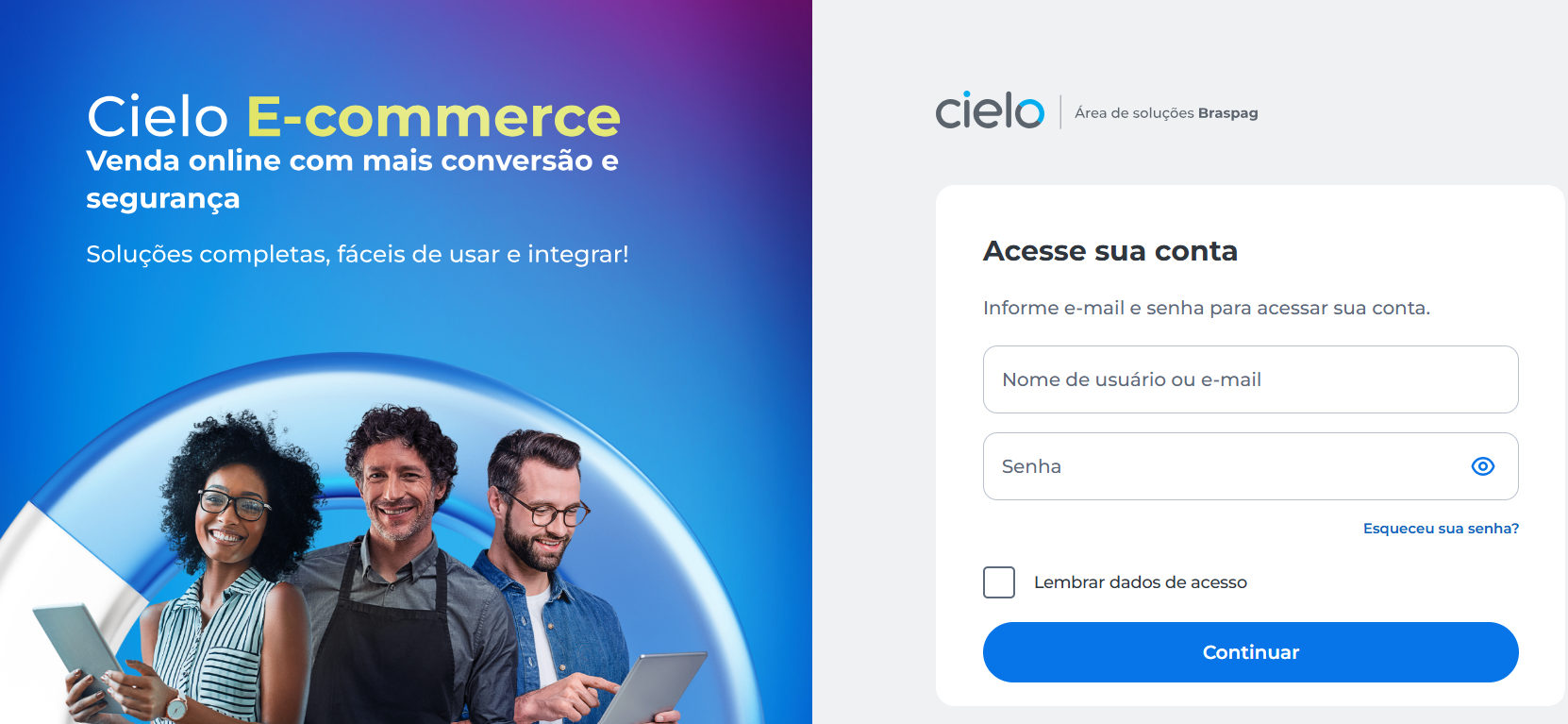
- Access the Portal E-commerce
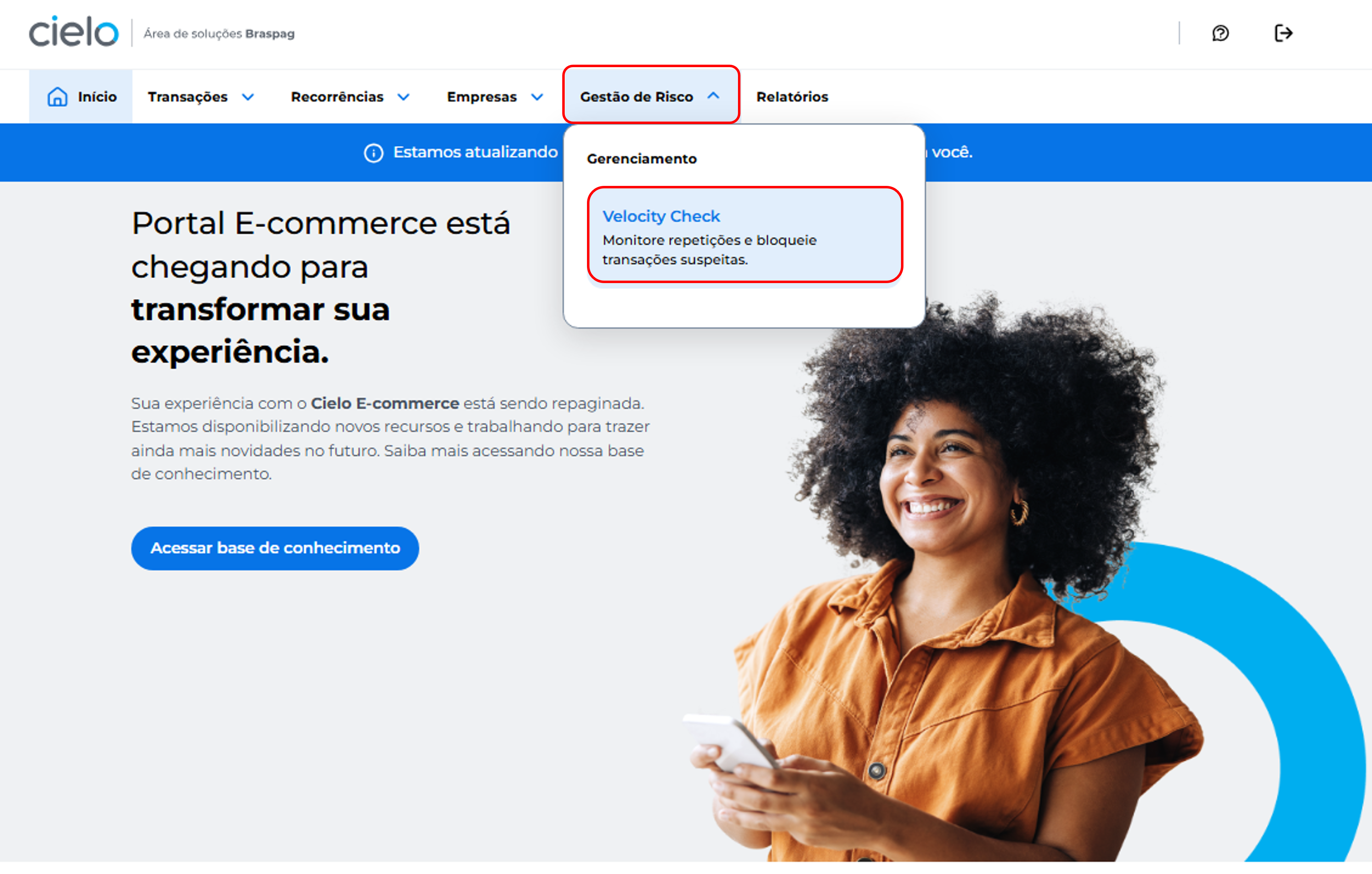
- Click the Gestão de Risco menu and then Velocity Check
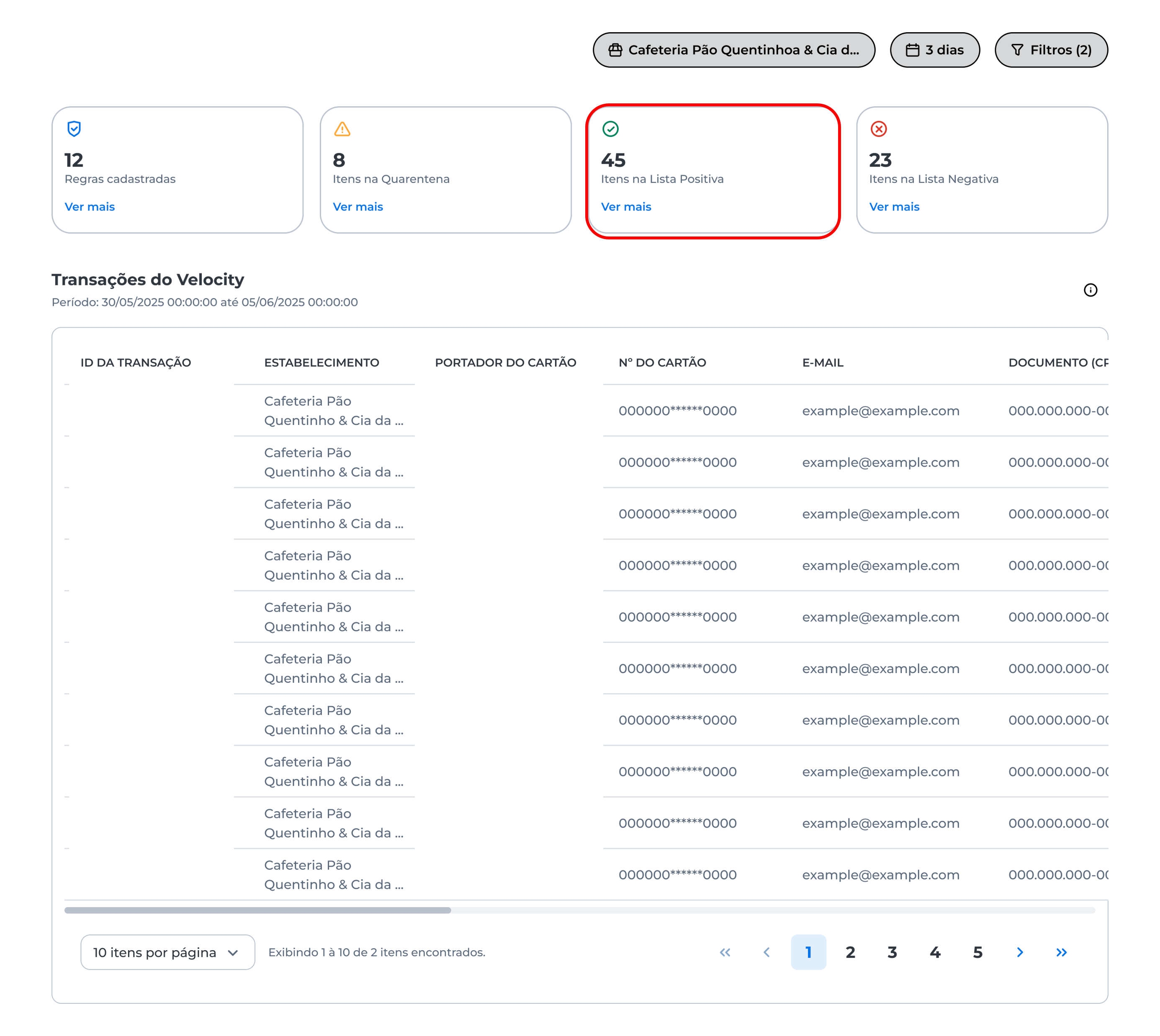
- On the displayed screen, you will find the Itens na Lista Positiva card. Click Ver mais:
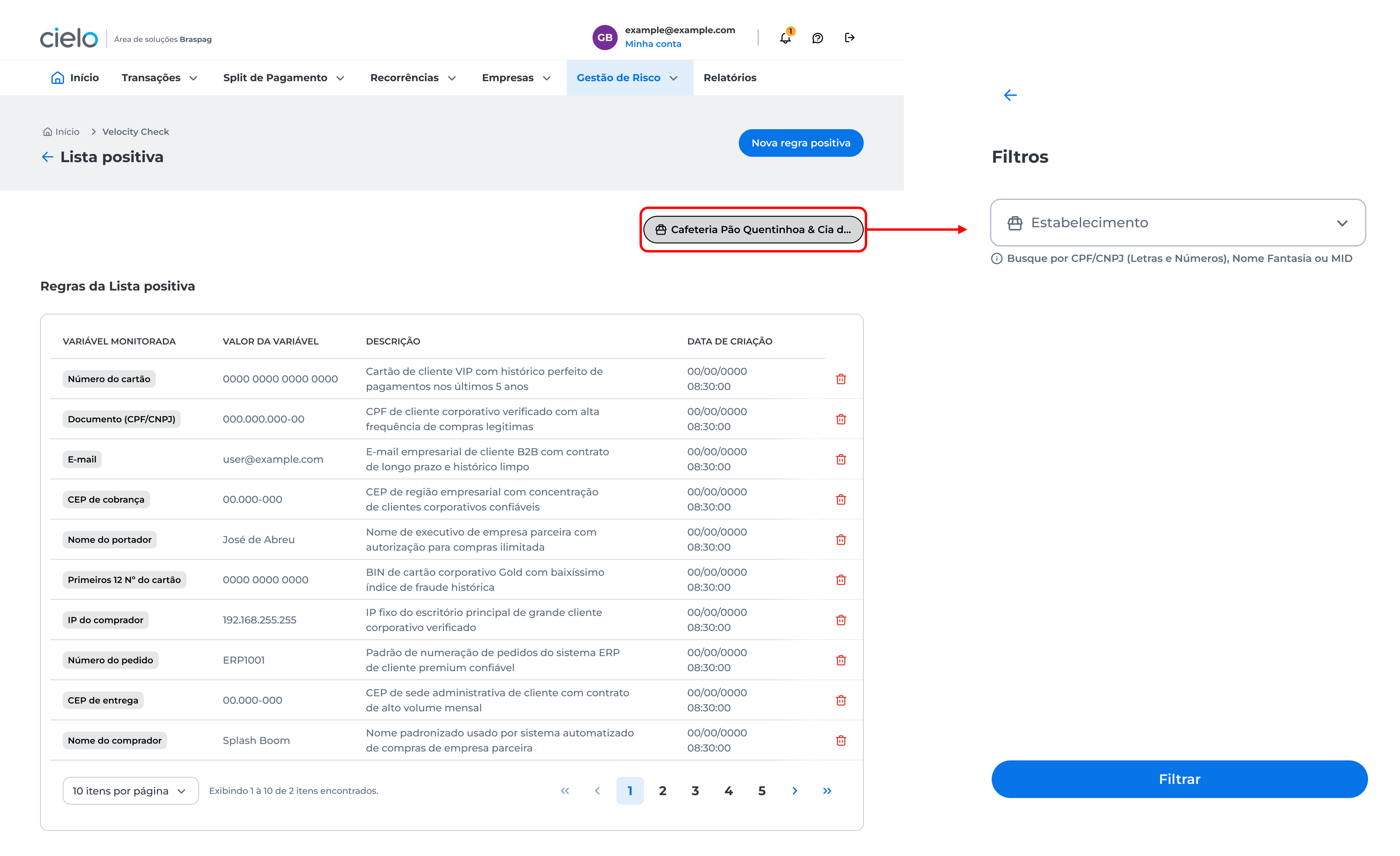
- The positive list rules view will be displayed. Use the filter and select the merchant.
How to create a new rule in the positive list
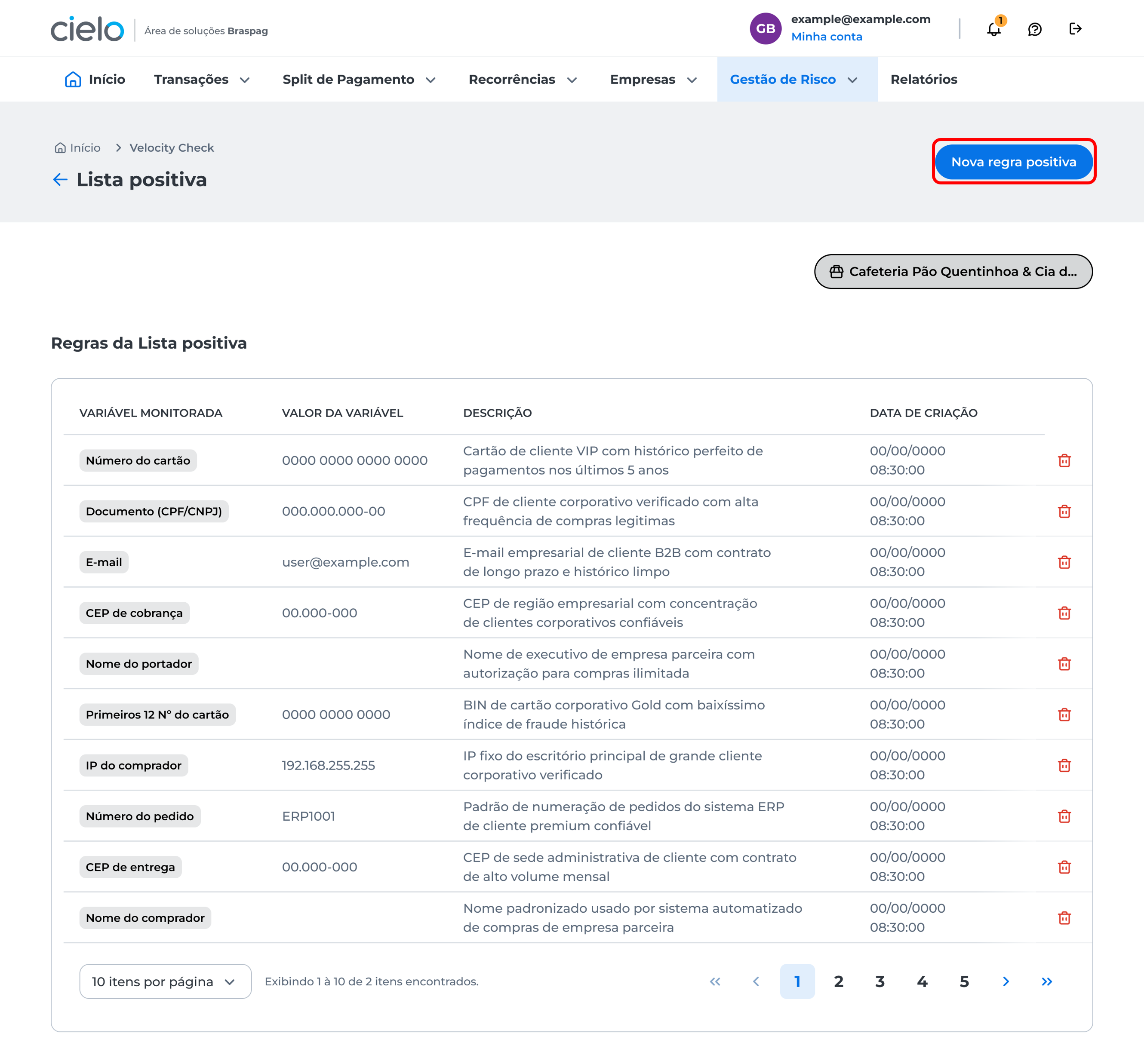
In the positive list rules list, click Nova regra positiva:
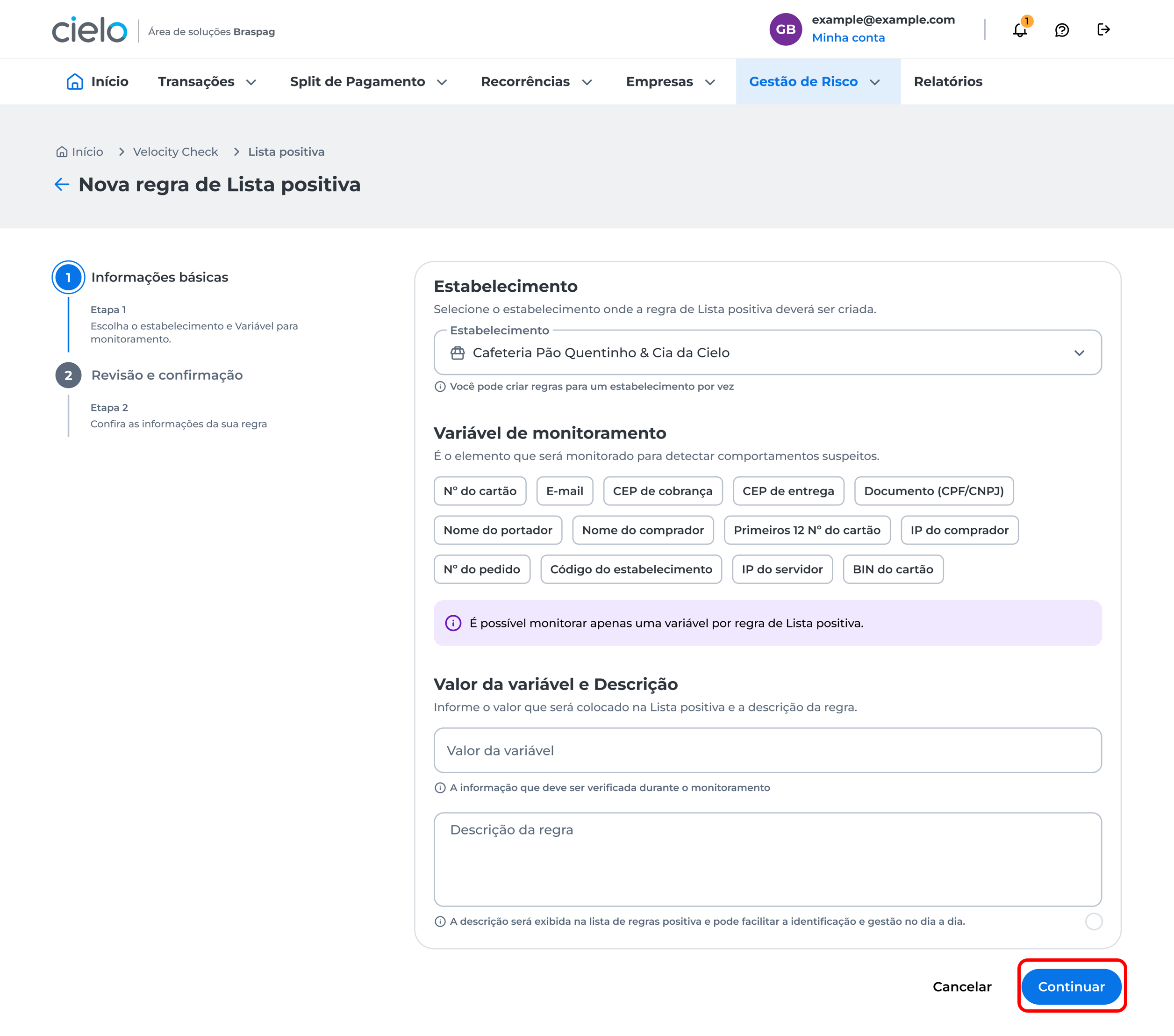
Choose the merchant, the variable to be monitored, enter the variable value and description, then click Continuar:
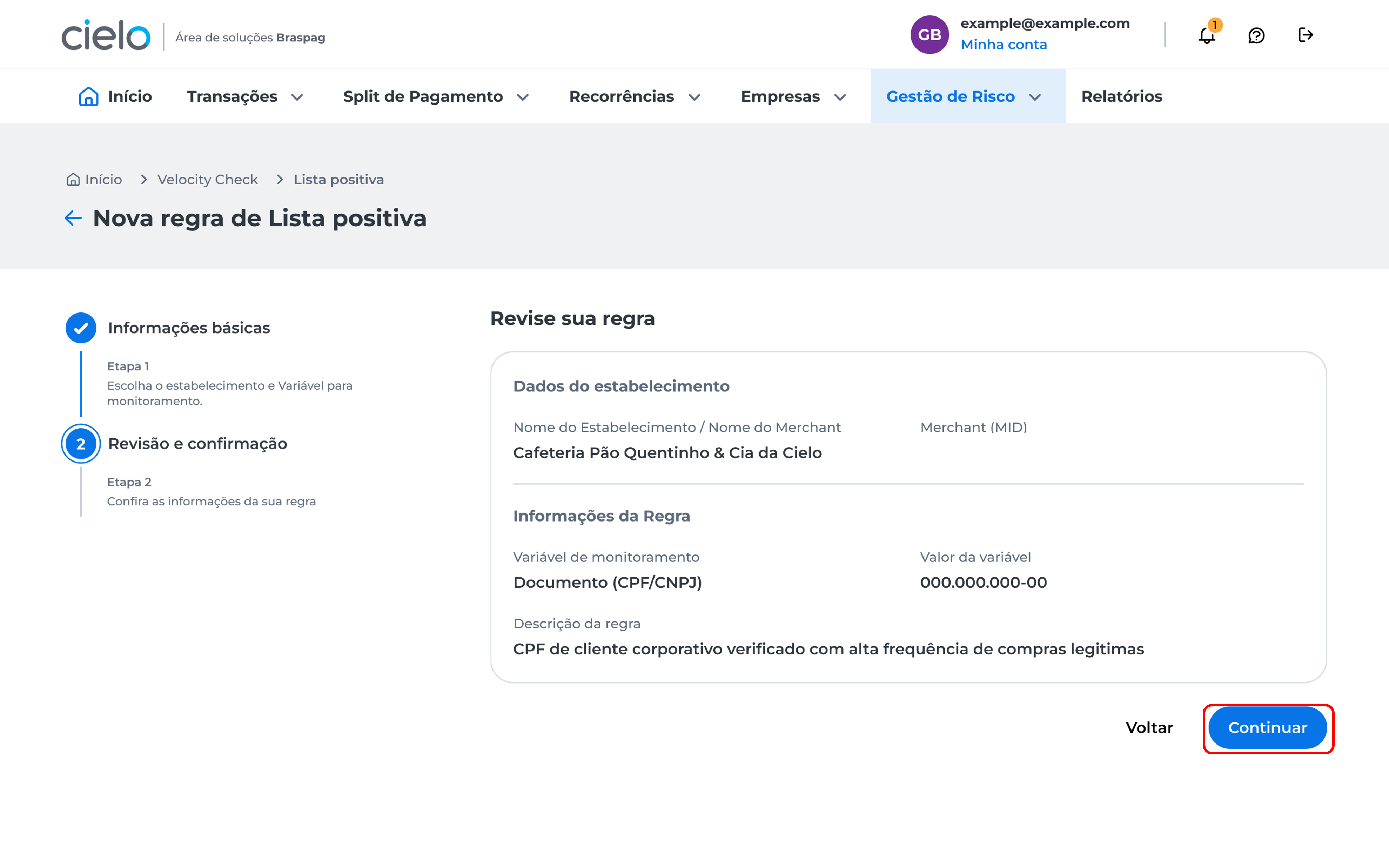
The rule details will be displayed. Review the created rule and click Continuar to proceed.
You will be directed to the two-step authentication screen. Learn more about this process in the article: How to register two-step authentication? After completing two-step authentication, a confirmation window will be displayed informing that the new rule was successfully added to the positive list.
How to delete items from the positive list**
In the positive list rules list, click the trash icon next to the rule you want to delete.
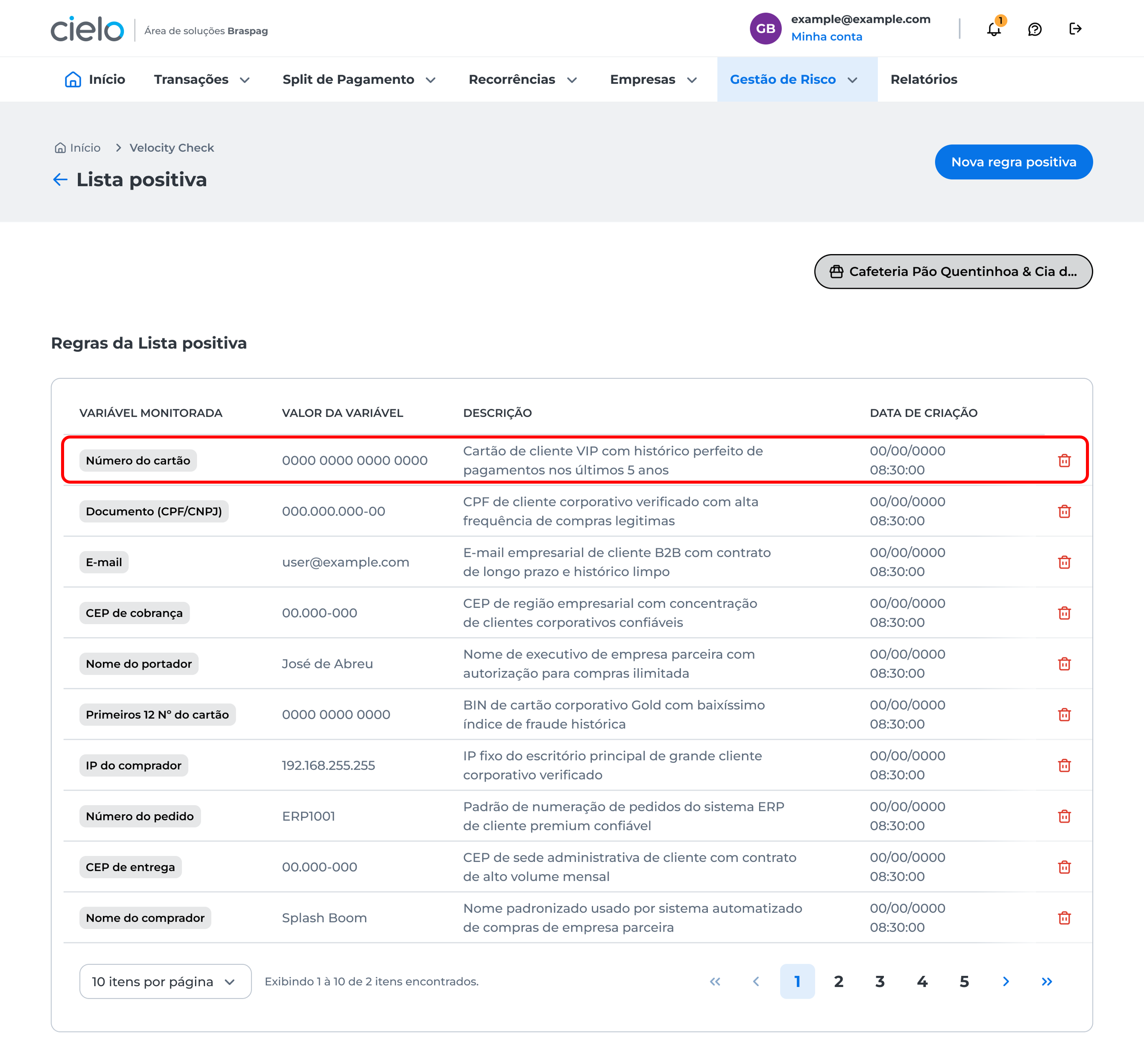
You will be directed to the two-step authentication screen. Learn more about this process in the article: How to register two-step authentication? After completing two-step authentication, a confirmation window will be displayed informing that the new rule was successfully removed from the positive list.
Updated 5 months ago