

Banco do Brasil
Please refer to the API Reference for the full request and response examples.
How it works
- After selecting a product, the shopper chooses the Banco do Brasil Registered Boleto payment method;
- The merchant sends a request to Cielo calling the corresponding payment method;
- Cielo returns a URL containing the boleto image.
Registration and setup with Banco do Brasil
1. BB environment
To enable the registered boleto product, contact your Banco do Brasil relationship manager and provide the following information:
| Data | Format |
|---|---|
| Return URL (merchant site) | https://www.pagador.com.br |
| Return file format | (X) CBR643 |
| Return method | (X) Mainframe – for companies with their own system that do not use GFN. |
After completing the registration, the merchant will receive a document.
2. Obtain credentials on Banco do Brasil portal
Access the Banco do Brasil portal to get your credentials and follow these steps:
• Create an account on the BB portal;
• Create an application (Charges API);
• Perform testing and move to production.
3. Register credentials
To use the BancoDoBrasil3 provider, you must register the following credentials with Cielo Support:
| Field | Value |
|---|---|
| Application Key | AppKey |
| Username | ClientId |
| Password | ClientSecret |
Boleto configuration on Cielo
Registration data
You must provide the following information to Cielo Support:
Our Numb
Enter "10000" – For each boleto issued, this number in
Due
Boleto
2 digits in
This is the default value if no other value
Information displ
Only numbers and letters A-Z are allowed. No special characters or more than one
Affiliation signature provided by Banco do Brasil. *Availab
It is
Ban
| Data | Description | Format | Observation | ||||
|---|---|---|---|---|---|---|---|
|
td> Branch< |
Branch code |
4 digit |
Only the four branch numbers are required, do not include the check dig |
||||
Account | Account num |
7 di |
Hyphen req |
||||
Wallet | wallet number and variation\*. |
5 digits in the format " |
Example: |
||||
|
>
Agreement< |
>
E-commerce |
d> < |
td>
It is the same value as Reconciliation (Billing agreement) provided b |
||||
|
/td>
Boleto number that allows its identification with Banco do Brasil. It is an incremen |
> | ||||||
| p> | /p> | ||||||
|
Inst |
> | to | ers | ||||
| tr> | ong> | tal.* | digits | ||||
| strong> | p> |
/ul>
>
Credential prov |
|||||
| /strong> | /p> |
>
Credential pro |
*Wallet variation for Banco do Brasil: grouping parameter for boletos within the same wallet. It allows the merchant to group its boletos according to different business models (branches, points of sale, etc.).
Automatic conciliation of registered boletos
Currently, Banco do Brasil does not provide automatic status updates for registered boletos.
To update the status of paid transactions, perform manual conciliation on the Cielo website.
Manual Reconciliation
Manual reconciliation of the boleto can be done on the Cielo Website when necessary. To reconcile:
-
Go to the Cielo Website;
-
Select the desired merchant (EC);
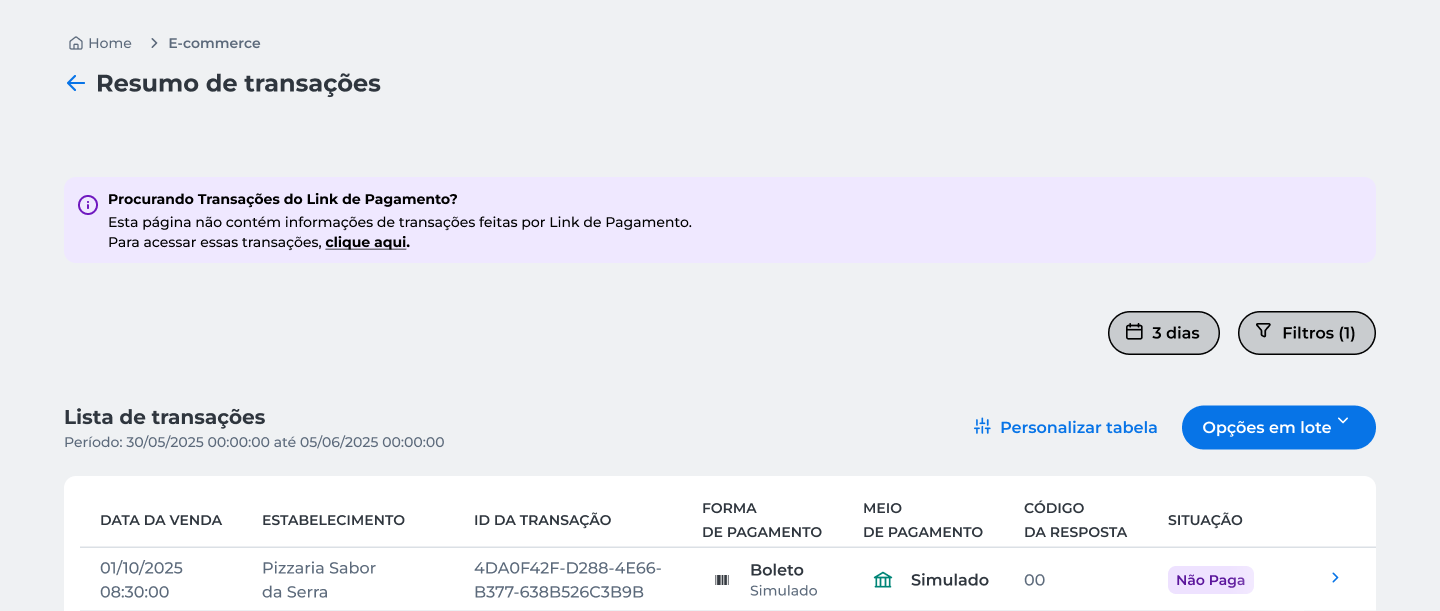
- In the top menu, click E-commerce;
- Go to Transações;
-
In Transações, apply the filters Payment method: Boleto and Status: Não Paga;
-
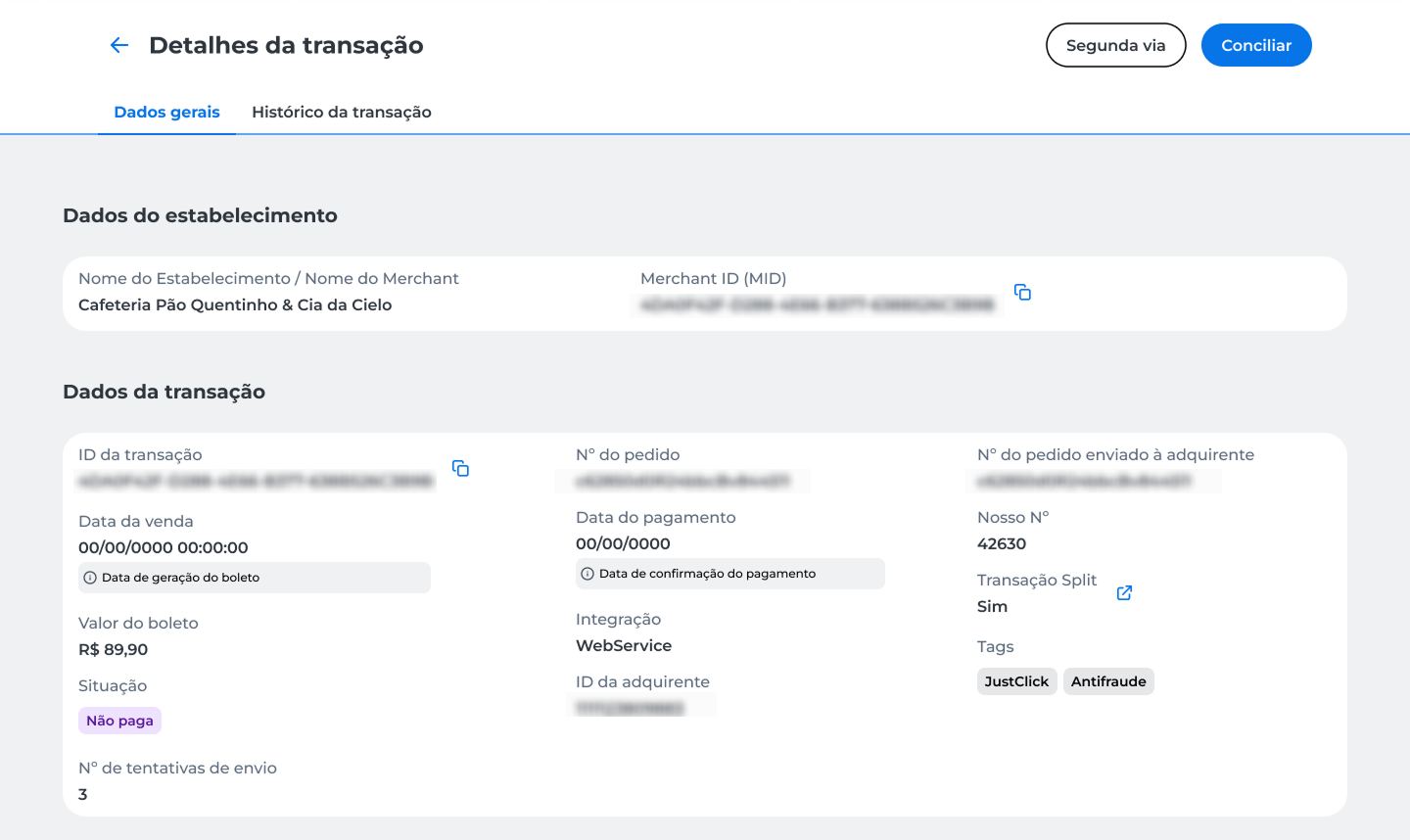
Find the desired order and access Detalhes da transação;
-
Click Conciliar;
-
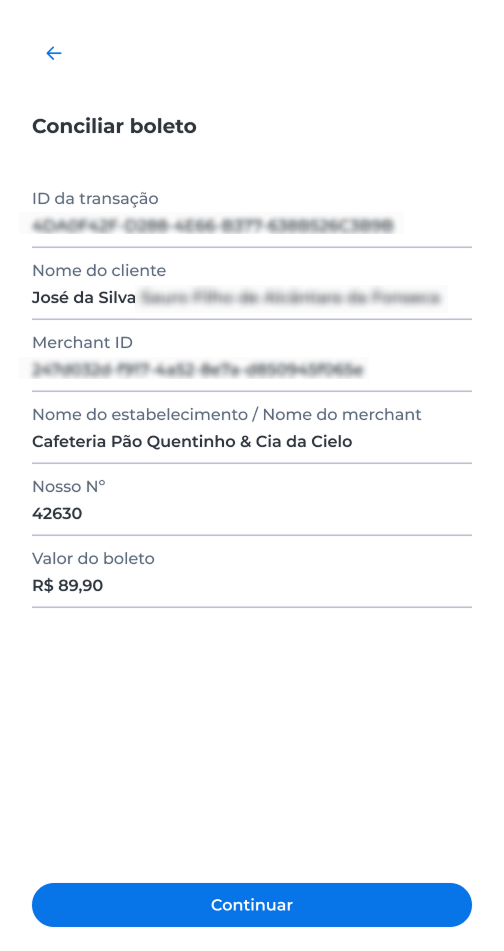
In the Conciliar boleto panel, review the transaction details and click Continuar;
-
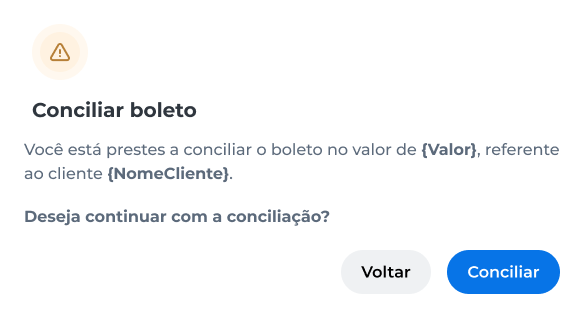
In the confirmation window, check the amount and the client name, then click Conciliar;
-
Complete the operation authentication using the Cielo Gestão app.
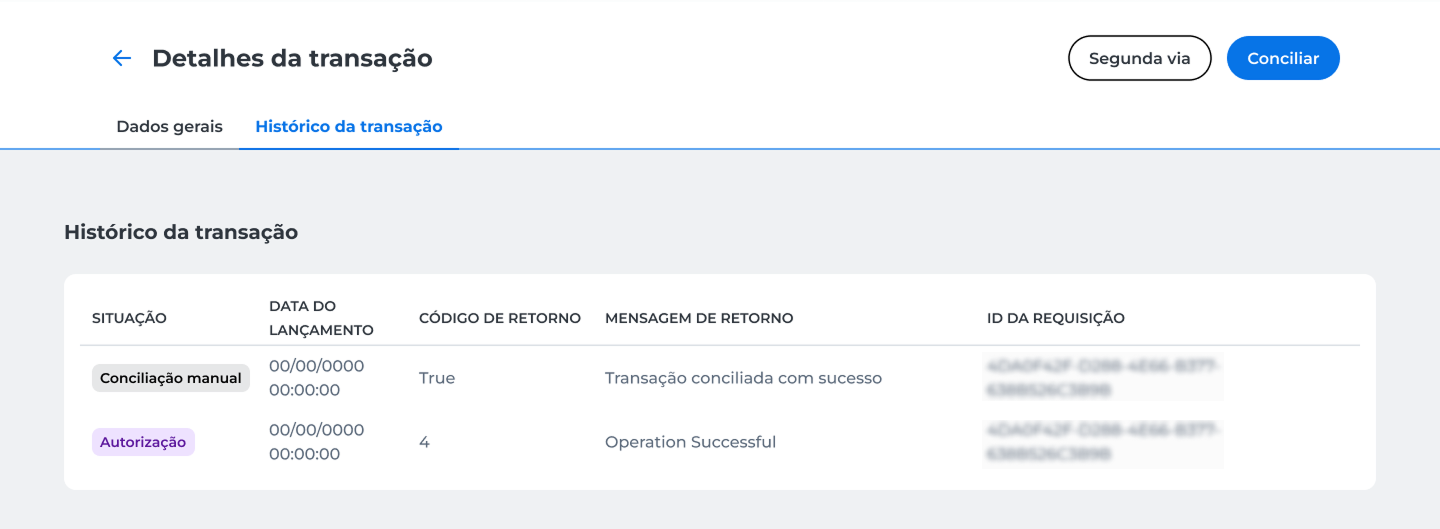
After completion, the platform displays a success message and the transaction status is updated to Conciliação manual.
Updated about 2 months ago