

Transaction Refund
Refund allows returning to the shopper the amount of a processed transaction, according to the rules of the payment method used.
You can perform the refund in two ways:
- Individually, to refund a single transaction;
- In batch, to refund multiple transactions at once.
Access permissionsCapture and void functionalities are available to users with Administrator profile or users with Custom profile who have the required permissions.
To manage access permissions, go to My Profile > Access Management.
Refund a transaction
Use individual refund to refund a single transaction.
- Locate the desired transaction;
- Open the transaction details;
- Click Refund.
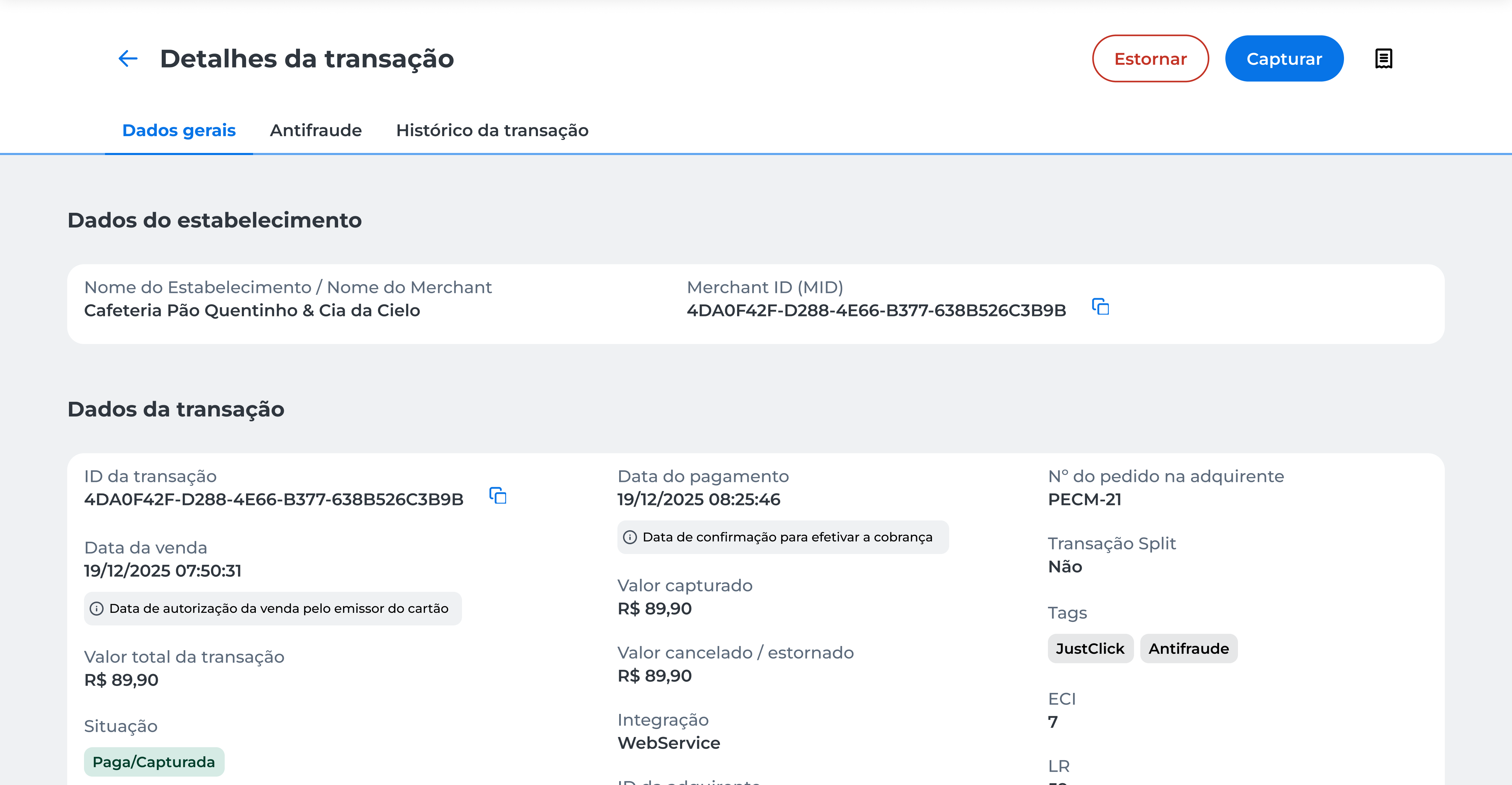
Full Refund
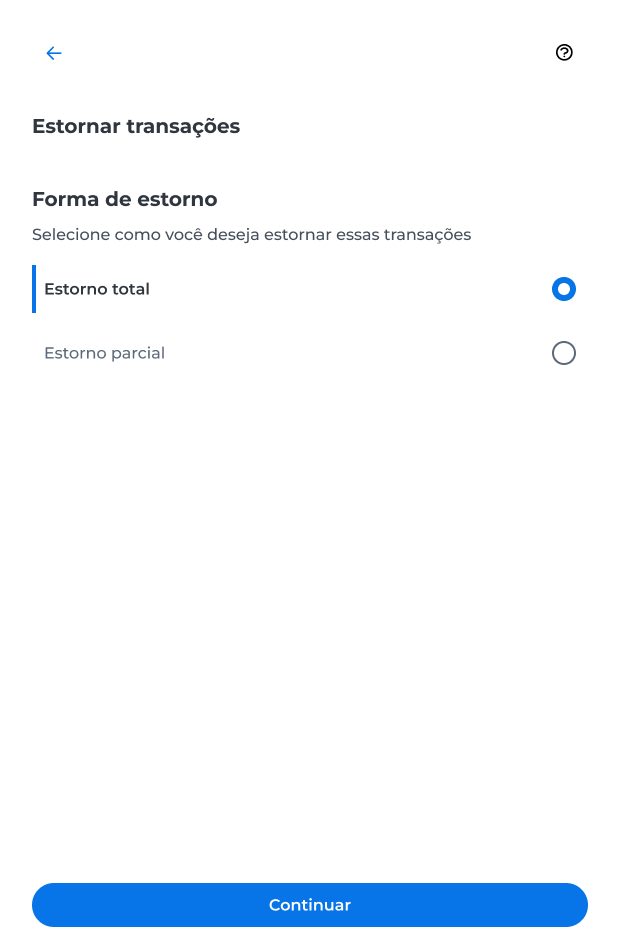
The full refund returns the entire amount of the transaction.
- Select Full Refund;
- Click Continuar;
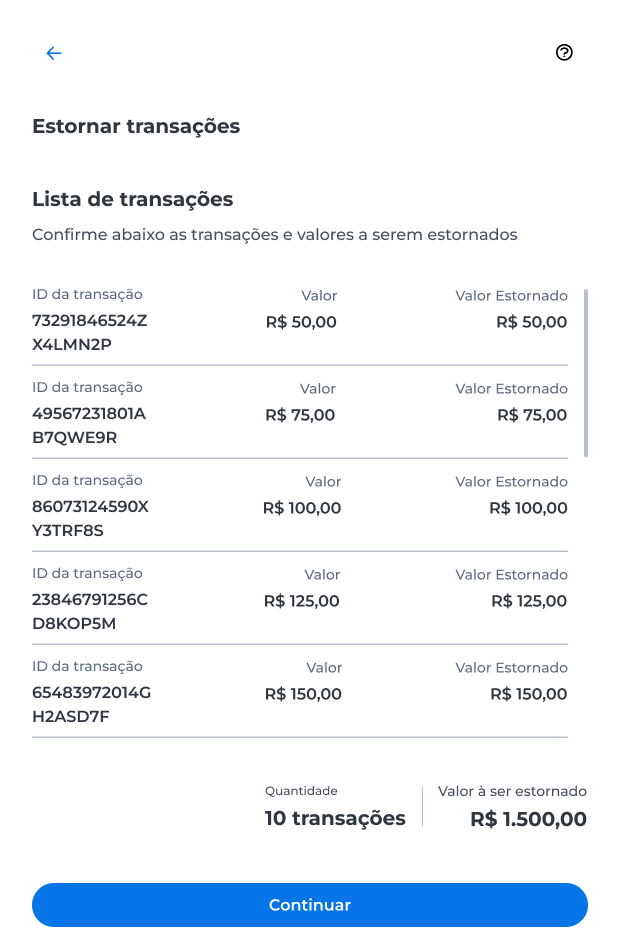
- Check the transaction details and the amount to be refunded;
- Click Continuar;
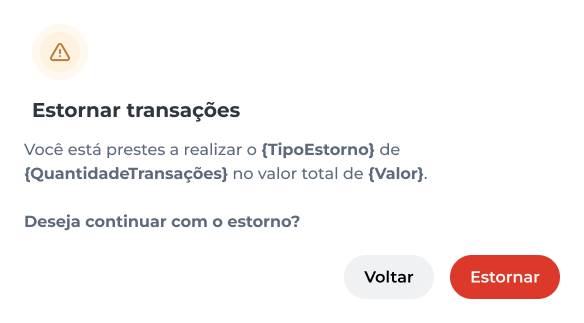
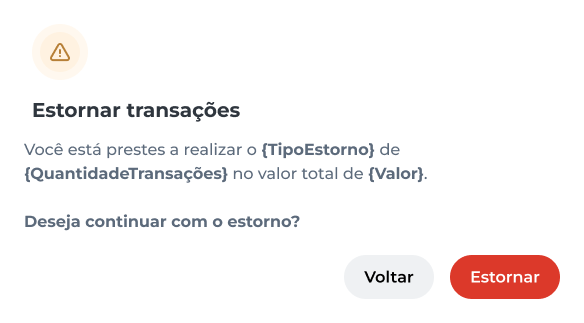
- Review the presented information;
- Click Estornar;
- Complete the operation authentication in the Cielo Gestão app.
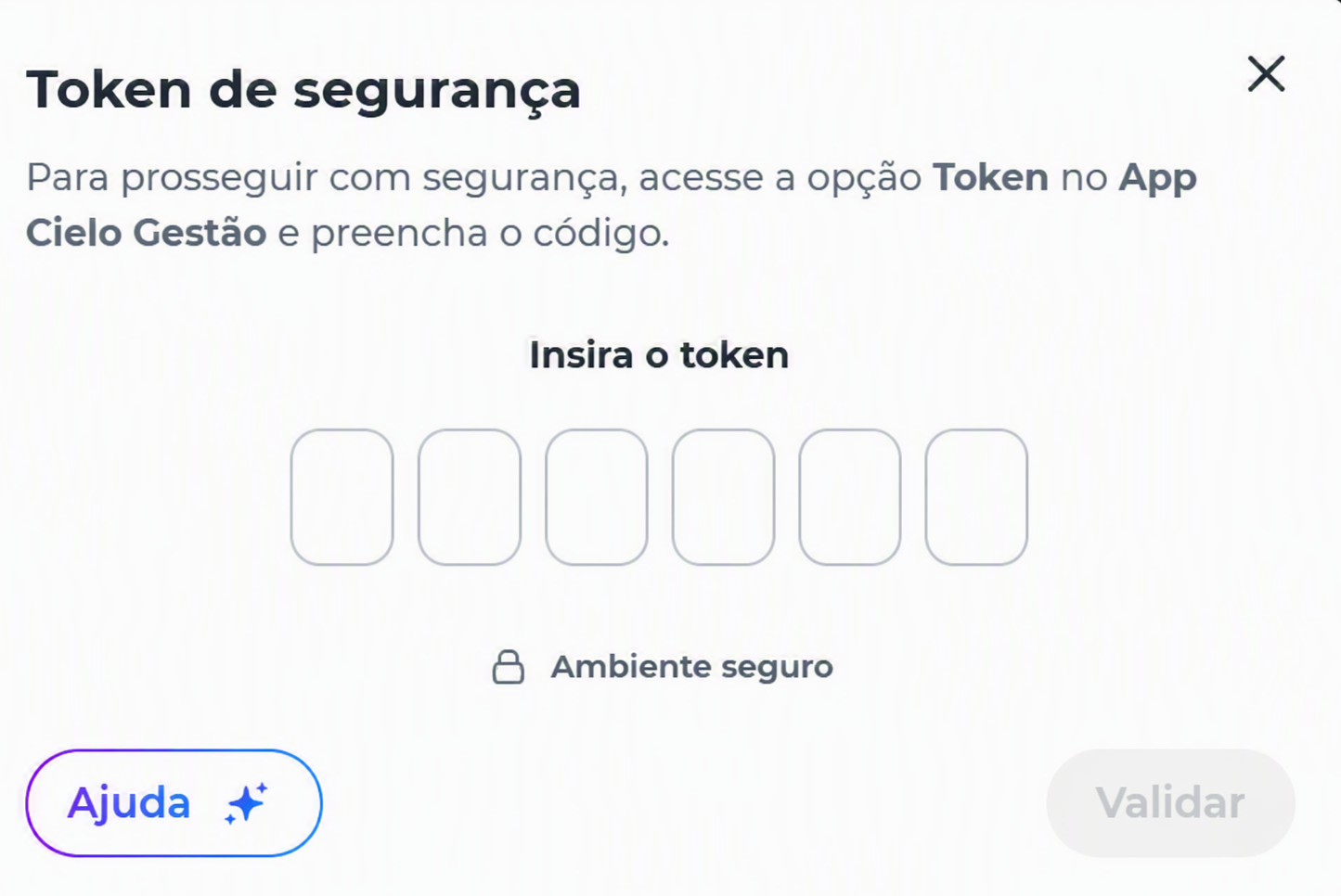
After authentication, the request is processed and the system displays the operation result.
To learn about possible outcomes, see the section Refund results.
Partial Refund
Partial refund allows returning only part of the transaction amount.
-
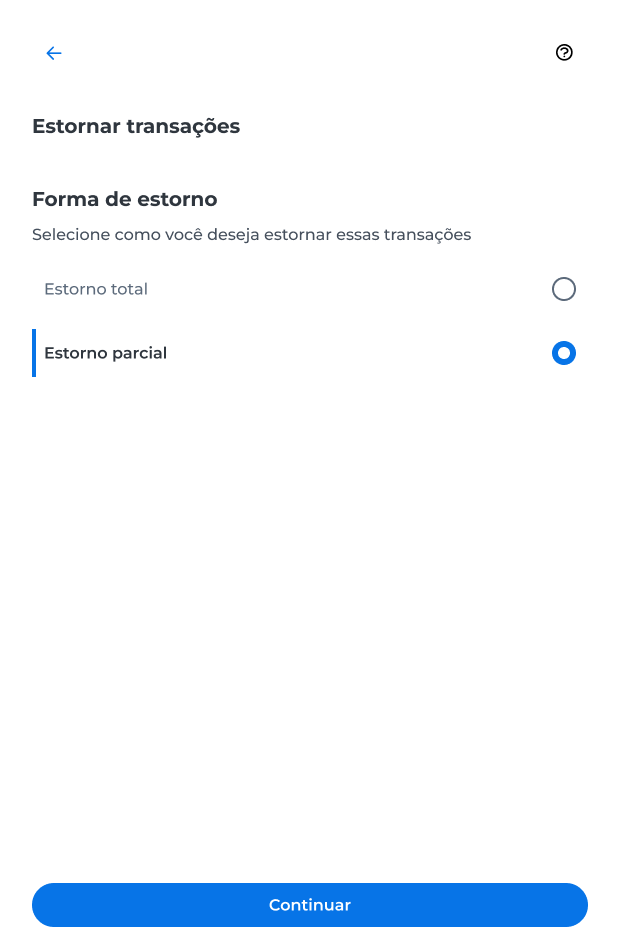
Select Estorno parcial and click Continuar;
-
Enter the amount you want to refund for the transaction and click Continuar;
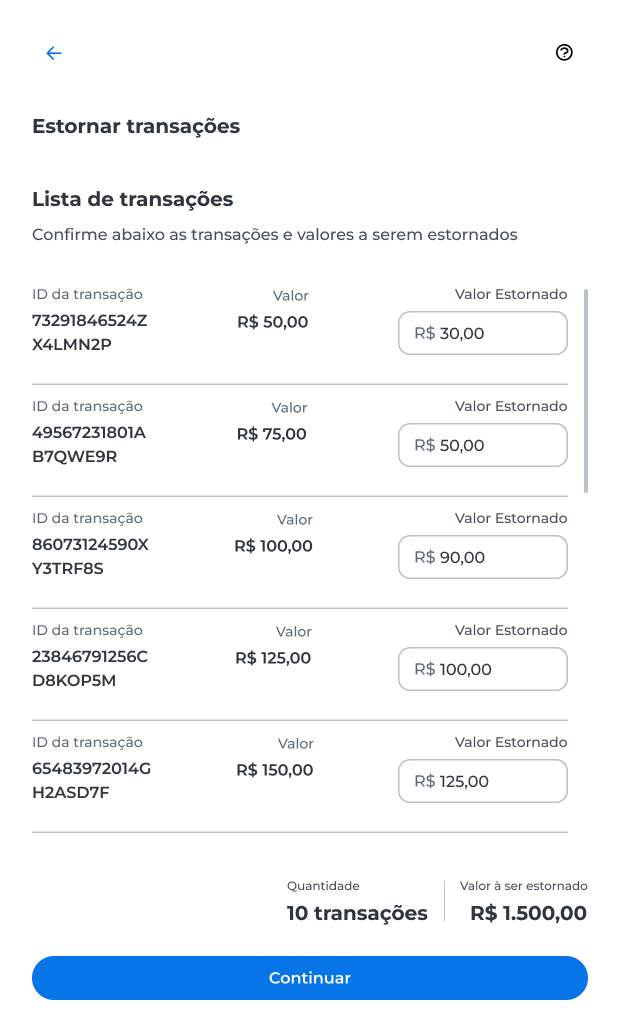
- Review the presented data;
- Click Estornar;
- Complete the operation authentication in the Cielo Gestão app.
After authentication, the request is processed and the system displays the operation result.
To learn about possible outcomes, see the section Refund results.
Refund Results
After processing the request, the system may display one of the following results:
Success
The refund was completed successfully.

Partial Success
In this case, the system shows the transactions that were not refunded and their respective amounts, so you can process the refund again if needed.
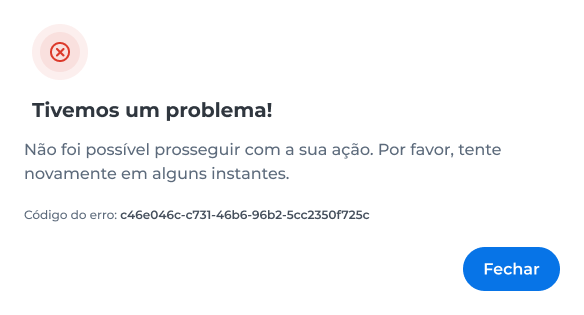
Error
The refund could not be completed.
Check the transaction information and try again. If the problem persists, contact Cielo Support.
Refund Transactions in Batch
- Go to E-commerce > Transações.
- Select Opções em lote > Estorno;
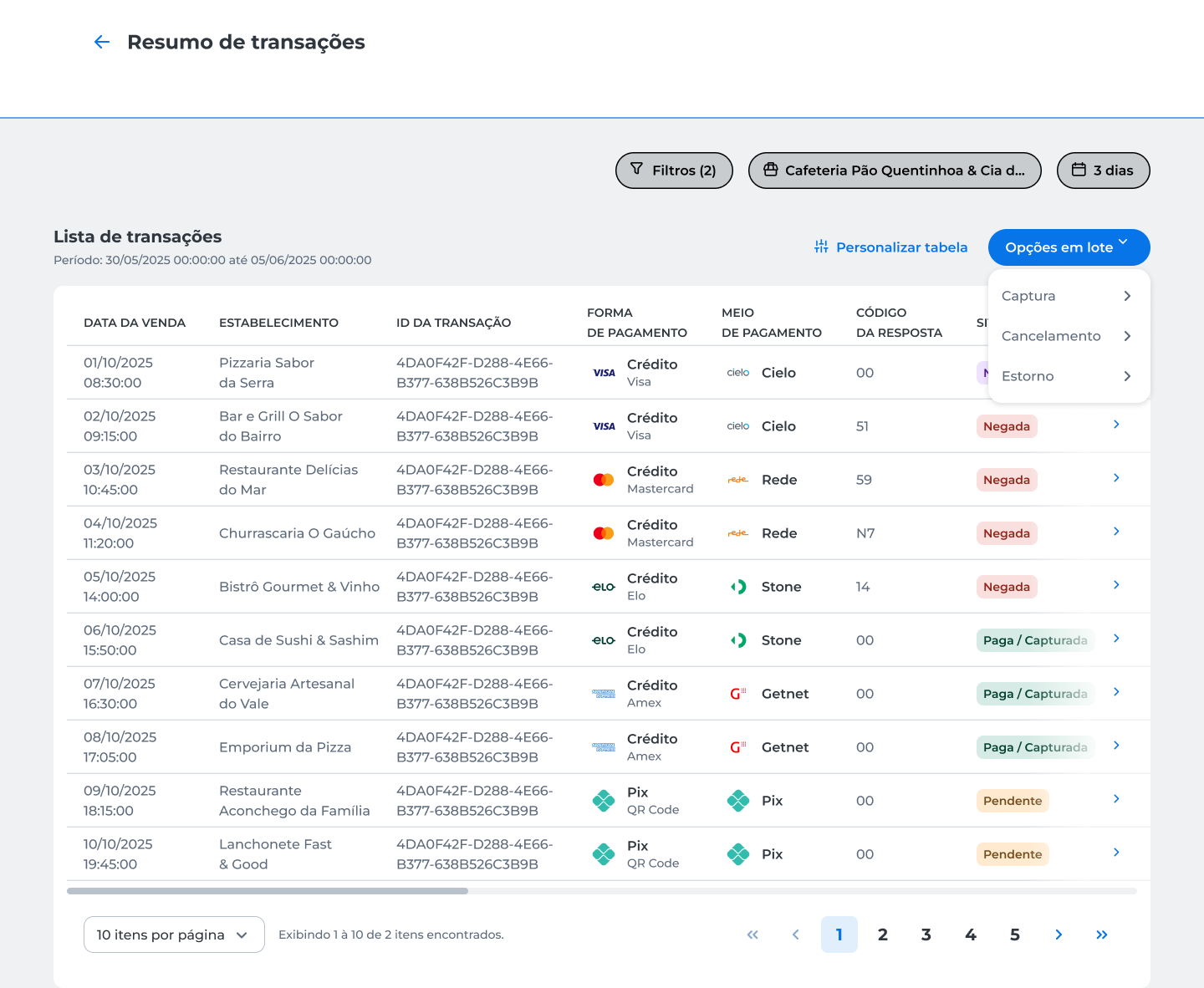
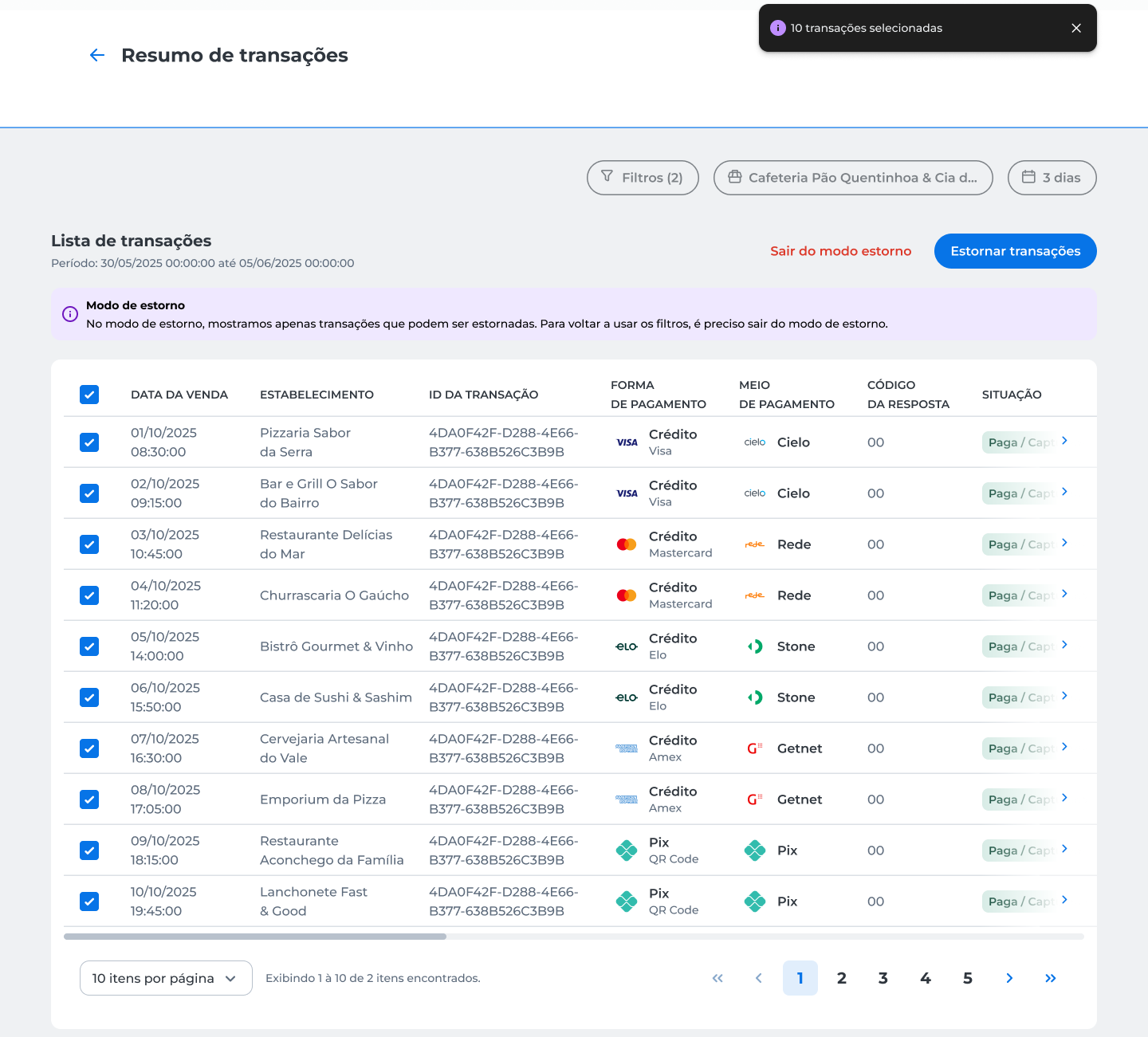
The system enters refund mode and displays only the transactions available for this operation.
- Select the transactions you want to refund;
- Click Estornar transações;
- Choose the refund type:
-
Estorno total;
-
Estorno parcial.
-
After selecting the refund type, the process follows the same steps described in Refund a transaction.
Transaction history
Access the transaction history to view the events recorded during payment processing.
- Find the desired transaction;
- Open the transaction details;
- Go to the Histórico da transação tab.
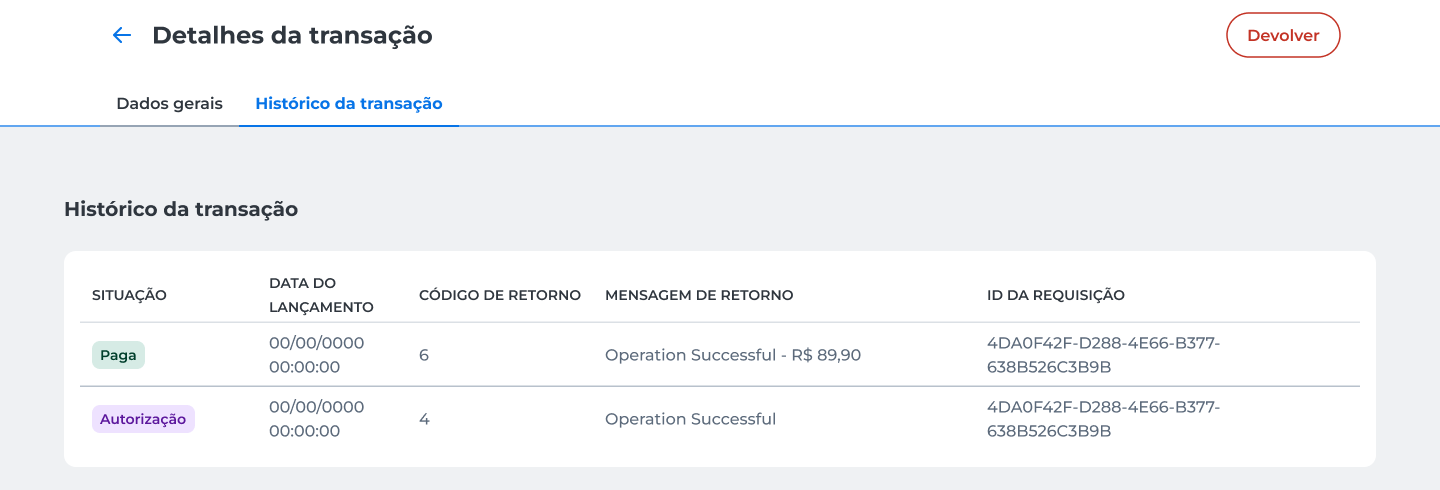
In the history, you can track the transaction progress and view information such as:
- Status recorded at each stage;
- Date of event occurrences;
- Return code and message;
- Identifier of the request associated with the operation.
Updated about 2 months ago