

Digital wallets
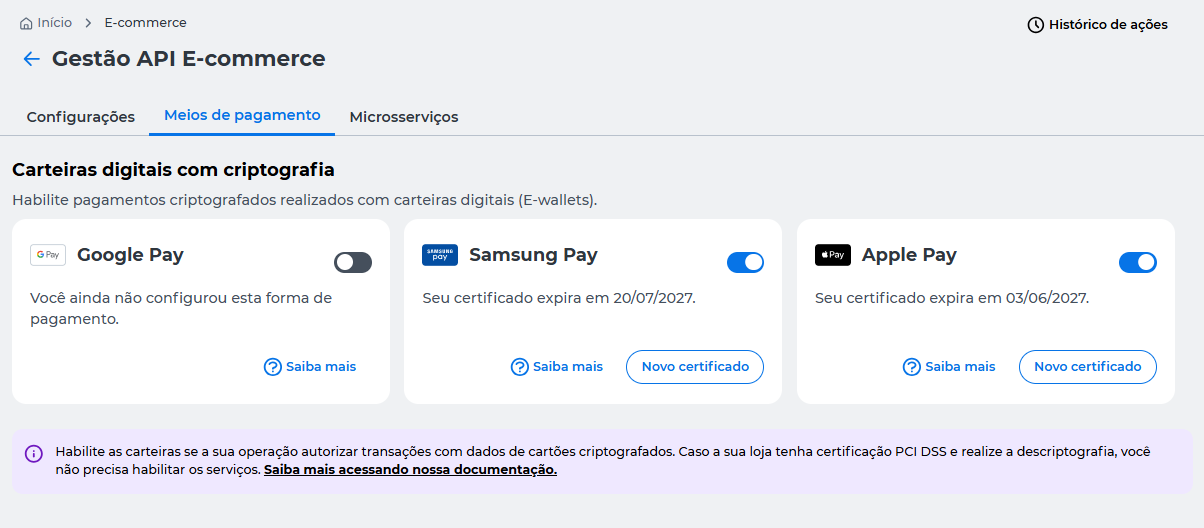
The Digital Wallets (e-wallets) area allows you to enable, disable, and manage the digital wallets available for use with the API E-commerce Cielo.
Through this feature, you can manage integrations with Apple Pay, Google Pay, and Samsung Pay.
Required permissionsThe indicated settings can only be performed by users with Administrator, Technical, or Analyst permissions.
To manage access permissions, go to Meu cadastro > Access Management.
How to access
On the Cielo Website:
- Select the desired merchant (EC);
- In the top menu, click E-commerce;
- Access Gestão API E-commerce;
- Click the Meios de pagamento tab.
Overview
In the Digital wallets area, you can:
- Enable digital wallets;
- Disable digital wallets;
- Generate a new certificate for Samsung Pay and Apple Pay;
ImportantBefore enabling a digital wallet, check its documentation to verify the prerequisites and complete the integration.
If your merchant is PCI DSS certified and decrypts card data, enabling encrypted digital wallets will not be necessary.
Enable Digital Wallet
The steps for enabling vary depending on the selected digital wallet.
Activation TimeAfter enabling the wallet, wait approximately 30 minutes before performing transaction tests.
Apple Pay
When enabling Apple Pay, you will need to provide your merchant domain to continue configuring the wallet.
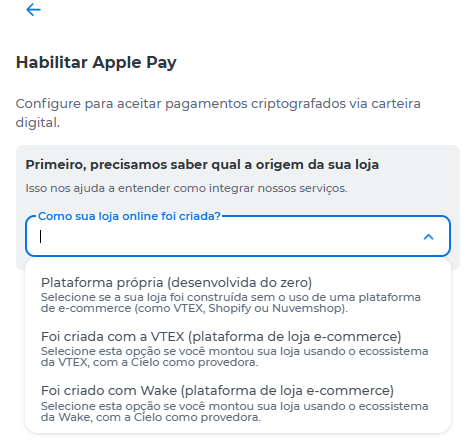
Select the option corresponding to your store's origin:
- Plataforma própria: select this option to continue configuring Apple Pay on the Cielo website.
- VTEX: refer to the documentation on Configuring Digital Wallets on VTEX.
- Wake: refer to the documentation on Configuring Digital Wallets on Wake 2.0.
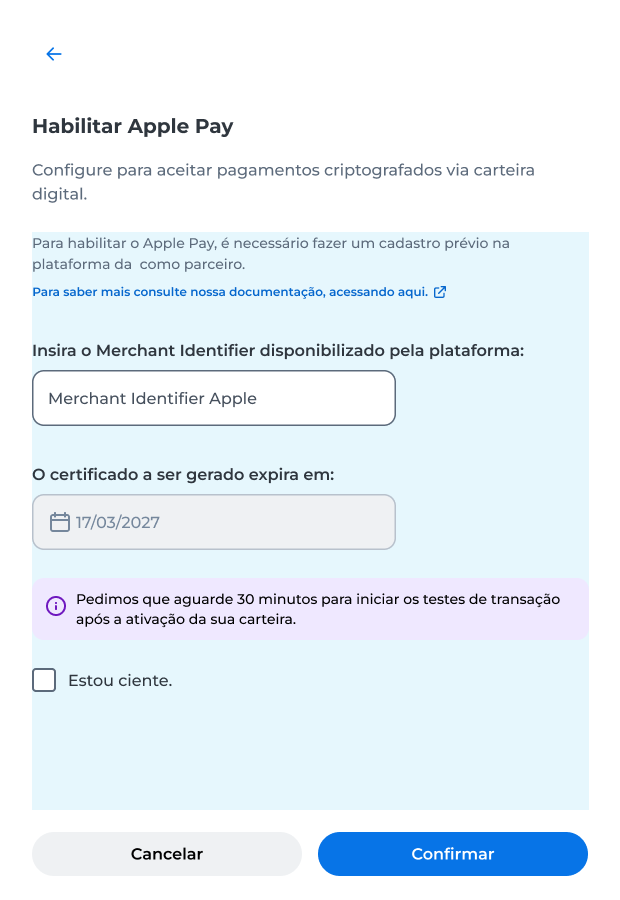
If your store uses an plataforma própria, provide the Merchant Identifier provided by Apple.
The Merchant Identifier must be configured in the Apple platform before enabling the wallet.
To complete the activation:
- Enter the Merchant Identifier.
- Set the certificate expiration date.
- Check the Estou ciente option.
- Click Confirmar.
- Complete authentication to validate the request.
After authentication is completed, the wallet activation will be processed and successfully completed.
The wallet can be used after the integration with the corresponding provider is finished.
Google Pay
When enabling Google Pay, you will need to provide your merchant domain to continue configuring the wallet.
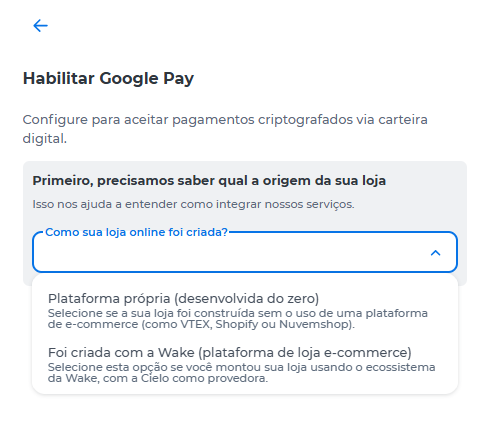
Select the option corresponding to your store's origin:
- Plataforma própria: select this option to continue configuring Google Pay on the Cielo website.
- Wake: refer to the documentation on Configuring Digital Wallets on Wake 2.0.
If your store uses an plataforma própria, complete the configuration as instructed in this section.
To complete the activation:
- Set the certificate expiration date.
- Check the Estou ciente option.
- Click Confirmar.
- Complete authentication to validate the request.
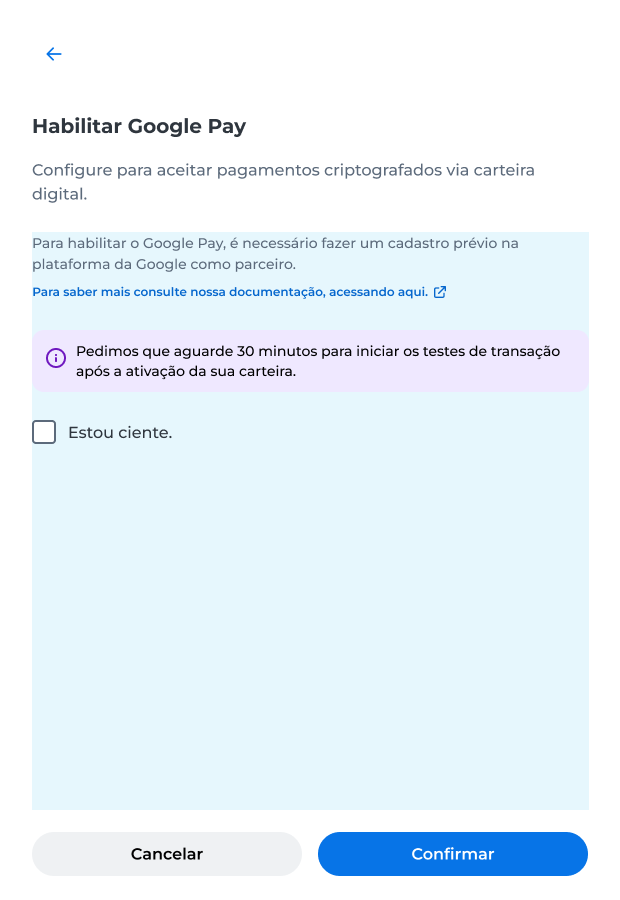
After authentication is completed, the wallet activation will be processed and successfully completed.
The wallet can be used after the integration with the corresponding provider is finished.
Samsung Pay
To enable Samsung Pay:
- Set the certificate expiration date;
- Check the Estou ciente option;
- Click Confirmar;
- Complete authentication to validate the request.
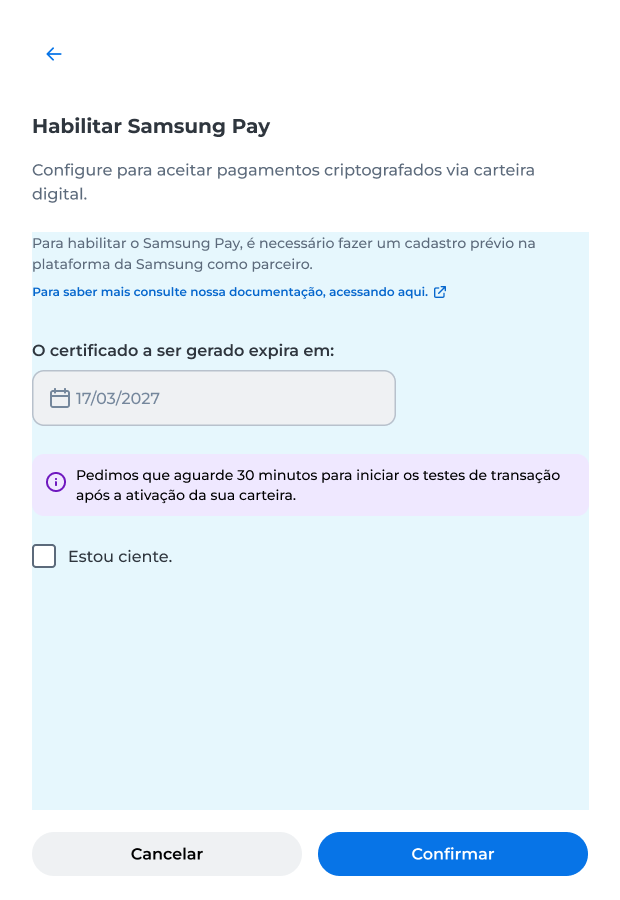
After authentication is completed, the wallet activation will be processed and successfully completed.
The wallet can be used after the integration with the corresponding provider is finished.
Disable digital wallet
To disable a digital wallet:
- Locate the desired wallet.
- Deactivate the wallet key.
- Click Desabilitar to confirm the operation;
- Complete the authentication to validate the request.

WarningAfter disabling, the wallet will no longer be available for new transactions until it is enabled again.
Generate new certificate for Samsung Pay and Apple Pay
The New Certificate feature is available for Samsung Pay and Apple Pay wallets.
To generate a new certificate:
- Find the desired wallet.
- Click Novo certificado.
- Review the information displayed on the screen.
- Click Confirmar.
- Complete the operation authentication through the Cielo Gestão app.
After the authentication is completed, a new certificate will be generated for the selected wallet.
The screen provides the Download Certificate option to download the new certificate.
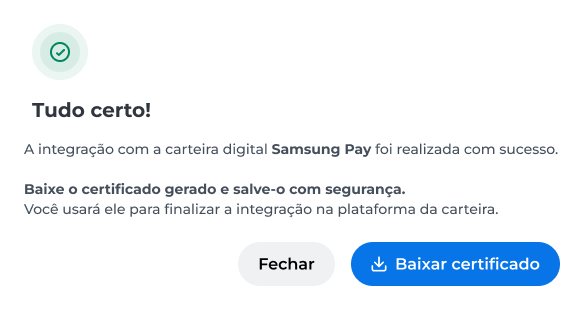
WarningAfter generating a new certificate:
- Download the file immediately;
- Store the certificate in a secure environment;
- Update the integration with the newly generated certificate.
Action History
Actions related to digital wallets are also recorded in the Action History of E-commerce API Management.
For more information, see the Action History page.
Updated 3 months ago