

Configuring the Merchant Identifier
In this initial step, you will need to create a Merchant Identifier for your store. The Merchant Identifier will be used to create the certificates required to integrate:
1. Create a Merchant Identifier
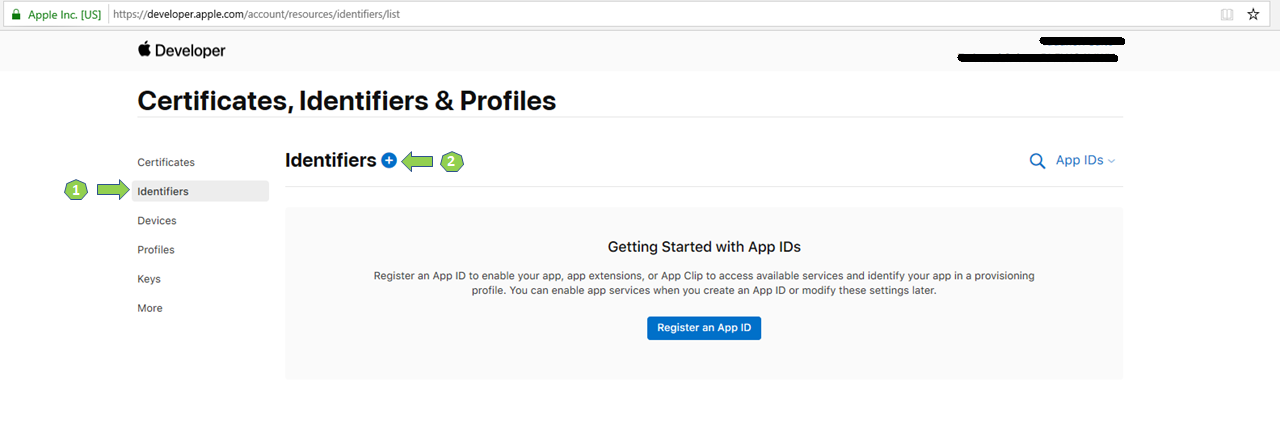
The merchant identifier must be created through the Apple Developer website.
- In the "Certificates, Identifiers & Profiles" section, select "Identifiers" in the side menu, and then click the
(+)button next to the title:
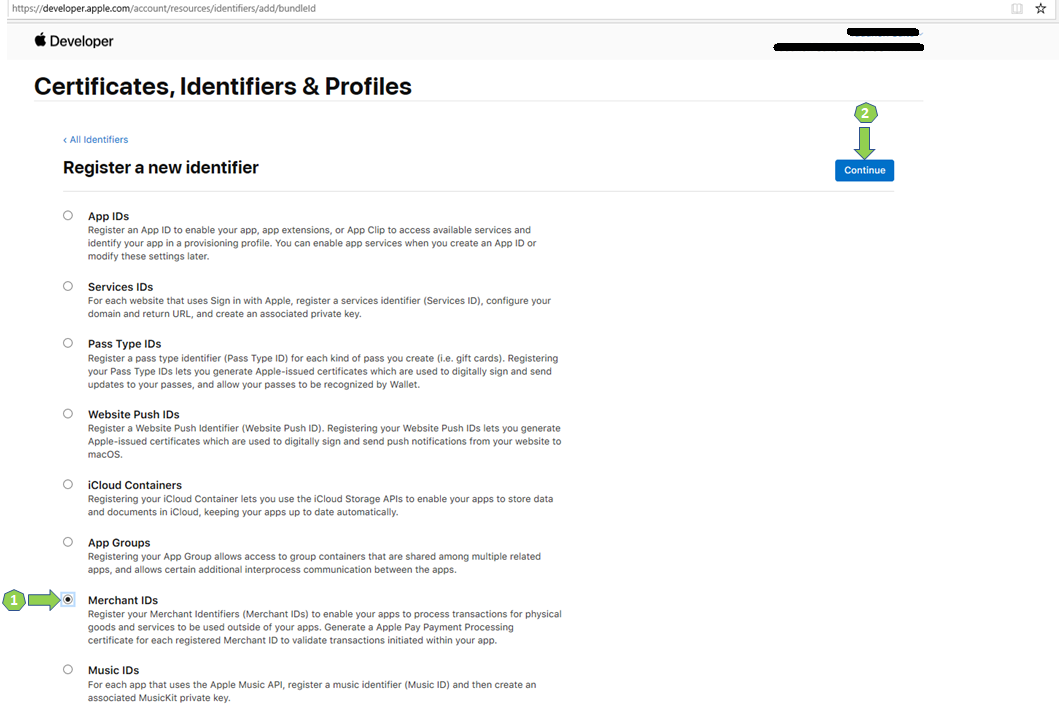
- Select the "Merchant IDs" option and then click
Continue:
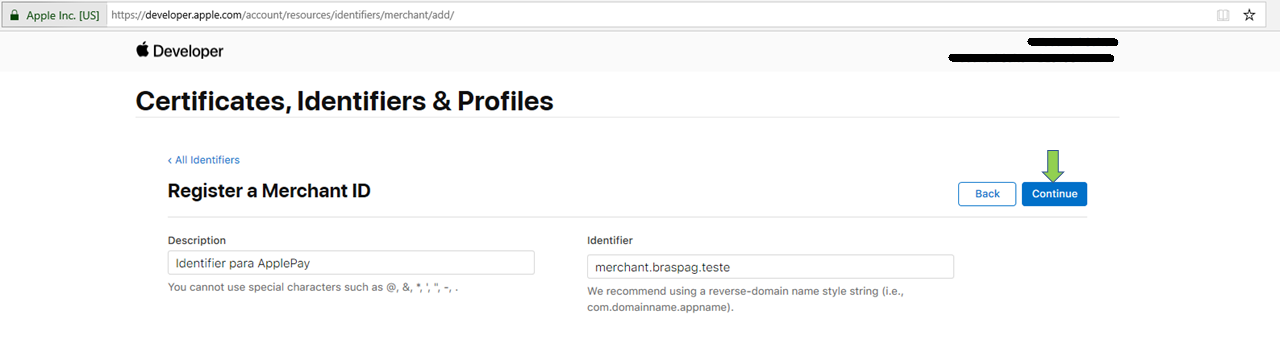
- Enter a value in the "Description" and "Identifier" fields, following your specifications, and click
Continue:
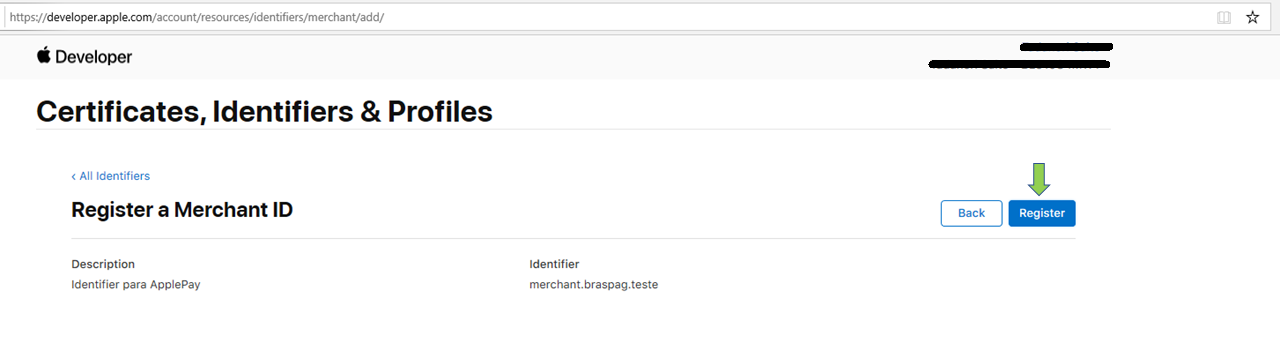
- To finish, click on
Register:
2. Enable Apple Pay and get the ".CSR" Certificate
See how to enable Apple Pay and then download the CSR certificate from the Cielo website.
3. Create a ".CER" Certificate
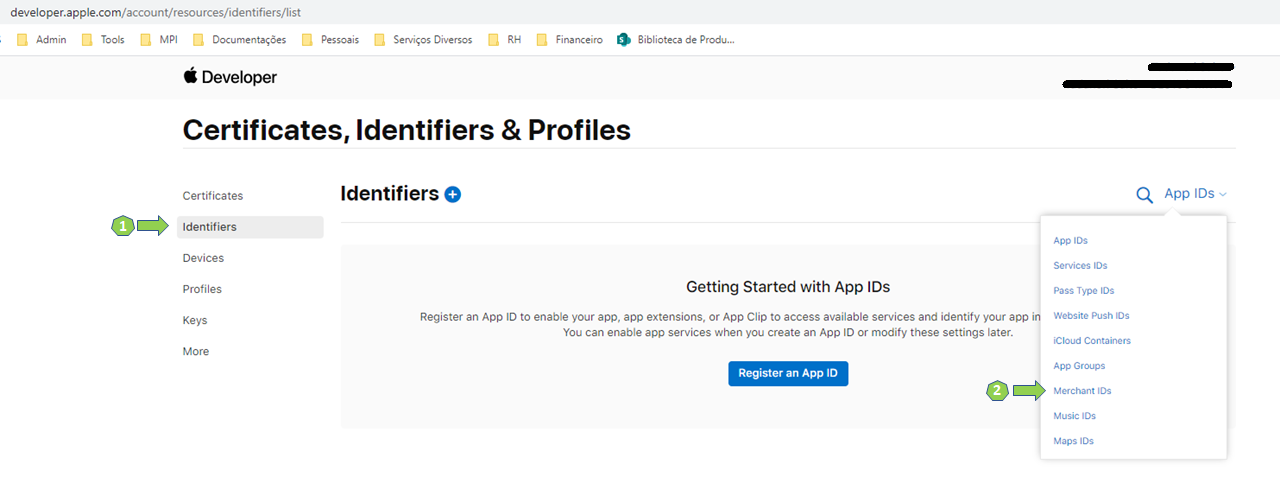
- In the "Certificates, Identifier & Profiles" section, select "Identifiers" on the side menu.
- Use the filter on the top right corner ("App IDs"), to locate the "Merchant IDs" item:
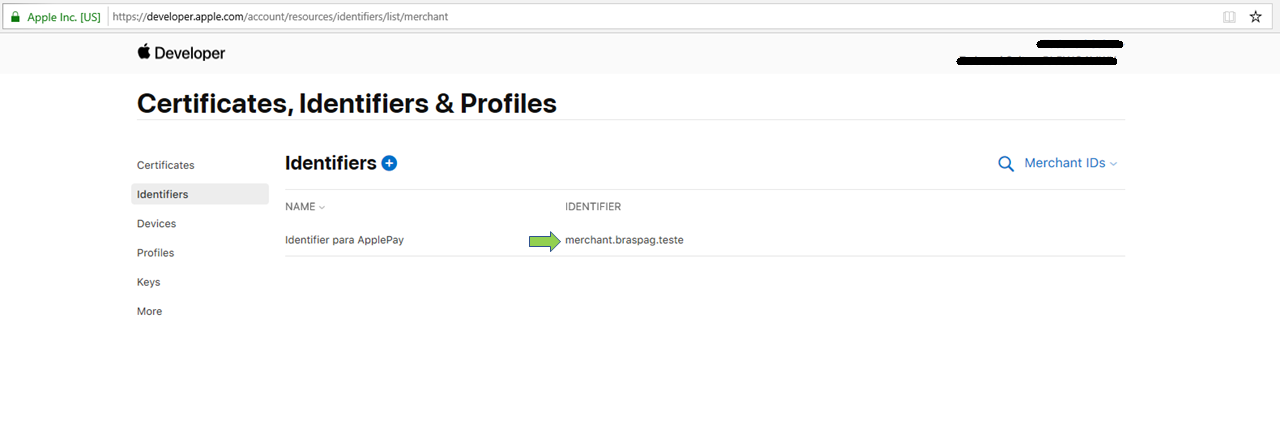
- Select the recently created identifier:
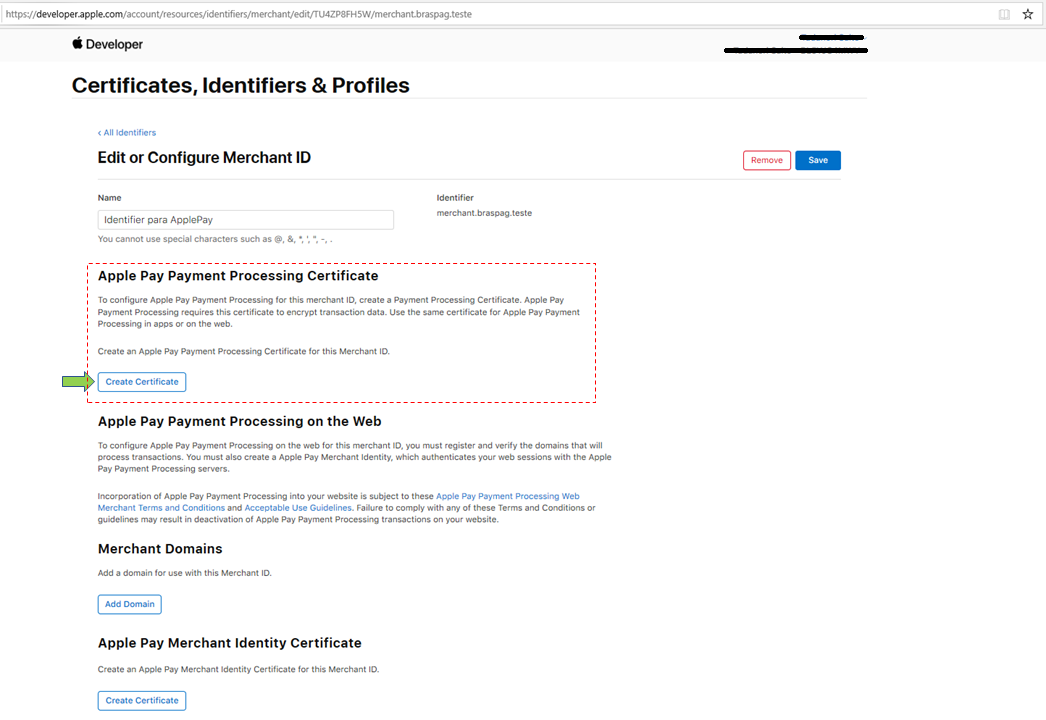
- In the "Apple Pay Payment Processing Certificate" block, click the
Create Certificatebutton right after the short description:
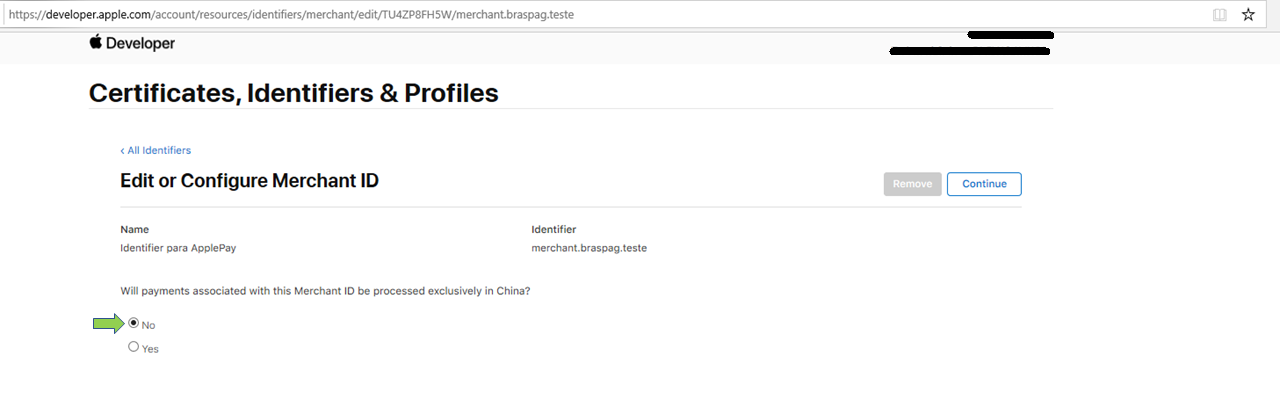
- Choose "No" in "Edit or Configure Merchant ID":
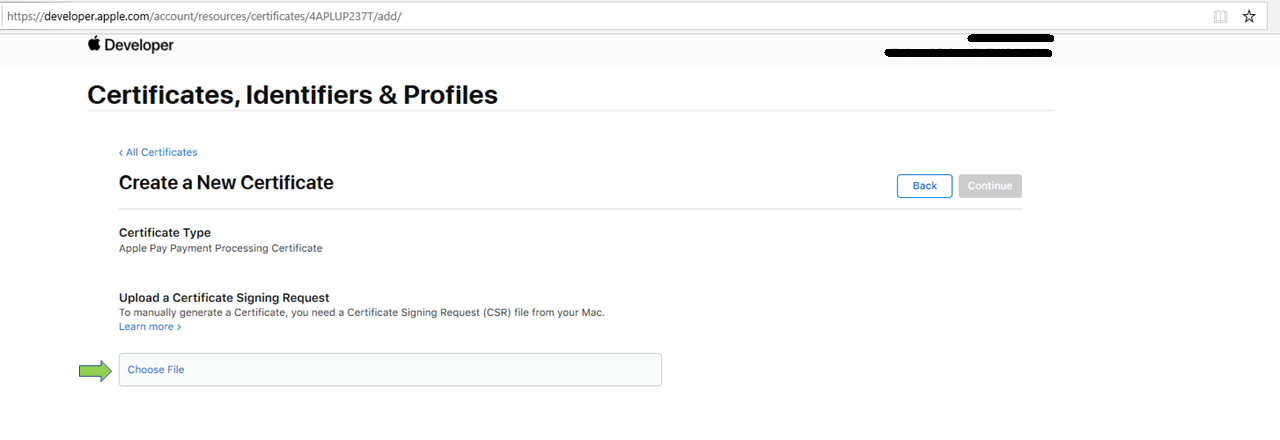
- In the dialog box, click
Choose Fileand choose the ".CSR" certificate sent by Cielo:
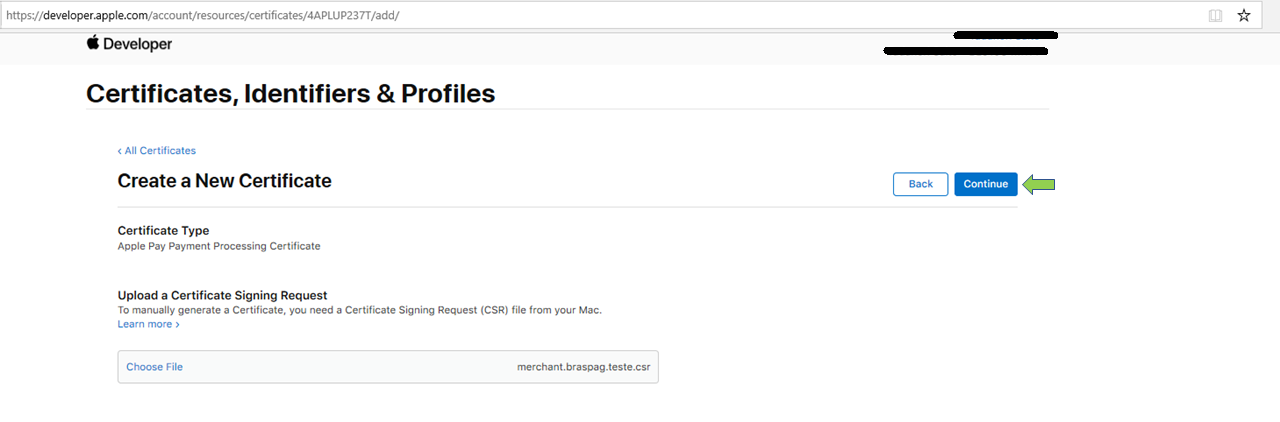
- Click
Continue:
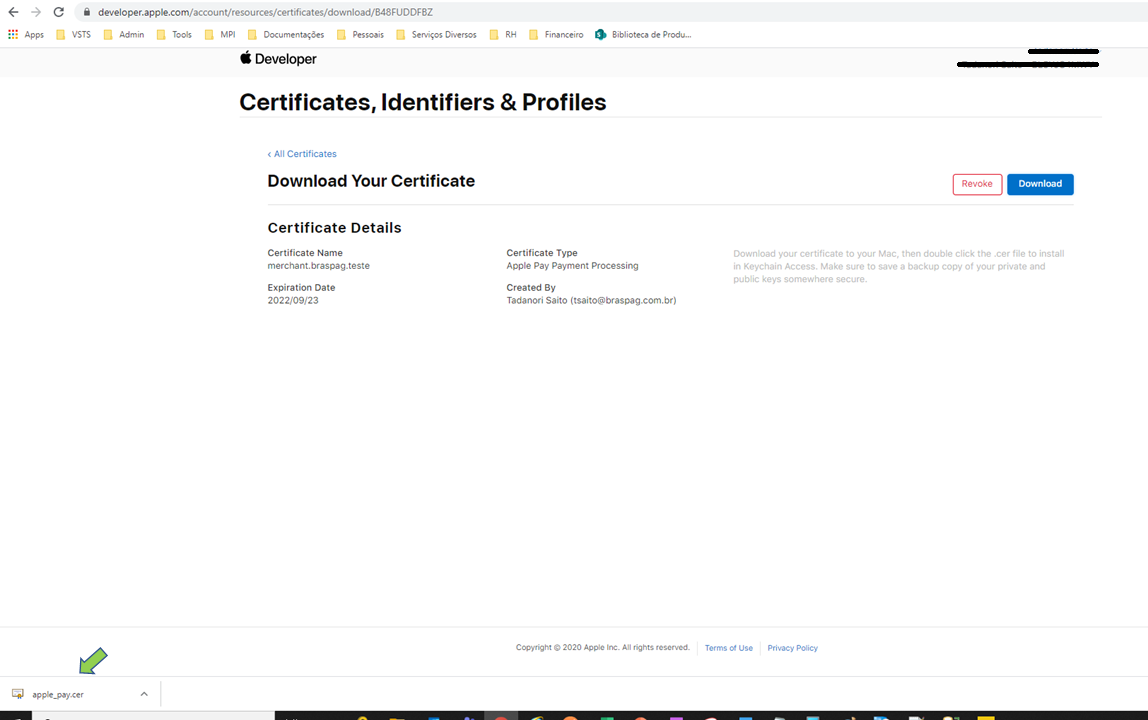
- Click
Downloadand save the ".CER" file:
For more details on the process, access Apple's Developer Account Help.
Updated 4 months ago
Did this page help you?