

Manage microservices
Learn how to enable and configure additional microservices offered by Cielo.
The Microservices area allows you to enable and manage additional resources available for use with the API E-commerce Cielo.
The following microservices are available:
Required permissionsThe indicated settings can only be performed by users with Administrator, Technical, or Analyst permissions.
To manage access permissions, go to Meu cadastro > Access Management.
How to access
On the Cielo Website:
- Select the desired merchant (EC);
- In the top menu, click E-commerce;
- Go to Gestão API E-commerce;
- Click the Microsserviços tab.
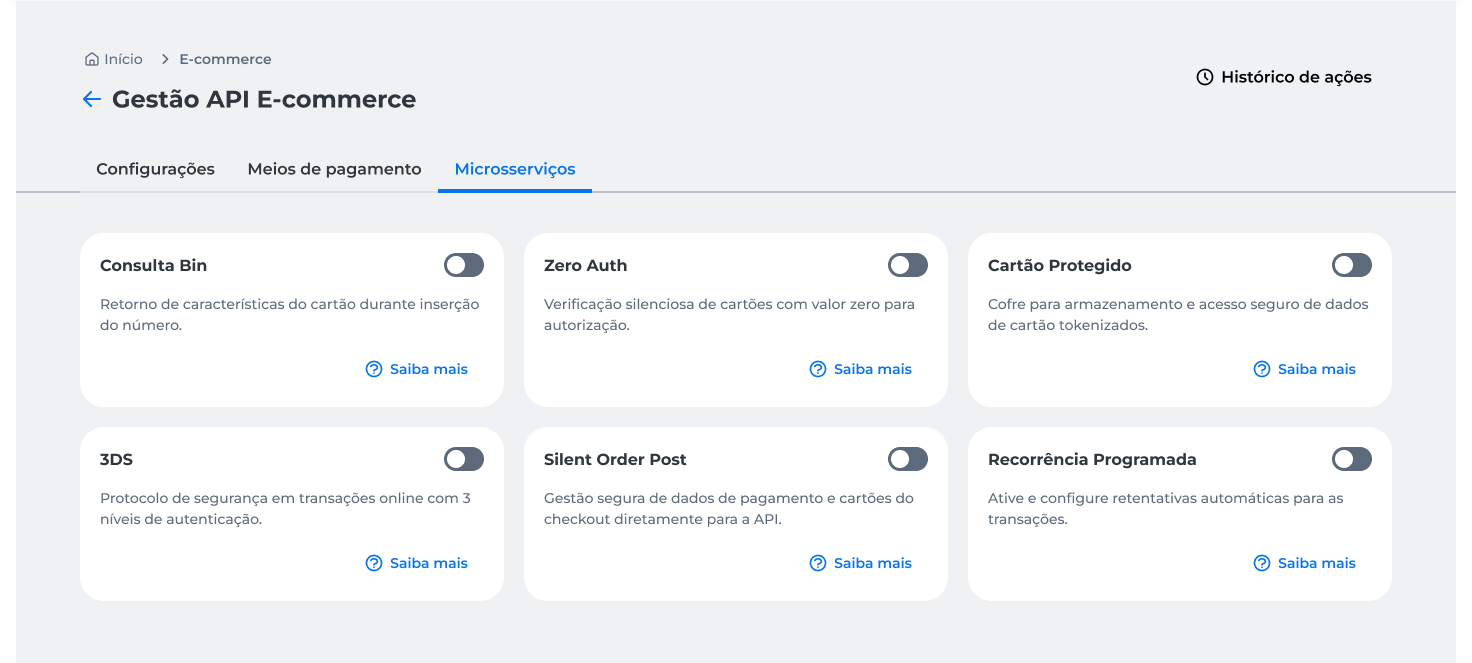
Consulta BIN
The Consulta BIN microservice allows you to query card information based on the provided BIN.
Enable
To enable the service:
- Locate the Consulta BIN;
- Activate the microservice toggle;
- Read and accept the terms of use;
- Click Continuar;
- Complete the operation authentication via the Cielo Gestão app.
After completing authentication, the configuration will be processed and applied to the microservice.
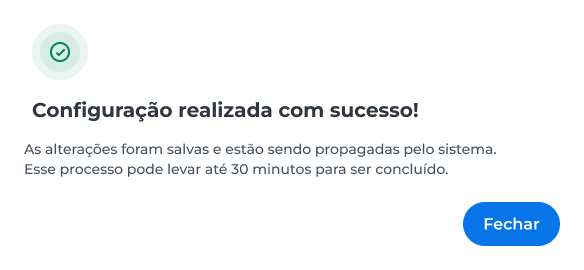
Disable
To disable the service:
- Locate the Consulta BIN;
- Deactivate the microservice toggle;
- Click Desativar to confirm the action;
- Complete the operation authentication through the Cielo Gestão app.
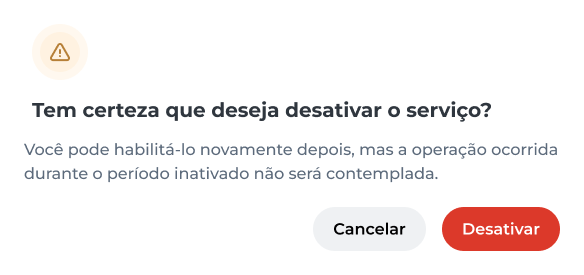
WarningAfter disabling, operations performed while the microservice is inactive will not be covered by the functionality.
Cartão Protegido
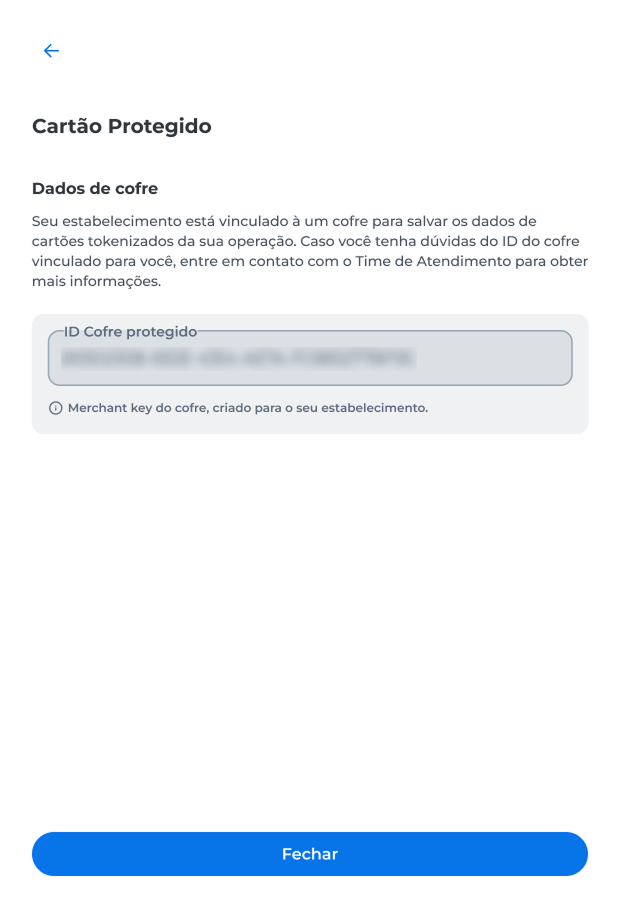
The Cartão Protegido microservice allows you to store and access tokenized card data through the Cielo Vault.
To check the ID do Cofre linked to the merchant:
- Find the Protected Card option;
- Click the settings icon ().
Zero Auth
The Zero Auth microservice allows card validation without performing a financial authorization.
Enable
To enable the service:
- Locate the Zero Auth card;
- Activate the microservice toggle;
- Read and accept the terms of use;
- Click Continuar;
- Complete the operation authentication via the Cielo Gestão app.
After authentication, the configuration will be processed and applied to the microservice.
Disable
To disable the service:
- Locate the Zero Auth card;
- Deactivate the microservice toggle;
- Click Desativar to confirm the operation;
- Complete the authentication procedure through the Cielo Gestão app.
ImportantThe Zero Auth activation option may not be available for all merchants.
If the microservice is not available on the Cielo Website, contact E-commerce Cielo Support.
Silent Order Post
Silent Order Post allows capturing card data using the resources provided by Cielo.
Enable
To enable the service:
- Locate the Silent Order Post card;
- Activate the microservice toggle;
- Read and accept the terms of use;
- Click Gerar chave to create the Silent Order Post credentials (
Client IDandClient Secret); - Complete the operation authentication through the Cielo Gestão app;
- Copy and store the generated credentials.
After authentication, the system will display the generated credentials for use in the microservice.
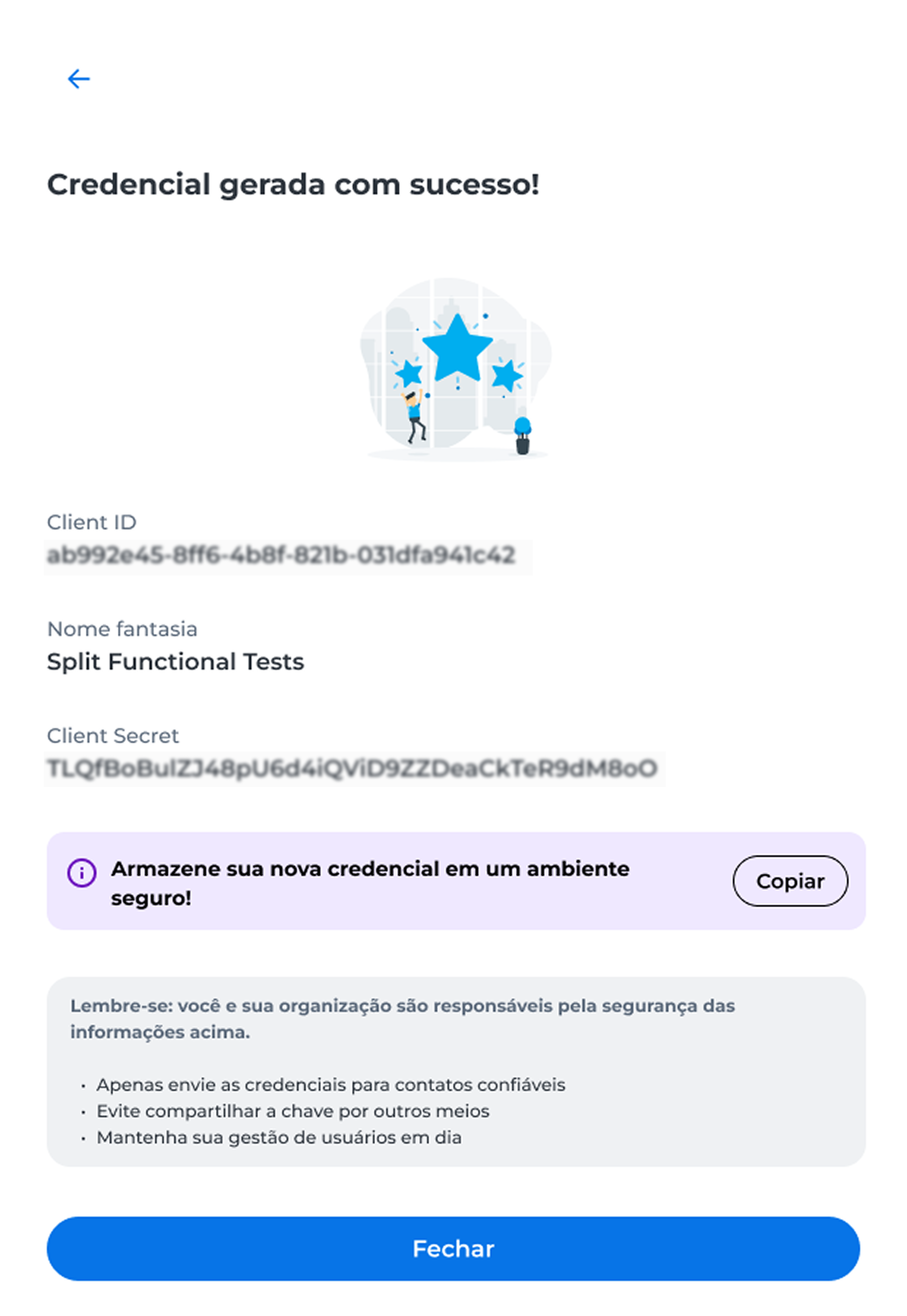
Store the
Client IDandClient Secretin a secure environment.
New credential
After enabling the microservice, the Nova credencial option will be available in the Silent Order Post card.
By generating a new credential, a new Client ID and Client Secret will be provided for use with the service.
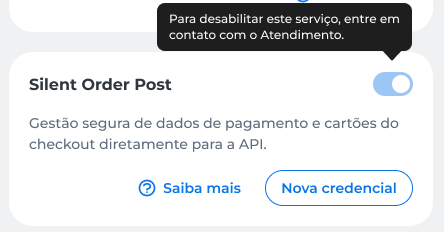
When generating a new credential, the current key will be automatically invalidated.
Disable
The disabling of Silent Order Post must be performed through E-commerce Cielo Support.
Scheduled Recurrence
The Scheduled Recurrence microservice allows you to manage recurring charges using the resources provided by the API E-commerce Cielo.
Enable
To enable the service:
- Locate the Recorrência Programada card;
- Activate the microservice toggle;
- Read and accept the terms of use;
- Click Continuar;
- Complete the operation authentication through the Cielo Gestão app.
Configure
After enabling, the configuration option will be available through the gear icon ().
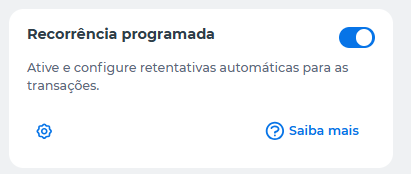
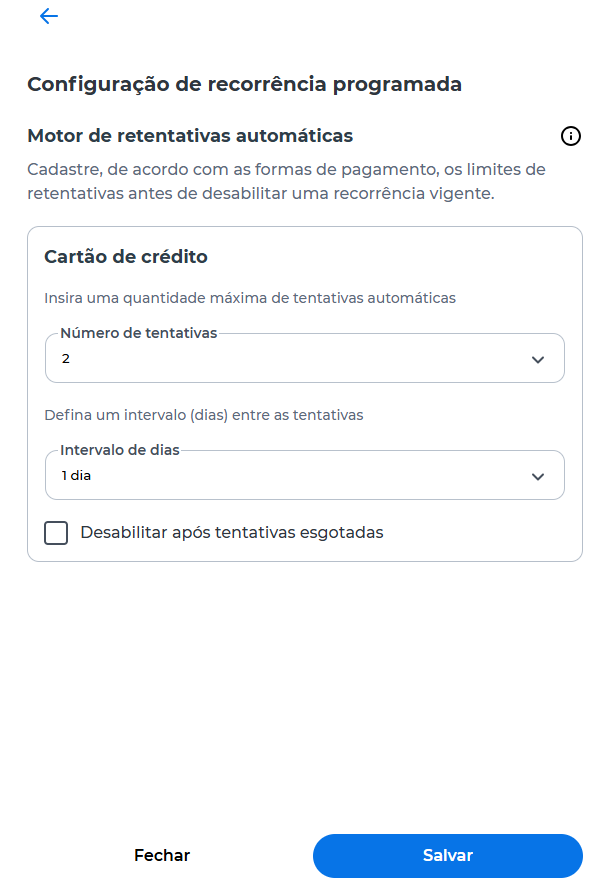
On the configuration screen, you can define the rules for automatic retry attempts for transactions.
The following options are available:
- Número de tentativas: sets the maximum number of automatic retry attempts for a transaction;
- Intervalo de dias: sets the interval between each attempt;
- Desabilitar após tentativas esgotadas: automatically ends the recurrence when all configured attempts have been exhausted.
After making the desired adjustments, click Salvar to complete the configuration.
Disable
To disable the service:
- Locate the Recorrência Programada card;
- Deactivate the microservice toggle;
- Click Desabilitar to confirm the operation;
- Complete the authentication through the Cielo Gestão app.
3DS
The 3DS microservice adds an additional layer of authentication for card transactions.
Enable
To enable the service:
- Locate the 3DS card;
- Activate the microservice toggle;
- Read and accept the terms of use;
- Click Gerar chave to create the credentials
Client IDandClient Secret; - Complete the operation authentication through the Cielo Gestão app;
- Copy and store the generated credential.
After completing authentication, the system will display the credential generated for use.
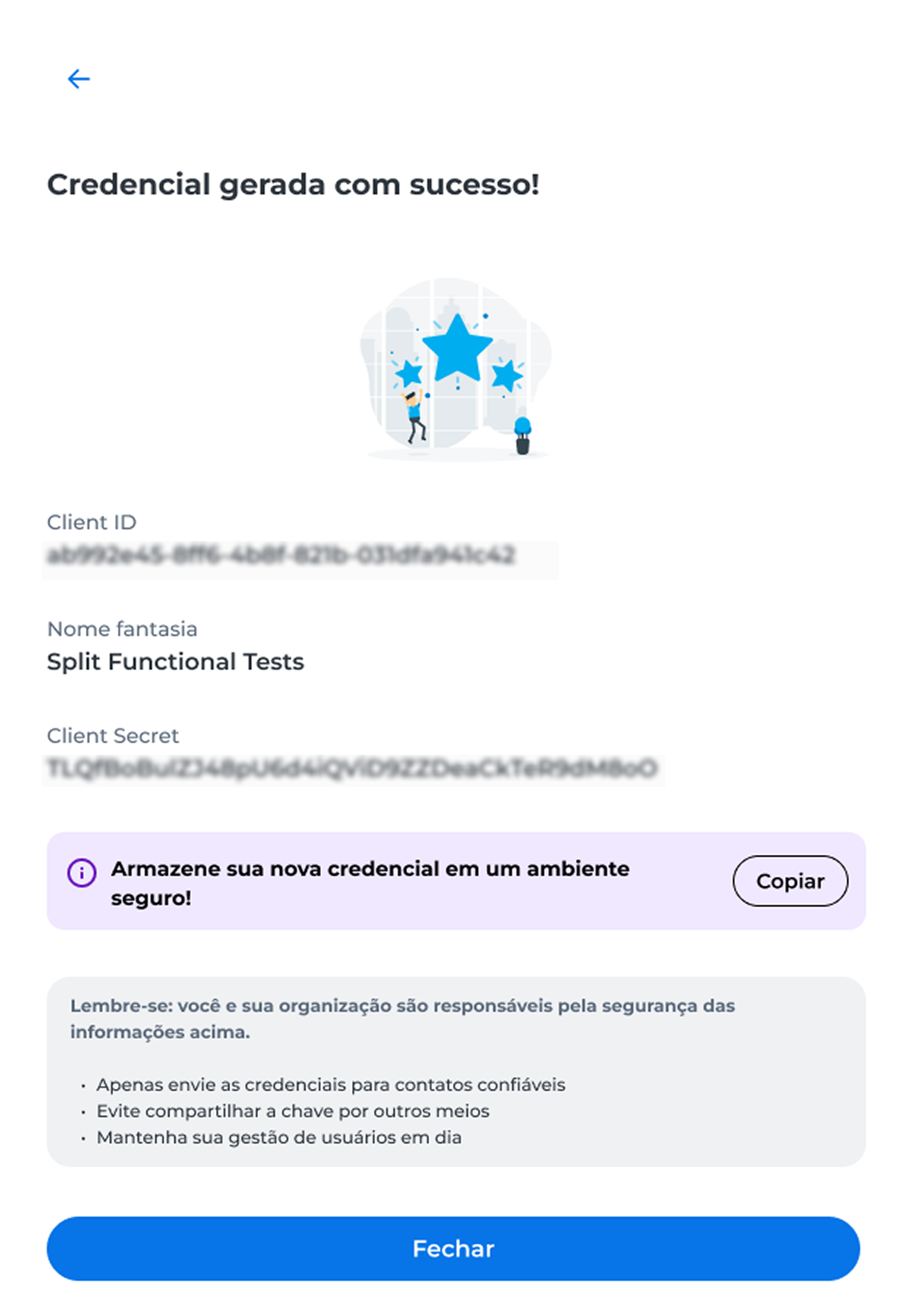
Warning
- Store the generated credentials in a secure environment;
- These credentials will be used for 3DS integration.
New credential
After enabling, the Nova credencial option will be available in the 3DS card.
When selecting this option, new Client ID and Client Secret credentials will be generated for use with the service.
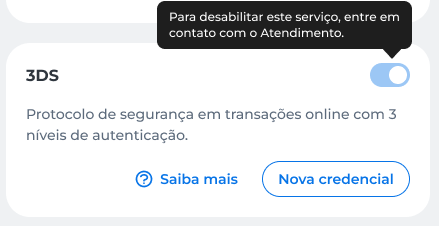
When generating a new credential, the current key will be automatically invalidated.
Disable
Disabling the 3DS service must be performed through E-commerce Cielo Support.
Action history
Changes made to microservices can be viewed in the Action history of the E-commerce API Management.
For more information, see Action history.
Updated about 1 month ago