

Query transactions
Review the transactions made by your merchant, apply search filters, and access the details of each sale.
How to access
- Go to the Cielo Website;
- Select the desired merchant (EC);
- Access E-commerce > Transações;
- Enter at least one search criterion;
- Select Filtrar.
The list of found transactions will be displayed.
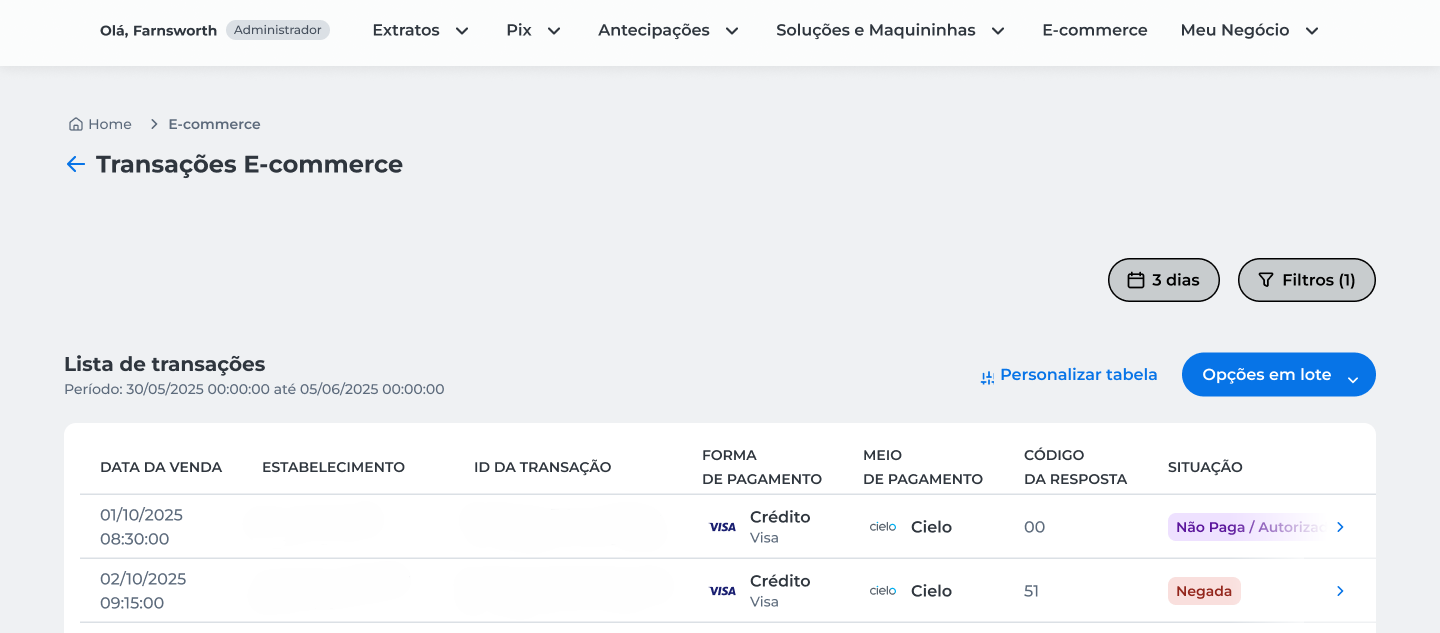
Use Personalizar tabela to choose which columns will be displayed in the list and rearrange their display order.
View transaction details
- Find the desired transaction in the results list;
- Click the arrow at the end of the row to open the details.
Transaction details are organized into the following tabs:
- Dados gerais: shows information about the transaction, payment, shopper, and recurrence;
- Antifraude: displays details of the Antifraude analysis when the service is contracted;
- Histórico da transação: shows the events recorded during the sale processing.
General data
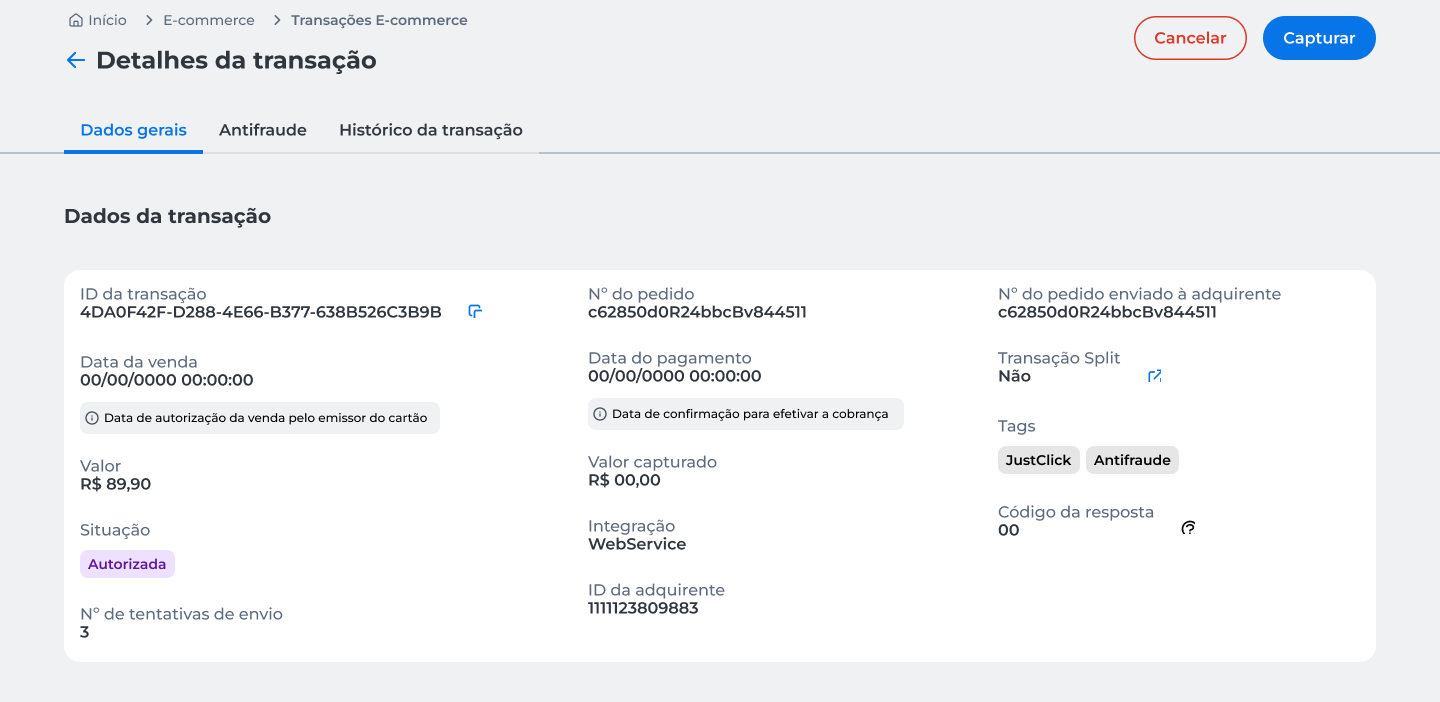
The General data tab contains the main transaction information, organized by category.
In this tab, you can view:
- Transaction details, such as identifiers, amounts, status, and integration data;
- Payment details, including payment method, card brand, installments, and authorization code;
- Shopper details, such as identification, address, and contact information;
- Recurrence details, when the transaction is part of a recurring billing cycle.
The displayed information may vary depending on the payment method used and the characteristics of the transaction.
Antifraude
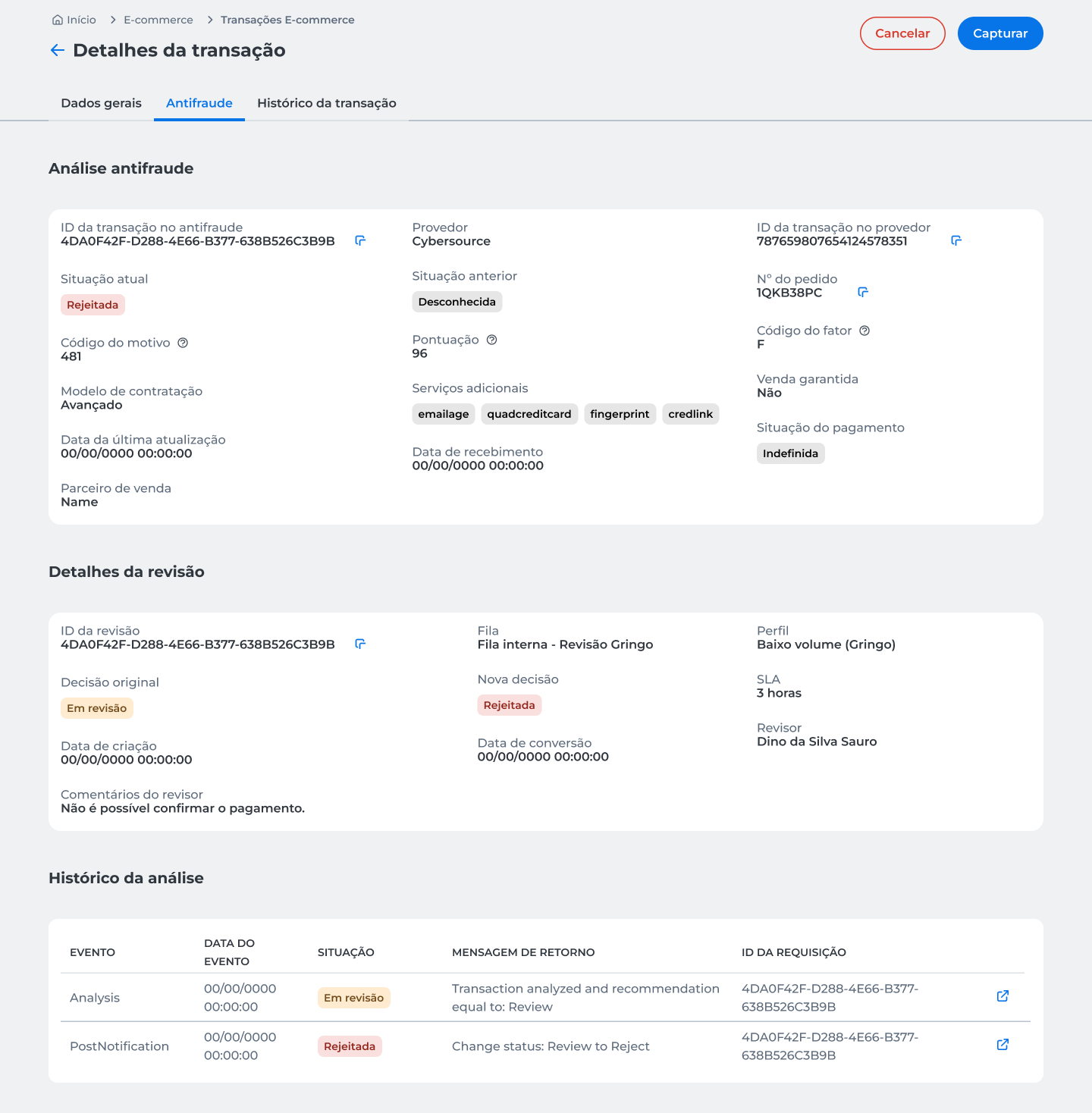
The Antifraude tab is available only for merchants that have contracted the Antifraude service.
In this tab, you can view:
- Result of the Antifraude analysis;
- Information from the review performed, when applicable;
- History of events recorded during the transaction analysis.
To view additional information about specific fields, select the help icon displayed next to the desired item.
Transaction history
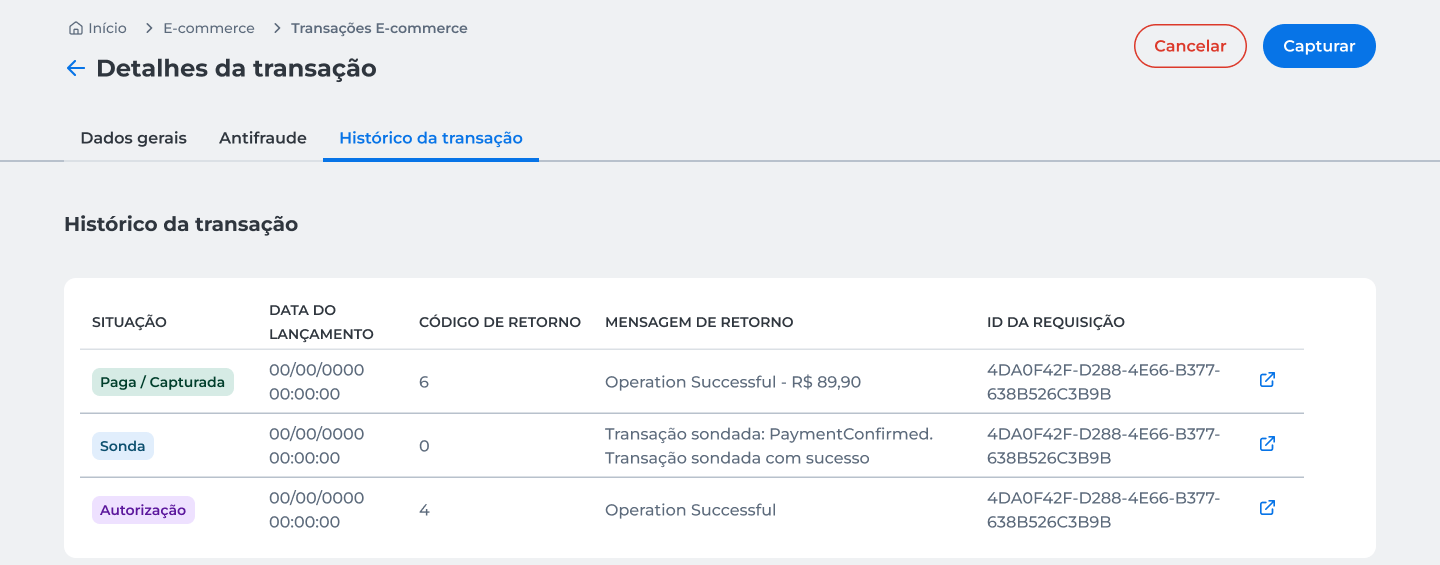
The Transaction history tab displays the events recorded during the sale processing.
In this tab, you can track the progress of the transaction and review information such as:
- Status recorded at each stage;
- Date of event occurrence;
- Return code;
- Return message;
- Identifier of the request associated with the event.
The history allows tracking the entire flow of the transaction from its creation to the current status.
Perform actions on the transaction
Depending on the payment method and transaction status, additional actions may be displayed at the top of the screen.
For more details, see:
Updated about 2 months ago