
How to manage the negative list in Velocity?
This document presents how
- View the negative list;
- Create a new item in the negative list;
- Delete items from the negative list.
How to view the negative list
- Access the Portal E-commerce
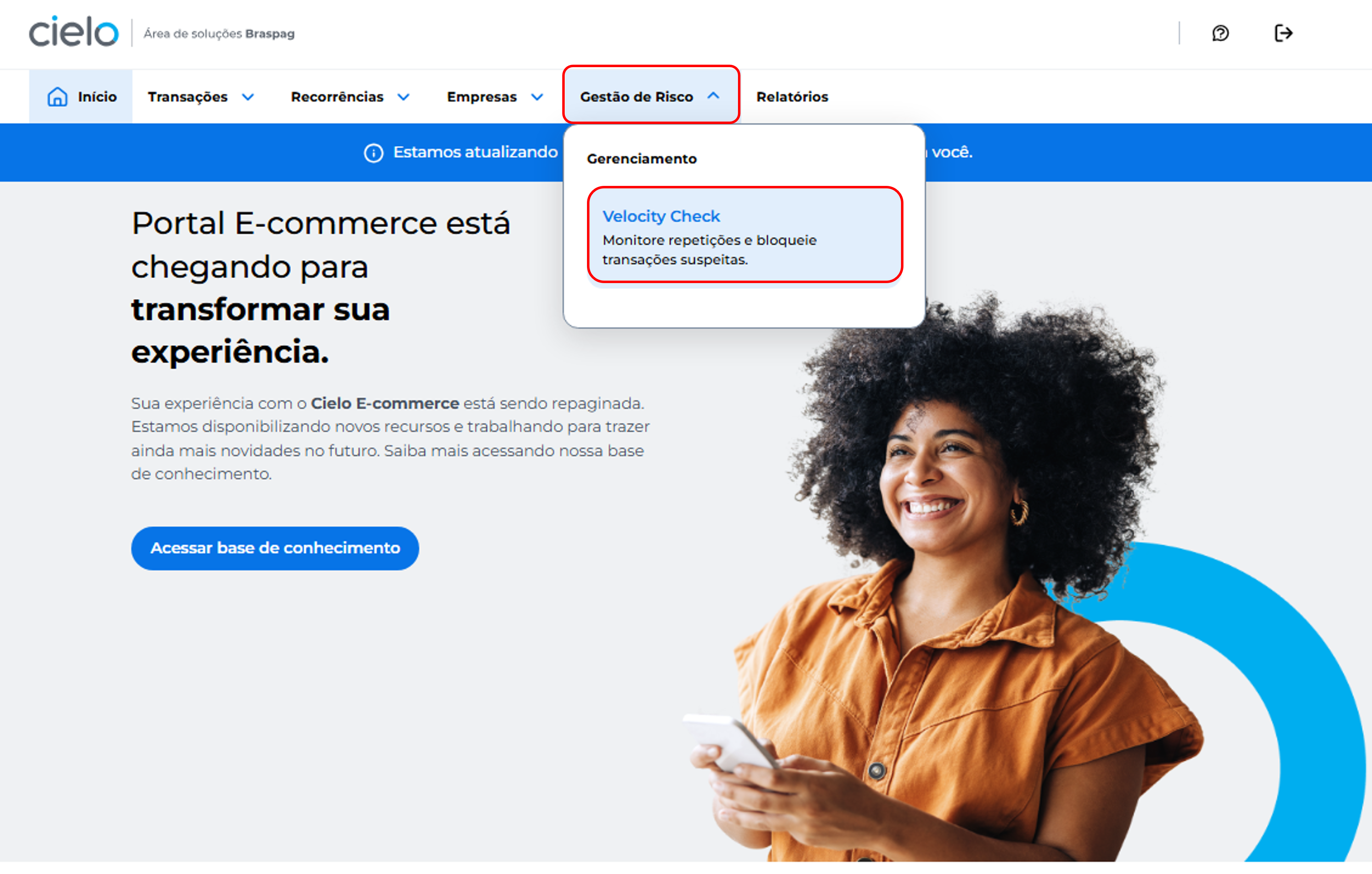
- Click the Gestão de Risco menu and then Velocity Check
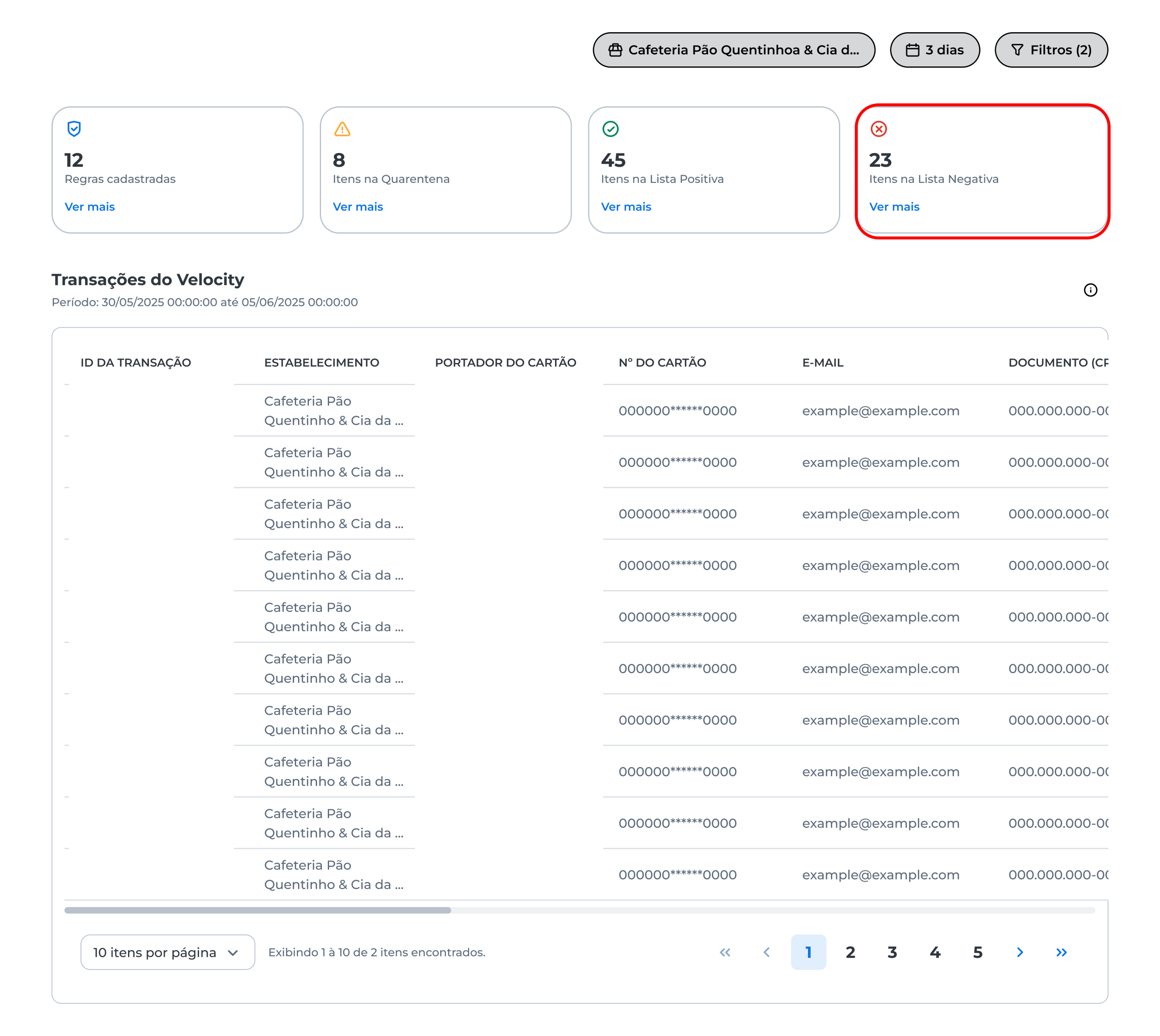
- On the displayed screen, you will find the Itens na Lista Negativa card. Click Ver mais:
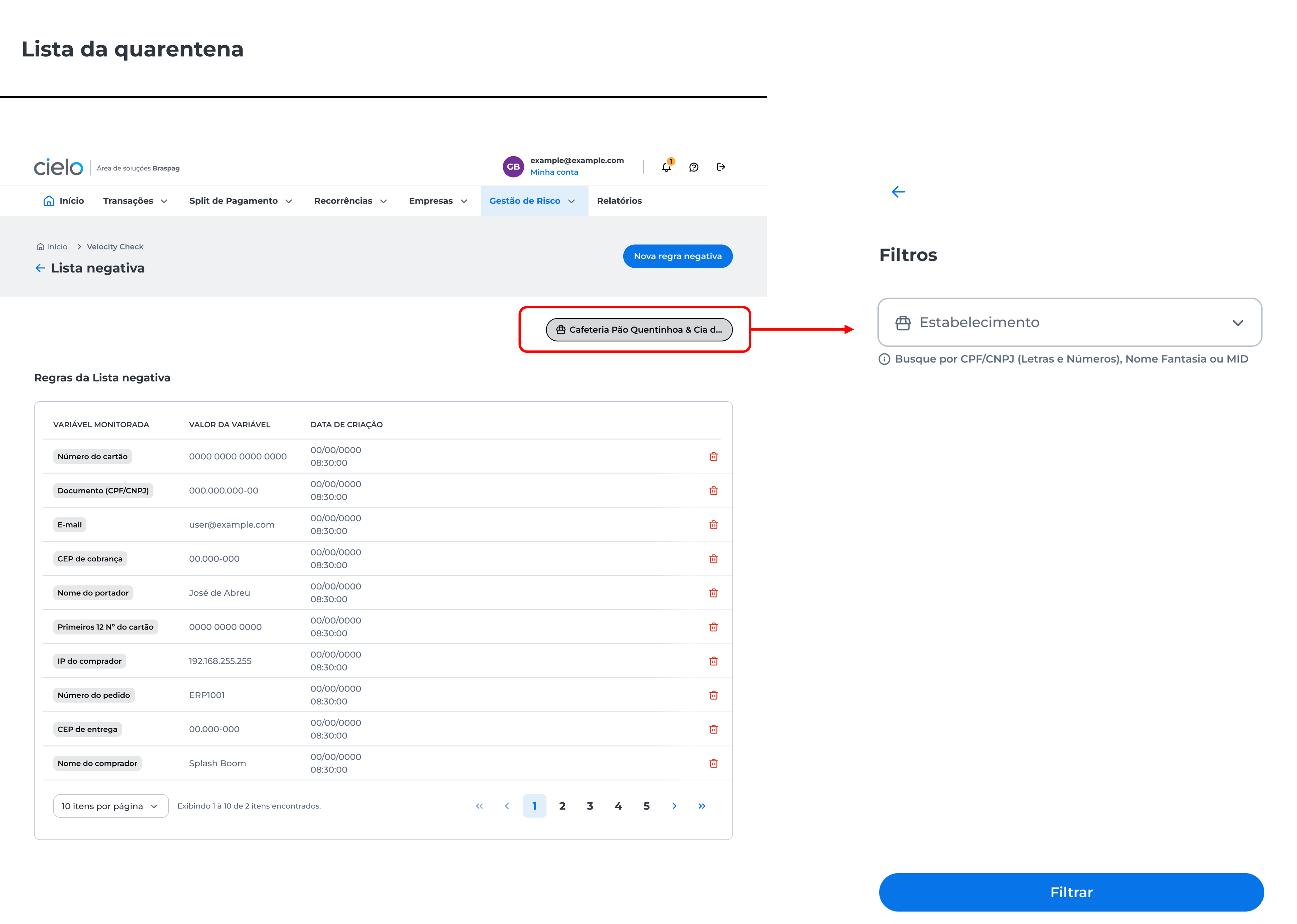
- The negative list rules view will be displayed. Use the filter and select the merchant.
How to create a new rule in the negative list
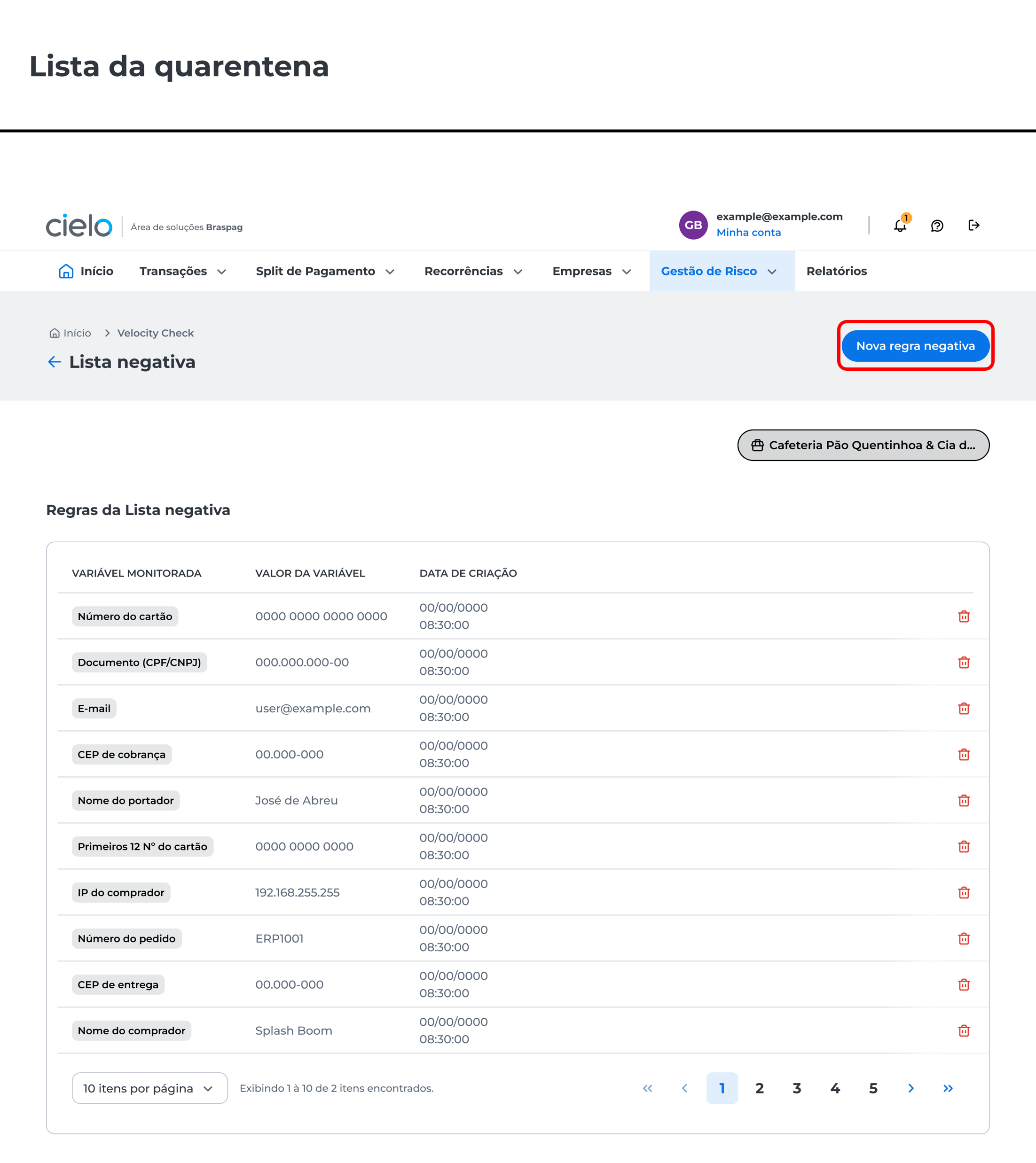
In the negative list rules list, click Nova regra negativa:
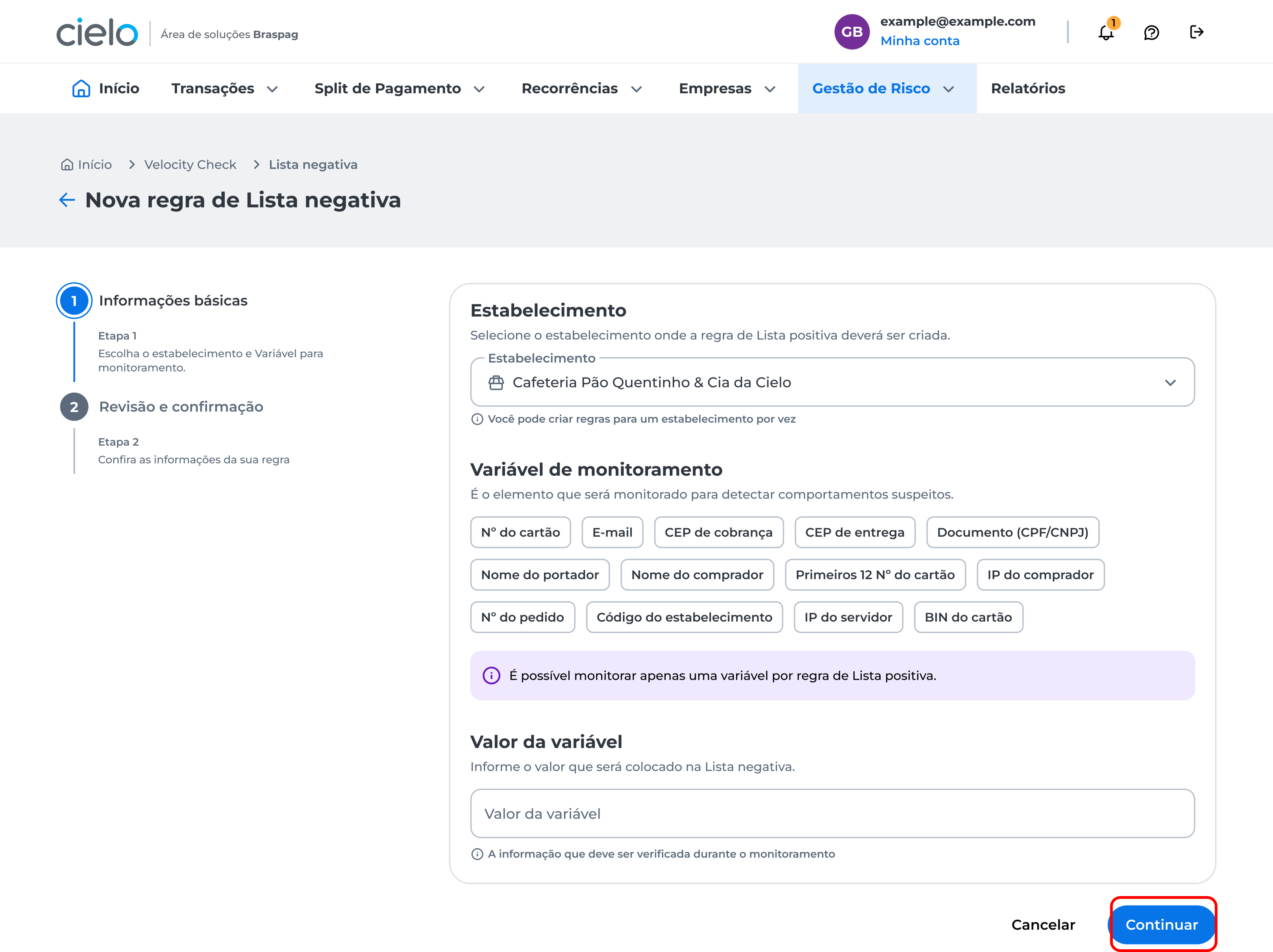
Choose the merchant, the variable to be monitored, enter the variable value and description, then click Continuar:
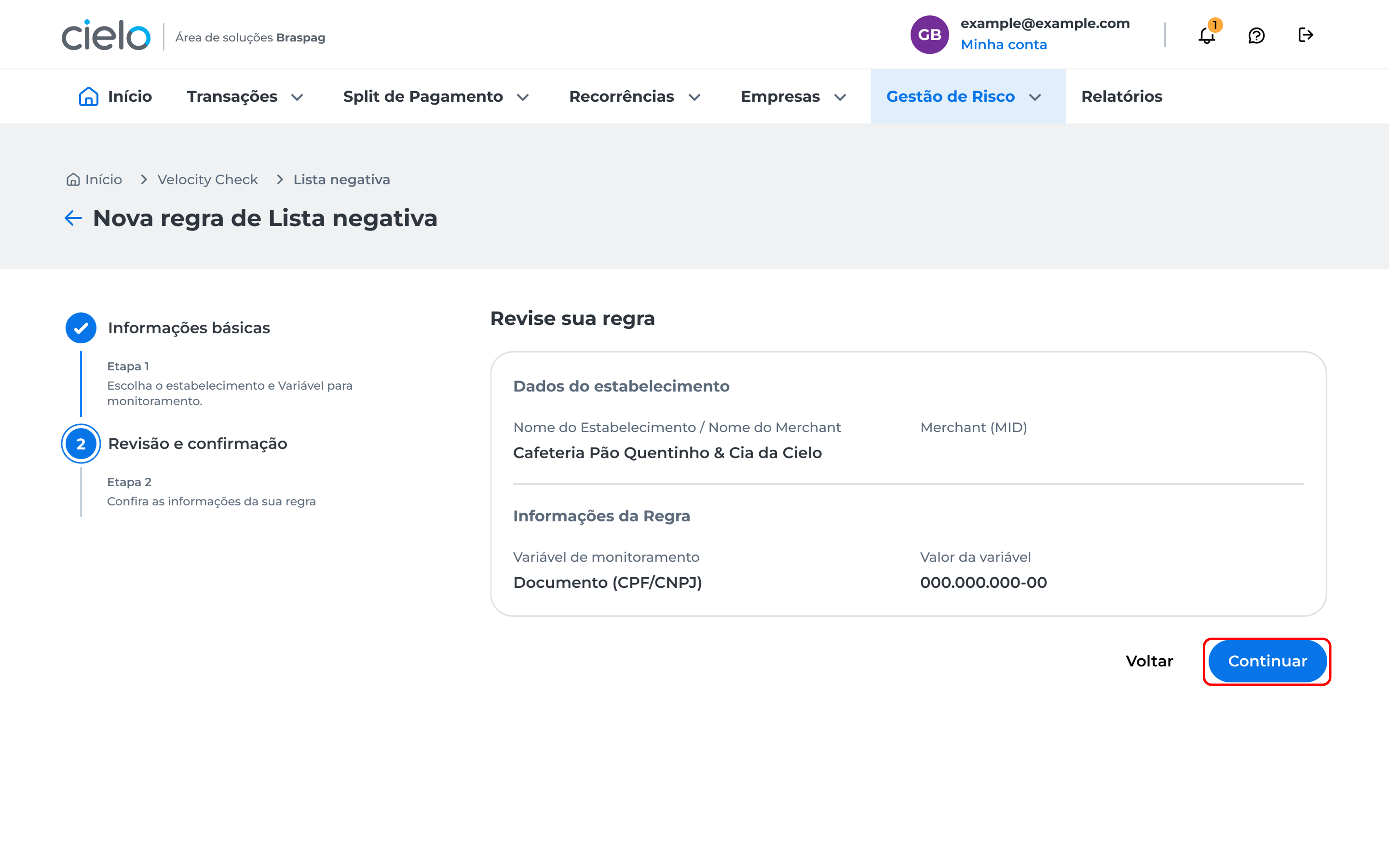
The rule details will be displayed. Review the created rule and click Continuar to proceed.
You will be directed to the two-step authentication screen._ Learn more about this process in the article: How to register two-step authentication?_ After completing two-step authentication, a confirmation window will be displayed informing that the new rule was successfully added to the negative list.
How to delete items from the negative list**
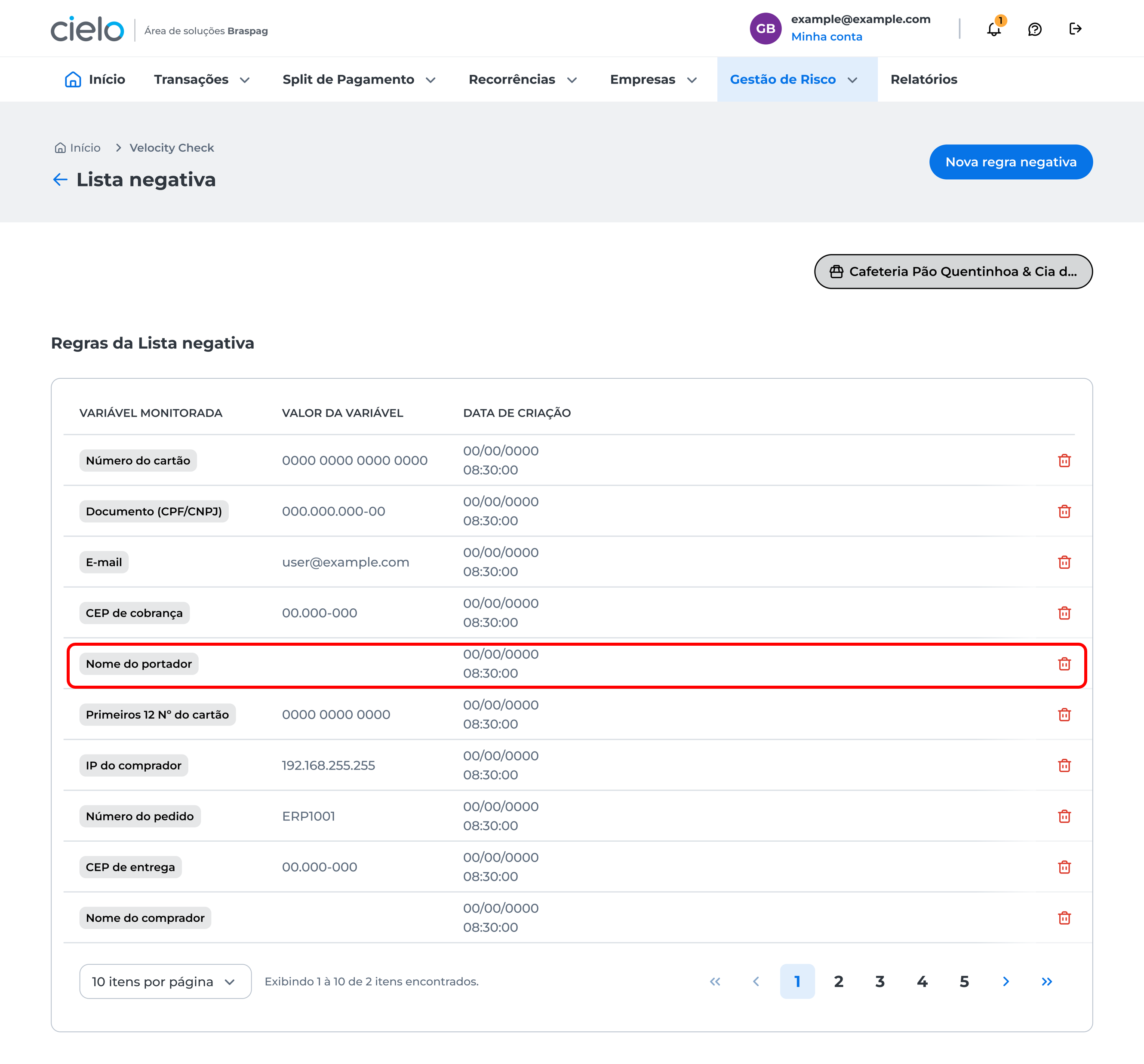
In the negative list rules list, click the trash icon next to the rule you want to delete.
You will be directed to the two-step authentication screen._ Learn more about this process in the article: How to register two-step authentication?_ After completing two-step authentication, a confirmation window will be displayed informing that the new rule was successfully removed from the negative list.
Updated about 2 months ago