
How to manage the quarantine list in Velocity?
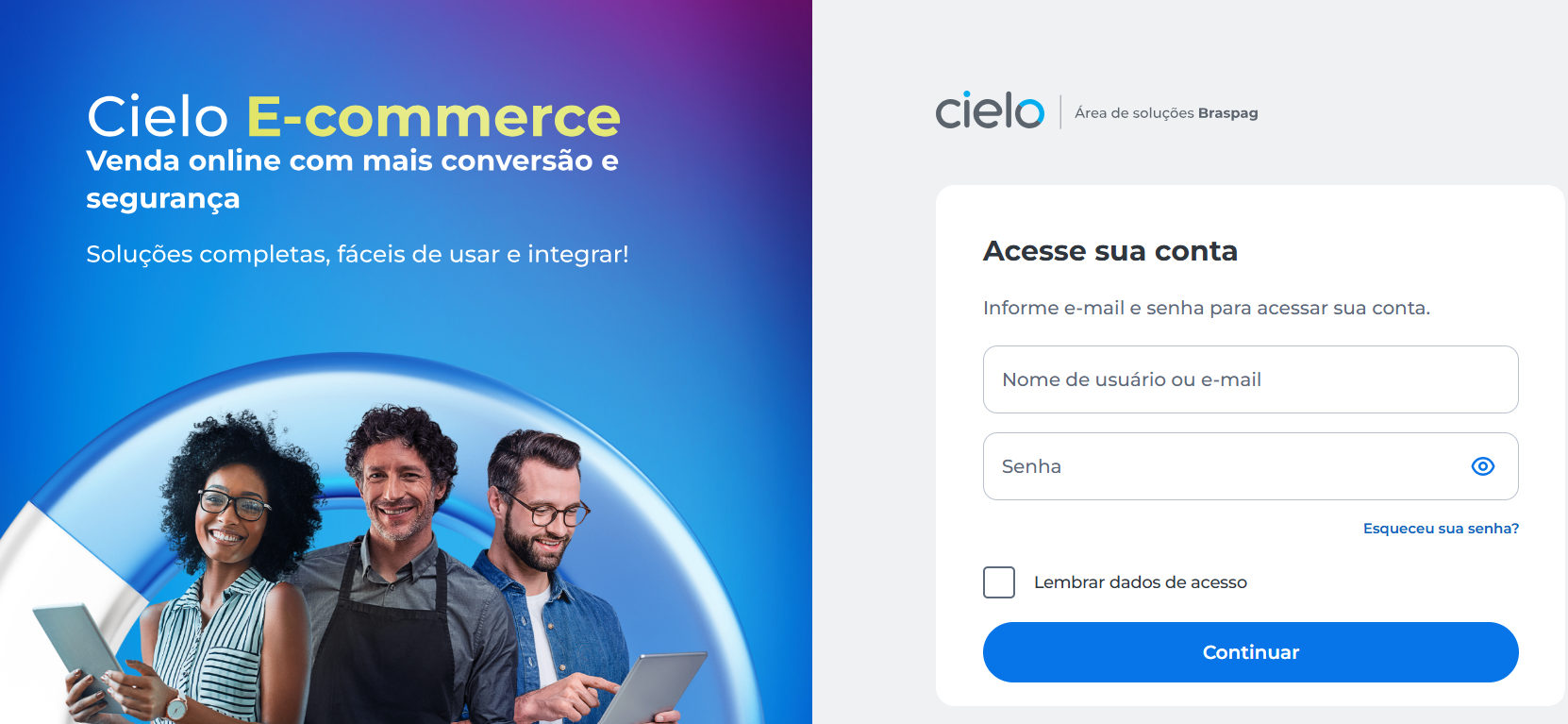
1 Access the Portal E-commerce
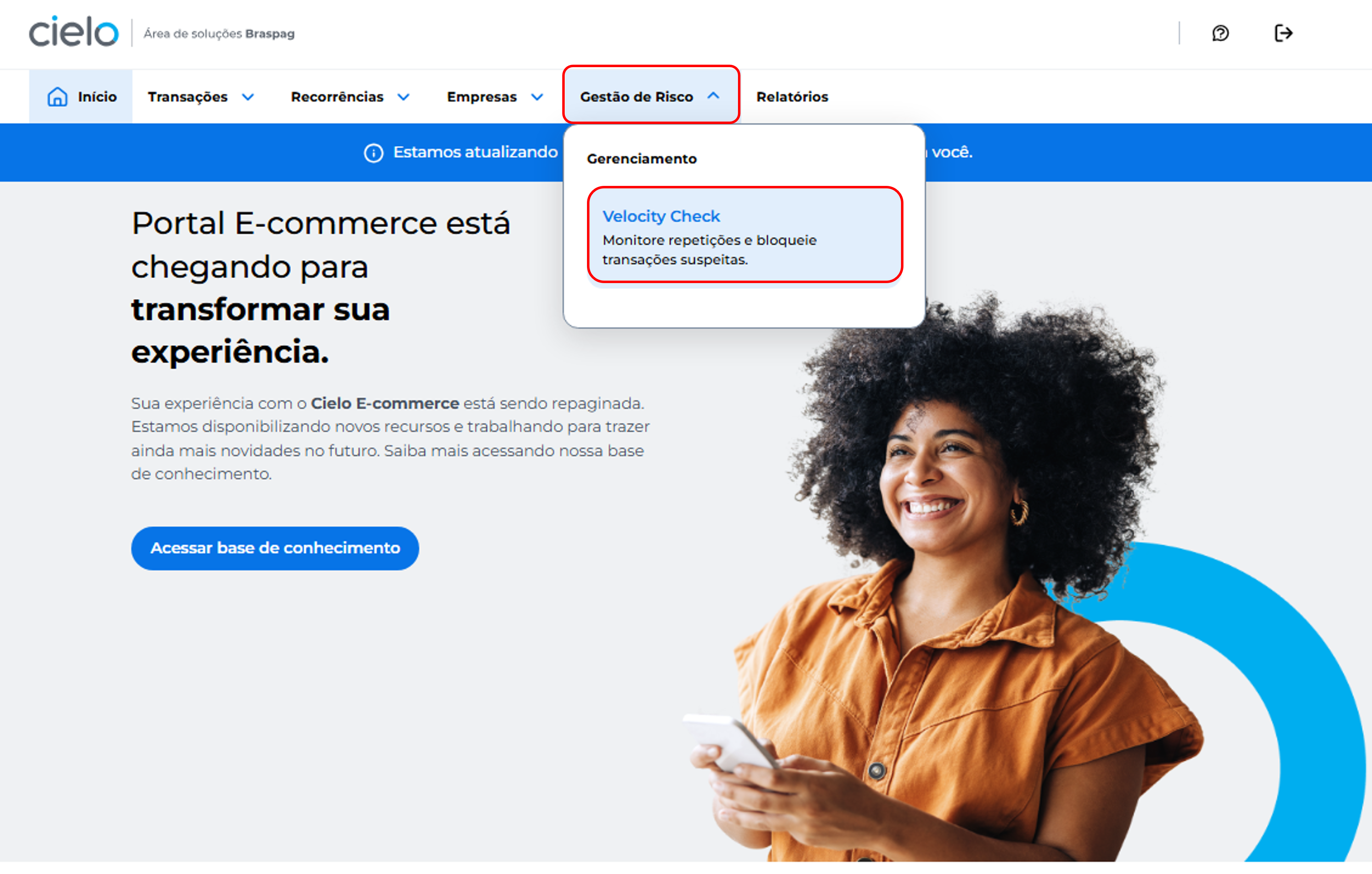
- Click the Gestão de Risco menu and then Velocity Check
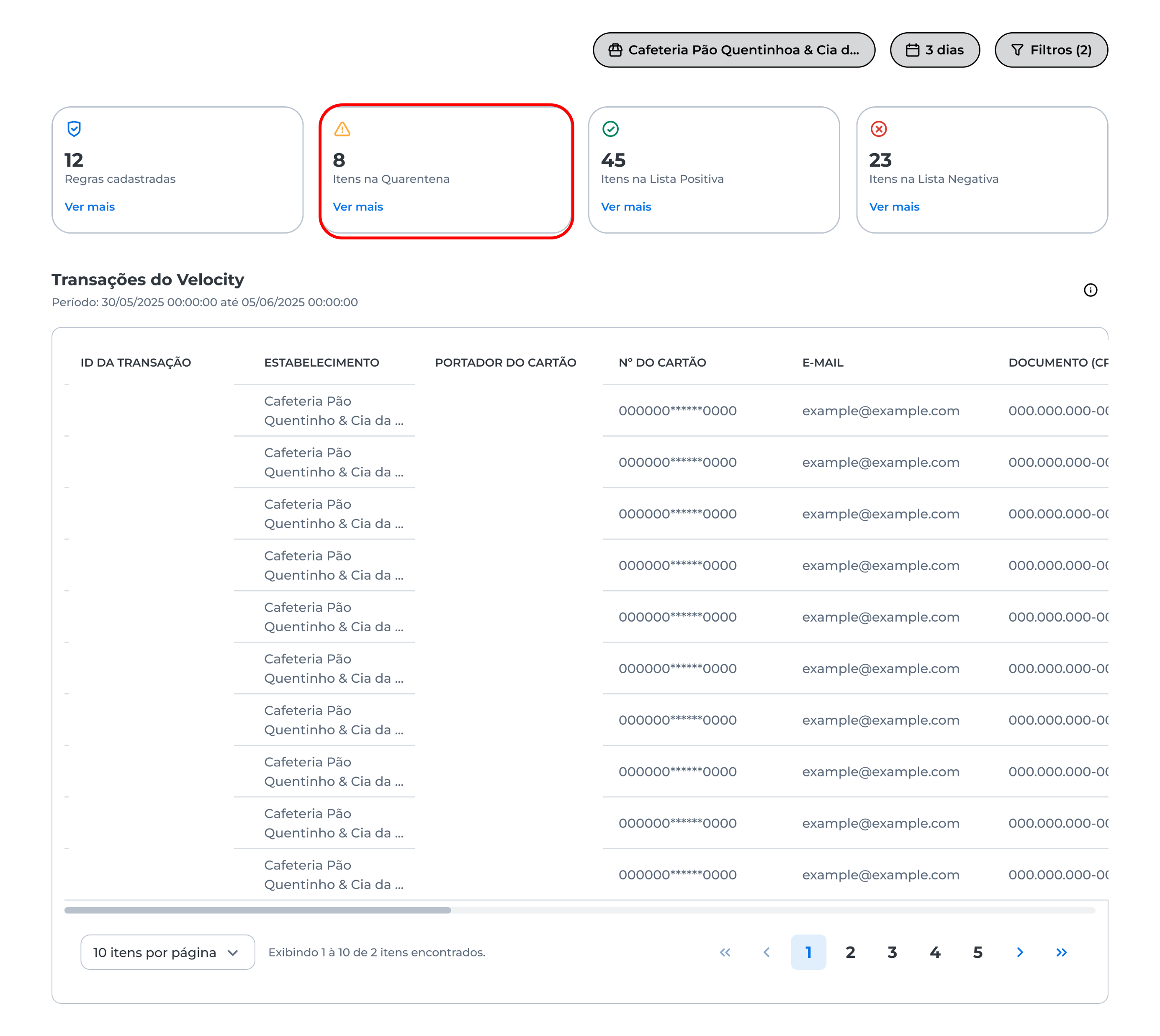
- On the displayed screen, you will find the Itens na quarentena card. Click Ver mais
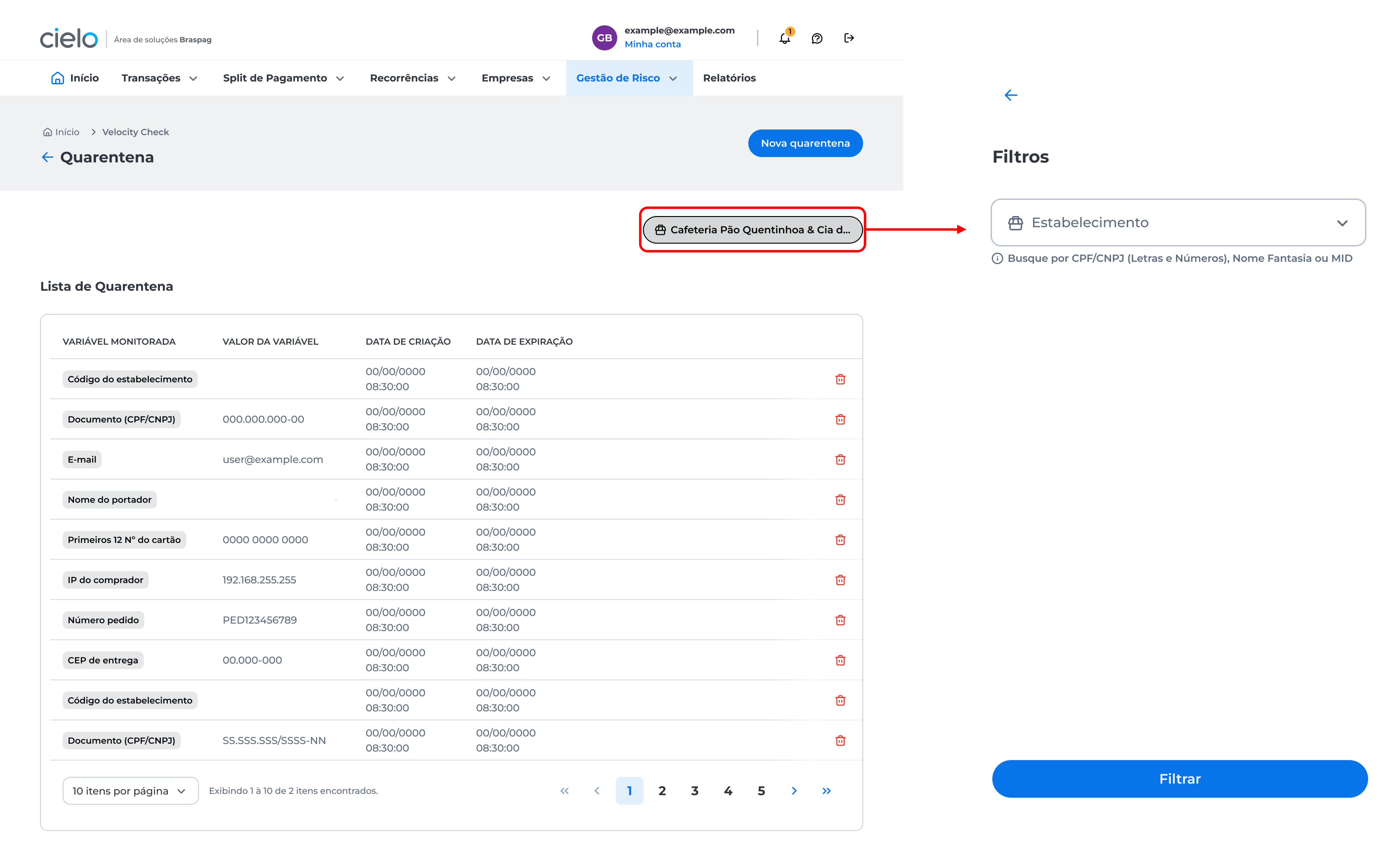
- The quarantine list view will be displayed. Use the filter and select the merchant
How to create a new rule in the quarantine list
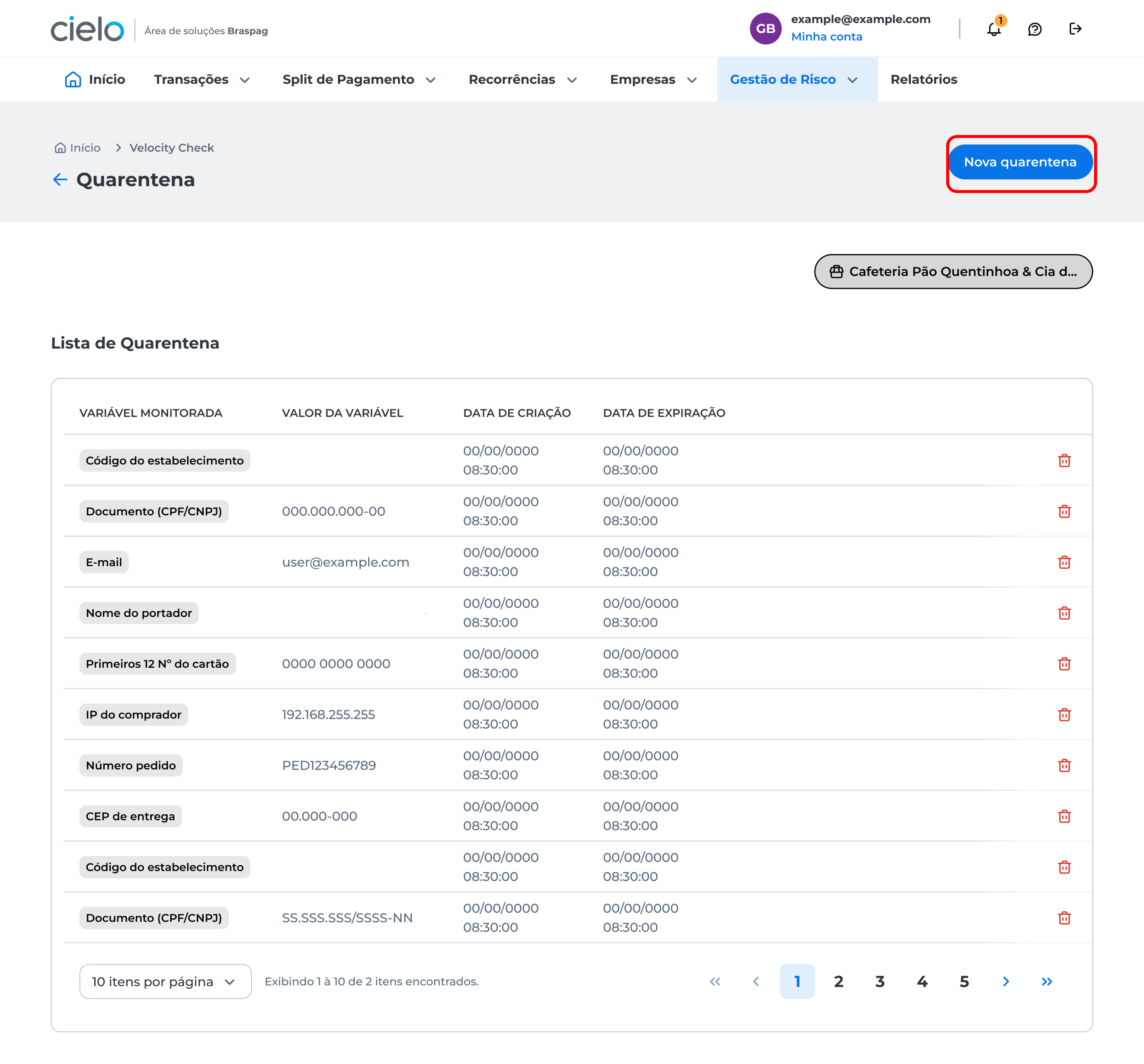
In the quarantine list, click Nova quarentena:
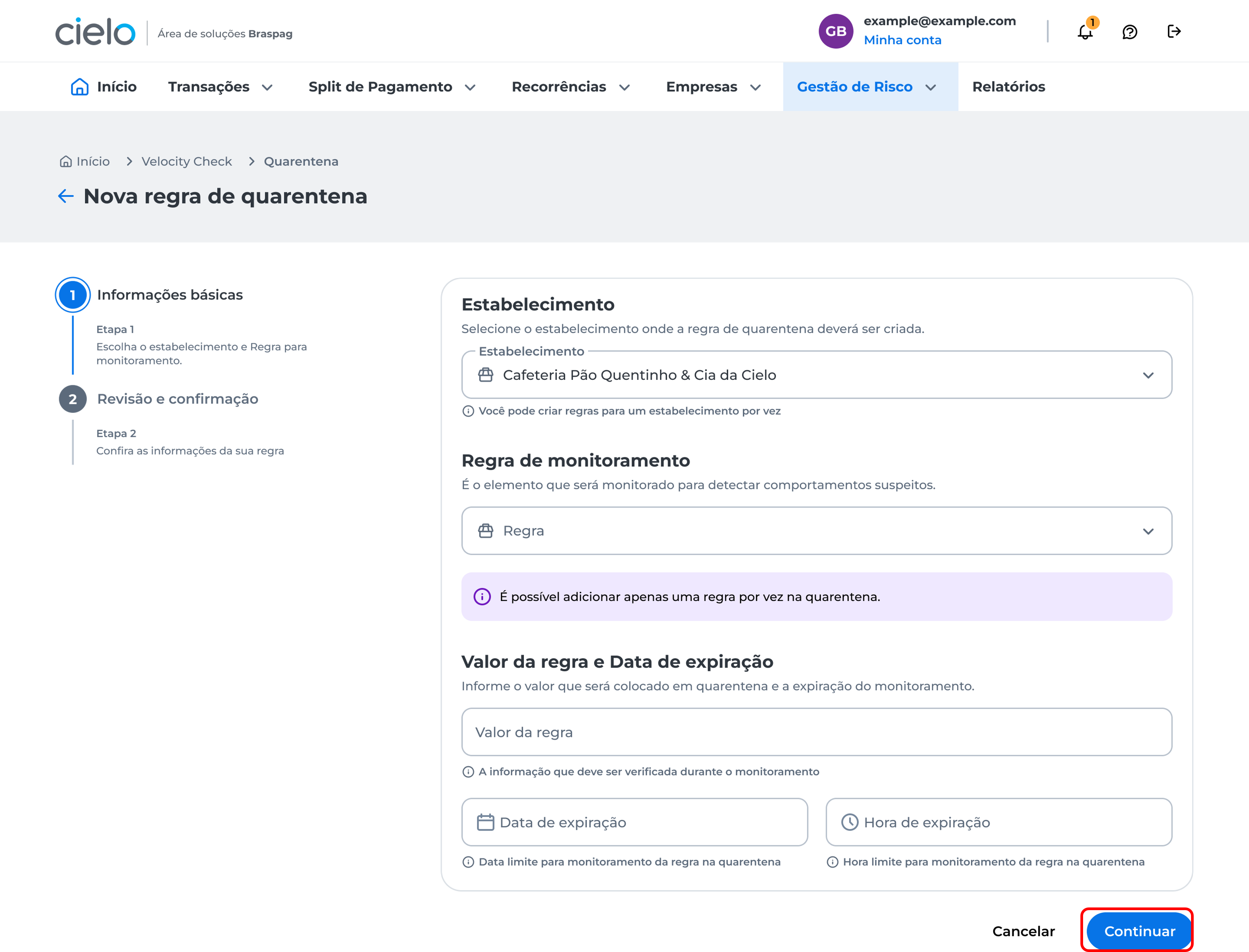
Choose the merchant, the rule to be monitored, enter the rule value and expiration date, then click Continuar:
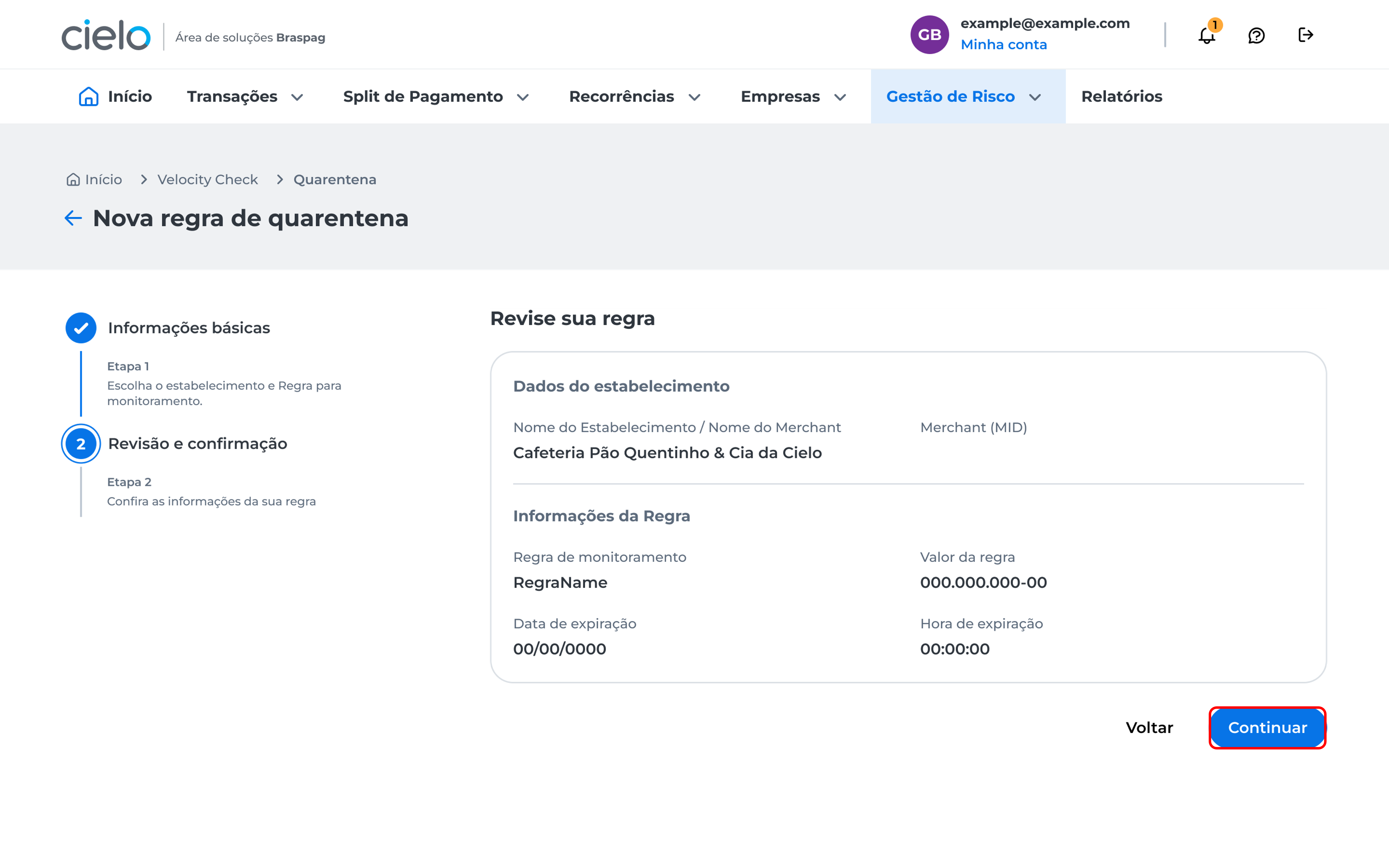
The rule details will be displayed. Review the created rule and click Continuar to proceed:
You will be directed to the two-step authentication screen. Learn more about this process in the article: How to register two-step authentication? After completing two-step authentication, a confirmation window will be displayed informing that the new rule was successfully added to the merchant's quarantine.
How to delete items from the quarantine list
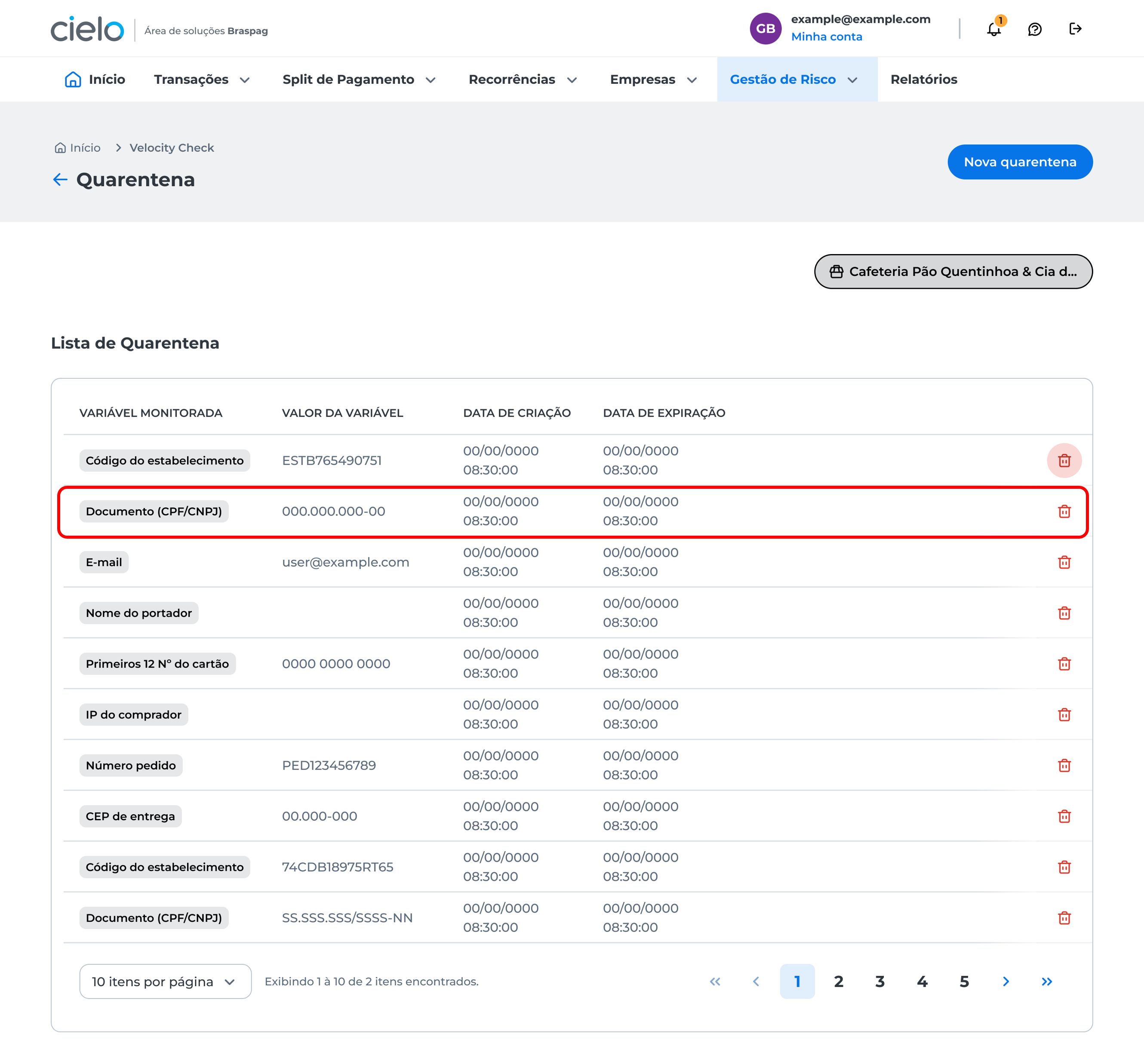
In the quarantine list, click the trash icon next to the rule you want to Delete.
You will be directed to the two-step authentication screen. Learn more about this process in the article: How to register two-step authentication? After completing two-step authentication, a confirmation window will be displayed informing that the new rule was successfully added to the merchant's quarantine.
Updated about 2 months ago