
How to query Velocity transactions?
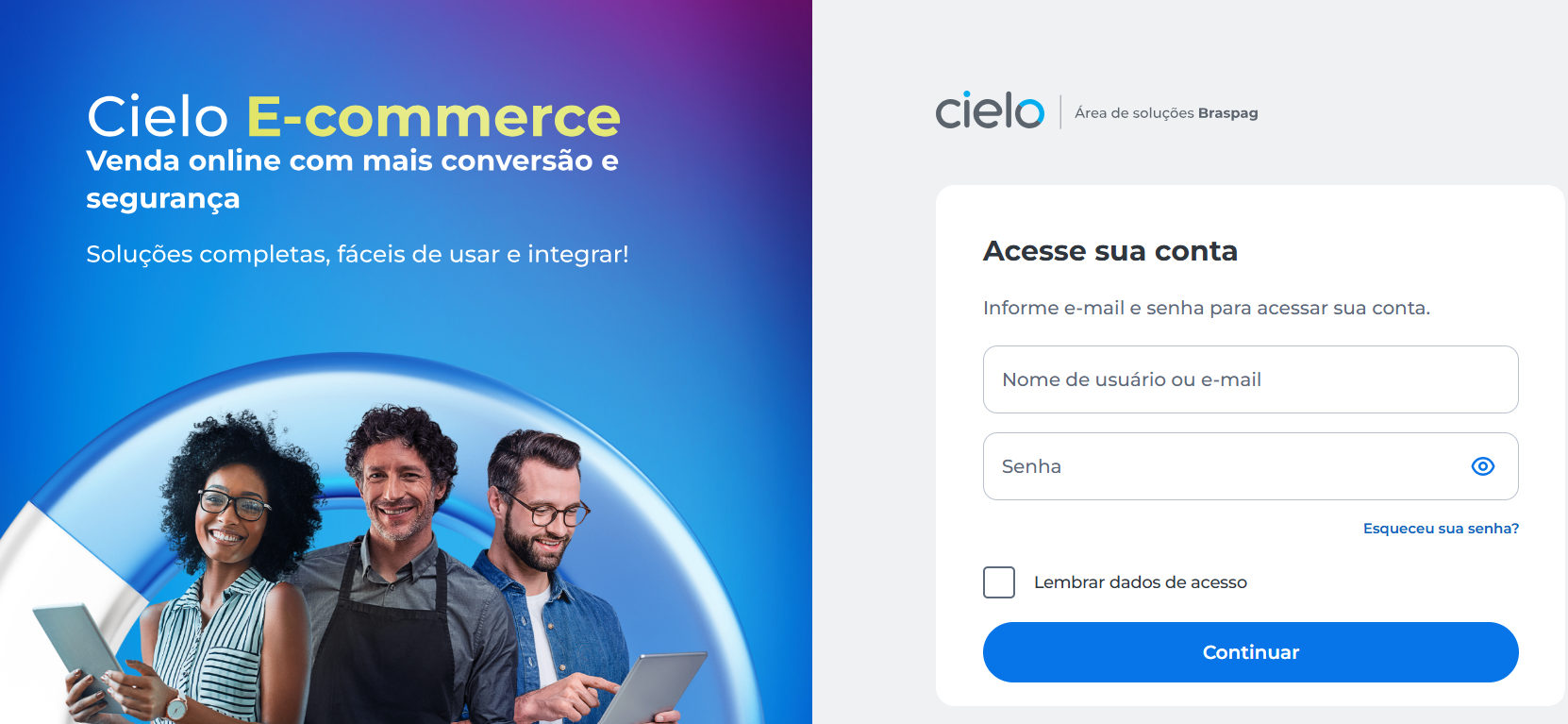
- Access the Portal E-commerce
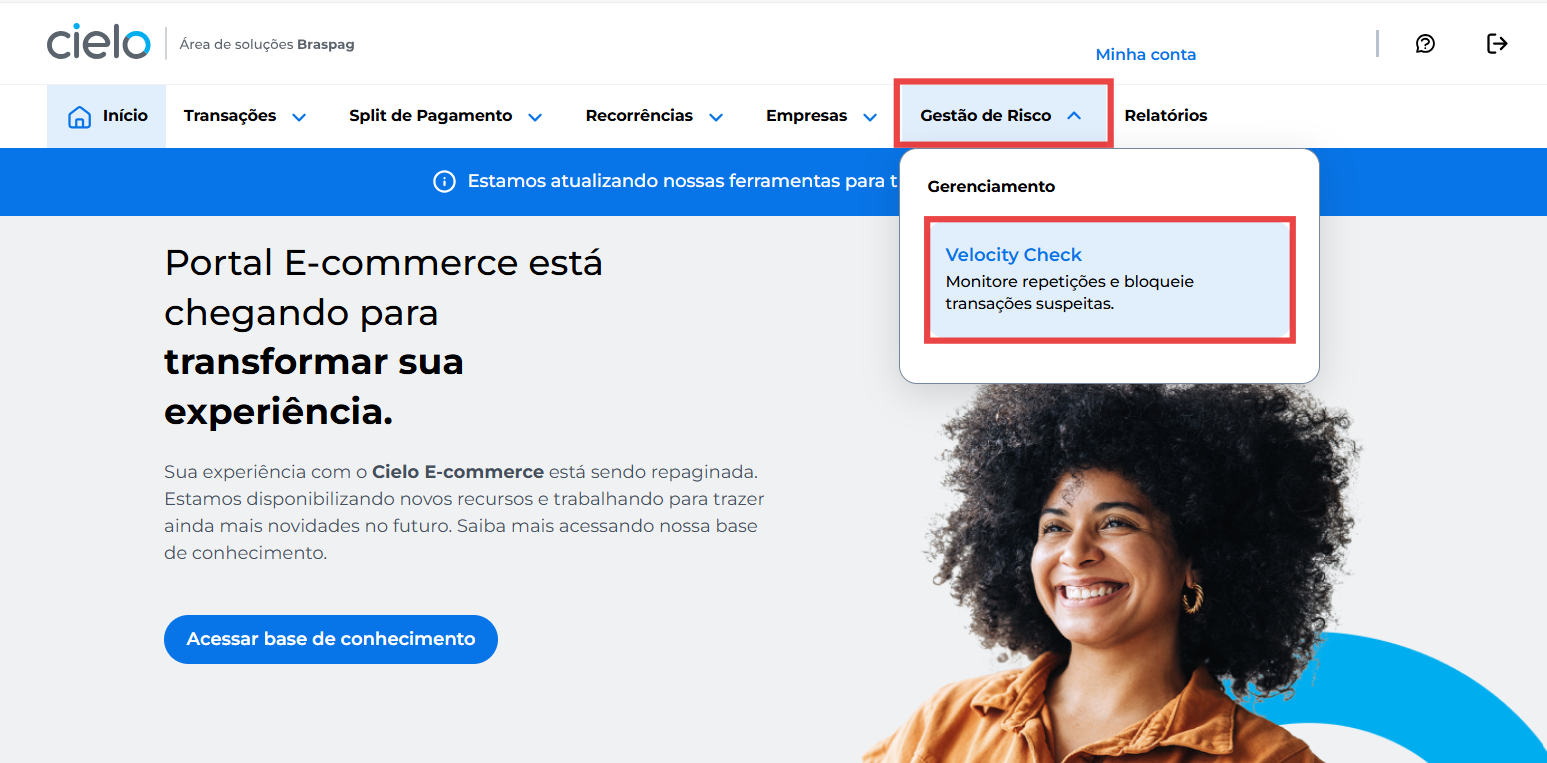
- Click the Gestão de Risco menu and then Velocity Check
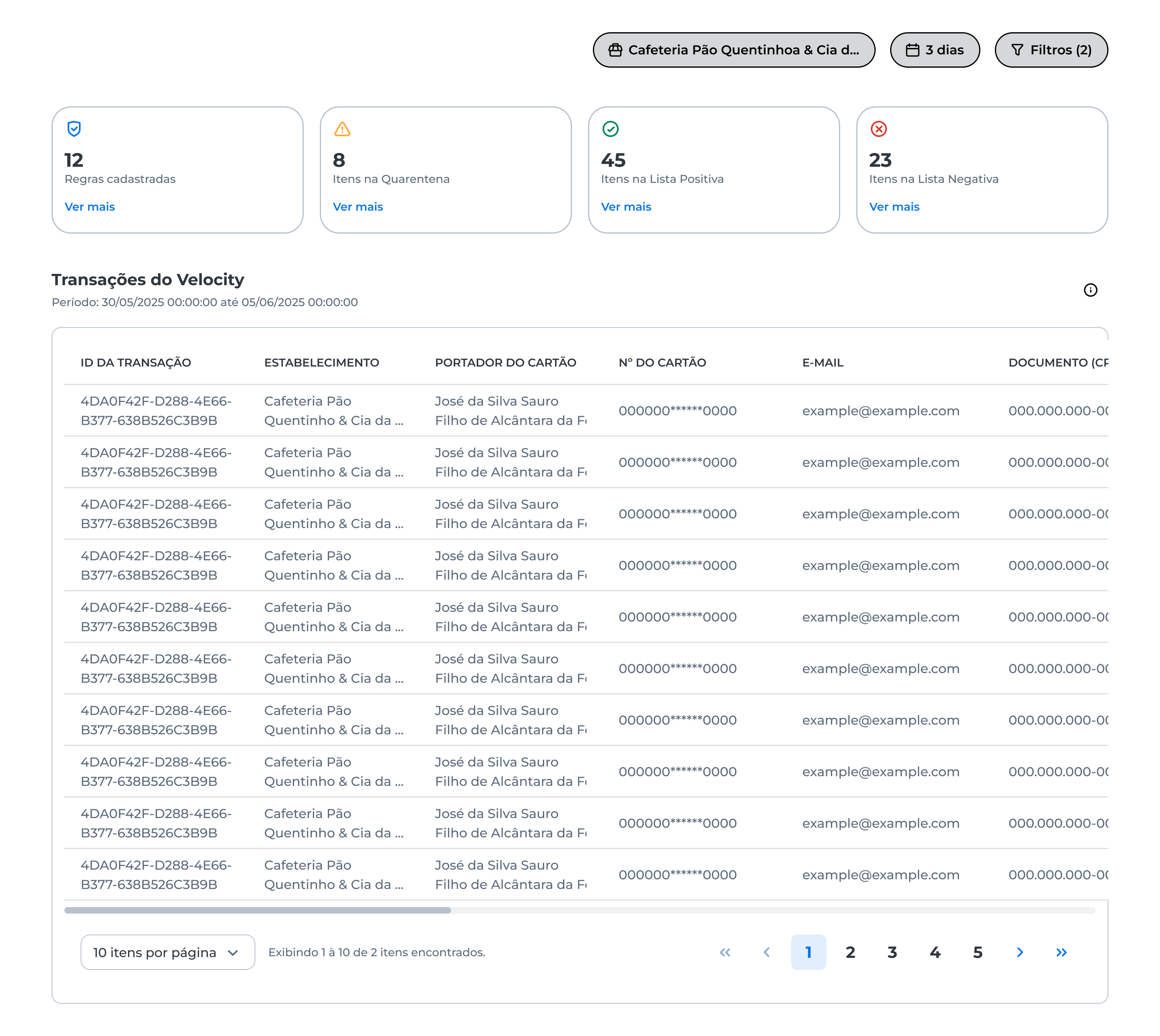
- The Velocity Transactions screen will display information for a pre-selected merchant:
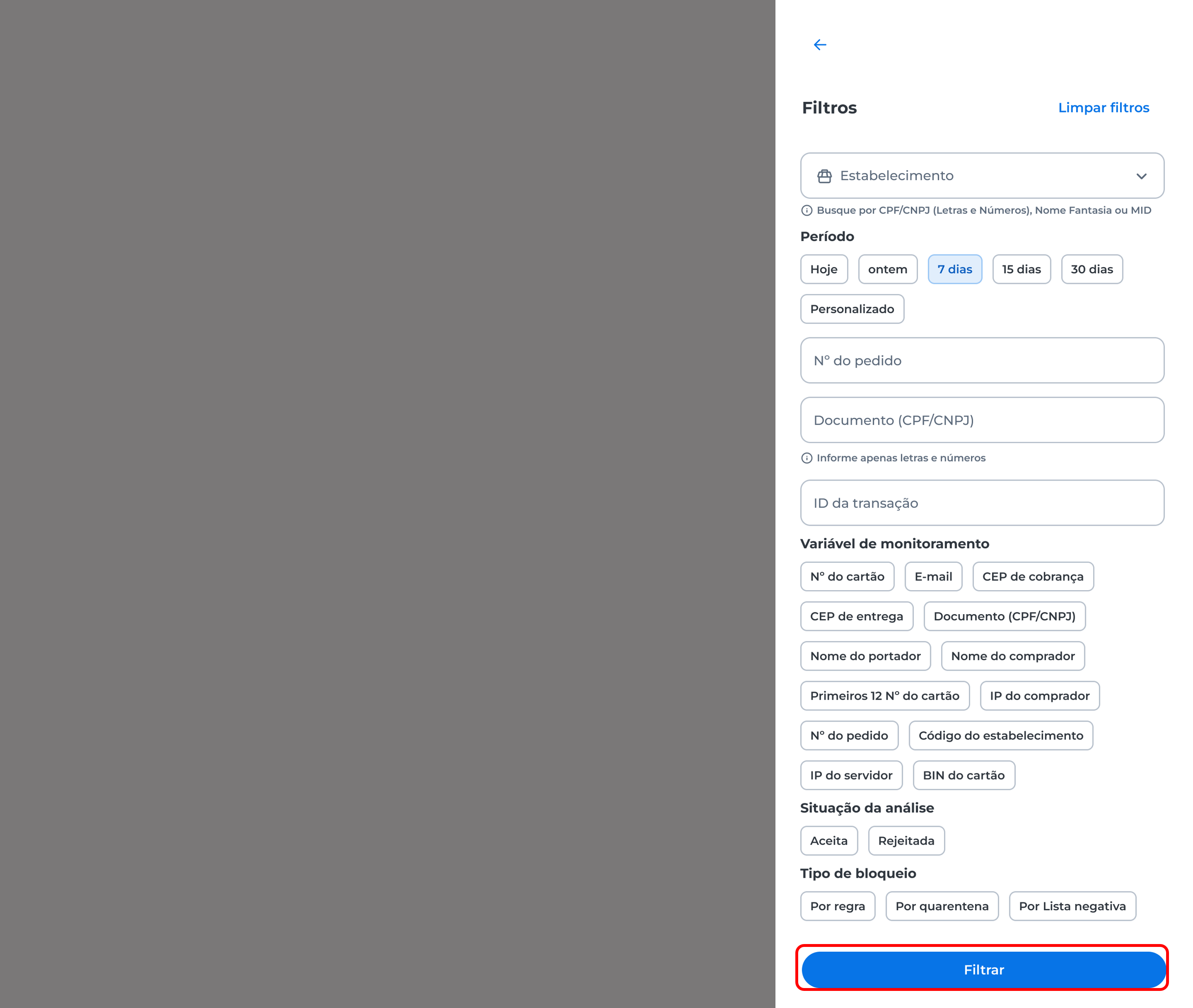
- Apply filters to search for one or more transactions. You can filter by:
- Estabelecimento: store data (single selection)
- Periodo: select the day or period
- CPF/CNPJ document: shopper data (letters and numbers only)
- Variável de monitoramento: define if you want to see transactions for a specific variable configured, such as Delivery ZIP code or Cardholder name
- Situação da análise: define if you want to see accepted or rejected transactions
- Tipo de Bloqueio: filter by block reason
After applying the filters, click Filtrar.
View the transactions returned by the filter, along with the types of rules that were evaluated:
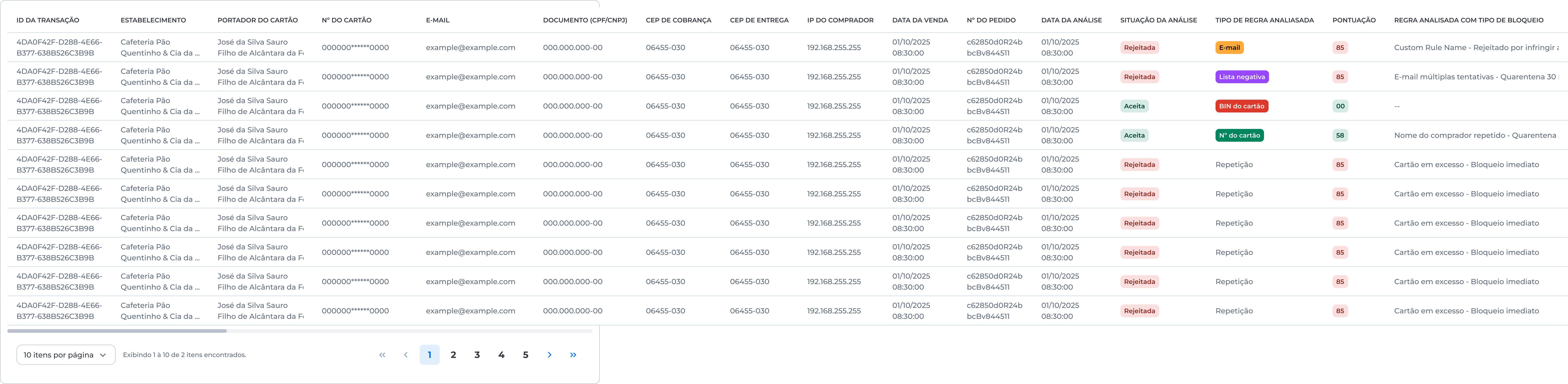
Learn more about extrair o relatório de transações do Velocity neste artigo.
Types of rules analyzed
See the color legend for each type of rule analyzed:
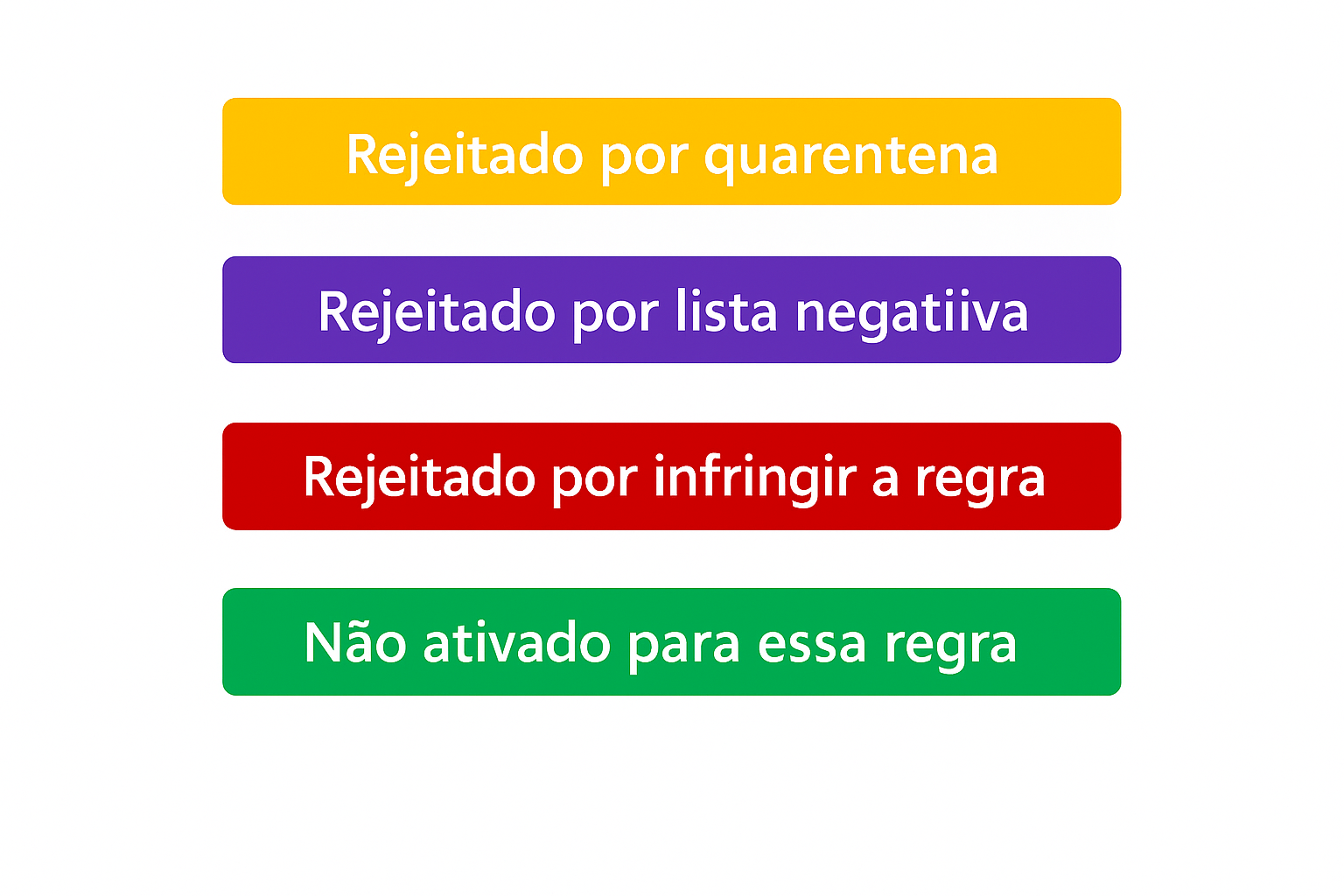
The types of rules analyzed may vary for each client, as it depends on the rules that are configured. The legend colors refer to each rejection reason:
Rejected by quarantine: adjust the data rule in the settings; Rejected by negative list: add the transaction to the Positive List; Rejected for rule violation: blocked by a defined rule, change it in the settings; Not activated for this rule: this data has not been affected by the rule yet.
See an example of types of rules analyzed for a transaction:

In this example, we had a transaction with rejected status for the following reasons:
- Email: rejected by quarantine regarding the shopper's email;
- Negative list: transaction was rejected by negative list;
- Card number: not activated for this rule;
- Card BIN: rejected for rule violation regarding shopper identification.
Updated 8 days ago