

Bradesco
How it works
- After selecting the product, the shopper chooses the Bradesco registered boleto payment method;
- The Checkout displays the boleto URL;
- The client accesses the boleto URL (rendering) and can then make the payment.
Configuring Boleto
Bradesco Boleto requires settings to be made both in the Painel Bradesco and in the Portal Cielo E-commerce.
ImportantTo use Bradesco registered boleto, the merchant must contract the registered portfolio directly with the bank;
The contracted portfolio must be 26;
Boleto issuance will only be enabled after Bradesco completes the authorization process;
Contracting the service with Bradesco
The merchant must contact the Bradesco manager and request the contracting of the registered boleto service via API.
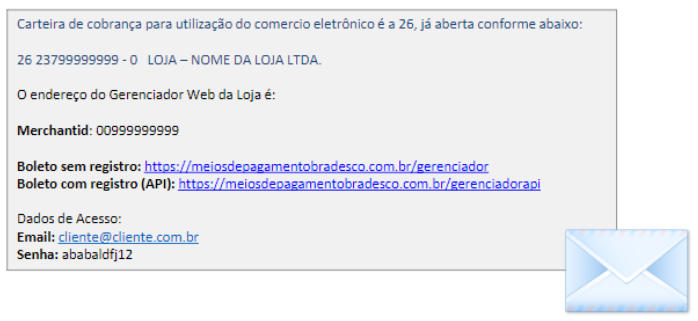
After the request, Bradesco's technical team (Scopus) will send by email:
- Access to the Bradesco Panel (API Manager);
- Username, password, and other credentials required to configure the payment method.
Accessing the Bradesco Panel
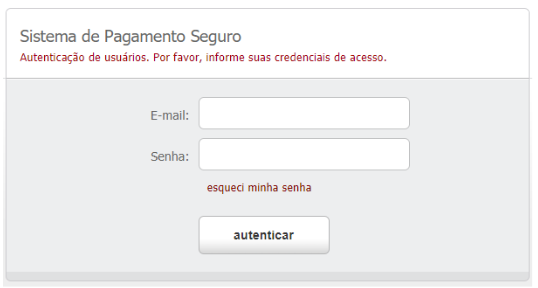
After receiving the credentials sent by the bank, access the API Manager and log in using the provided information.
Setting up the payment method in the Bradesco Panel
- Access the payment method settings
In the Bradesco Panel:
- Go to Configurações → Meios de pagamento.

- Configuring credentials
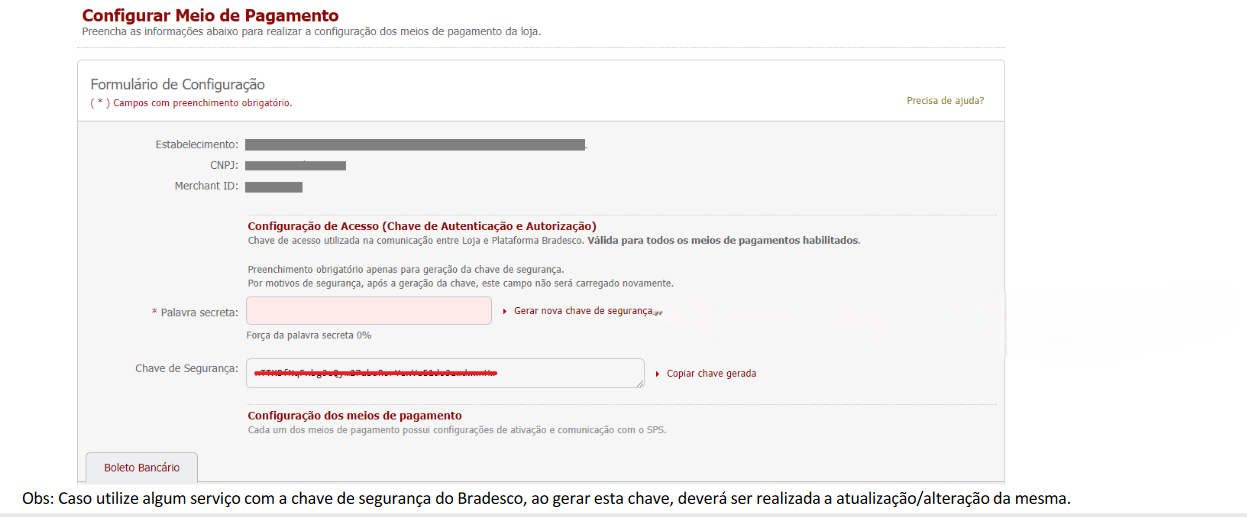
Still on the Payment methods screen, locate the access configuração de acesso (chave de Autenticação e Autorização).
- Fill in the Secret word field with a password defined by the merchant;
- Click Gerar nova chave de segurança to create the Security key used by Cielo to query boleto status.
ImportantThe security key is not the password to access the Bradesco Panel. It is used exclusively for communication between Bradesco and Cielo.
- Configuring the integration
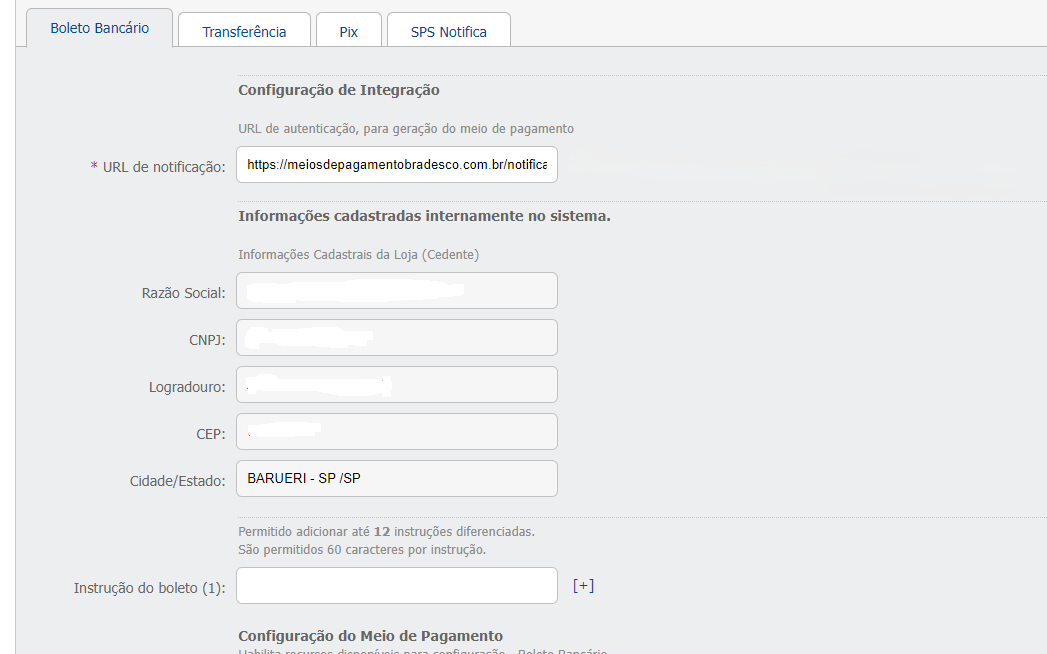
On the same Meios de pagamento screen, right after the credentials fields, the Configuração de integração section appears.
In the Notification URL field, enter:
https://meiosdepagamentobradesco.com.br/notification
- Adjusting bank slip options
Still on the same page, the merchant finds the Configuração do Meio de Pagamento section. Adjust the options as needed:
- Habilitar "frase" do boleto: Active;
- Habilitar "referência" do boleto: Active;
- Apresentar Agência e Conta: Active;
- Vencimento: 3 days.
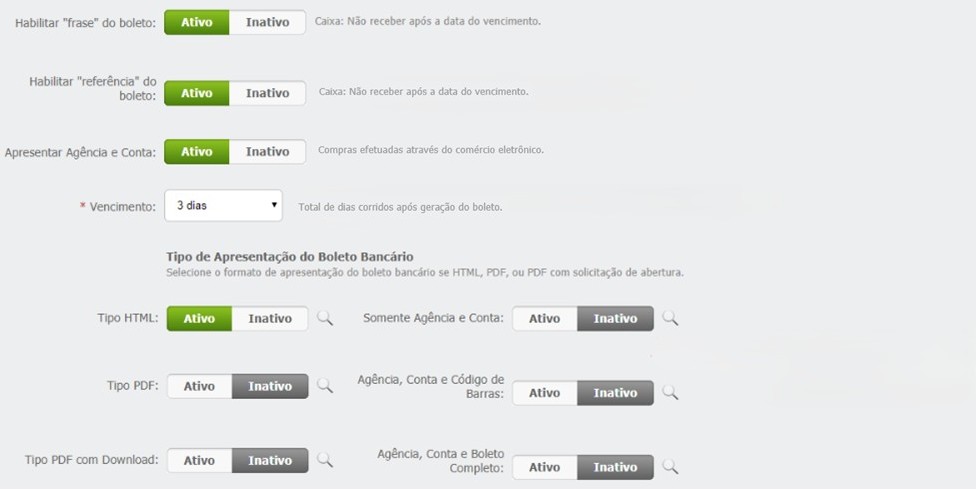
The Configuração do Meio de Pagamento section contains optional settings, which can be used according to the merchant's preference.
- SPS Notifica configuration
In the SPS Notifica tab, locate the Configuração de integração section. In the URL de comunicação field, enter:
https://meiosdepagamentobradesco.com.br/notification
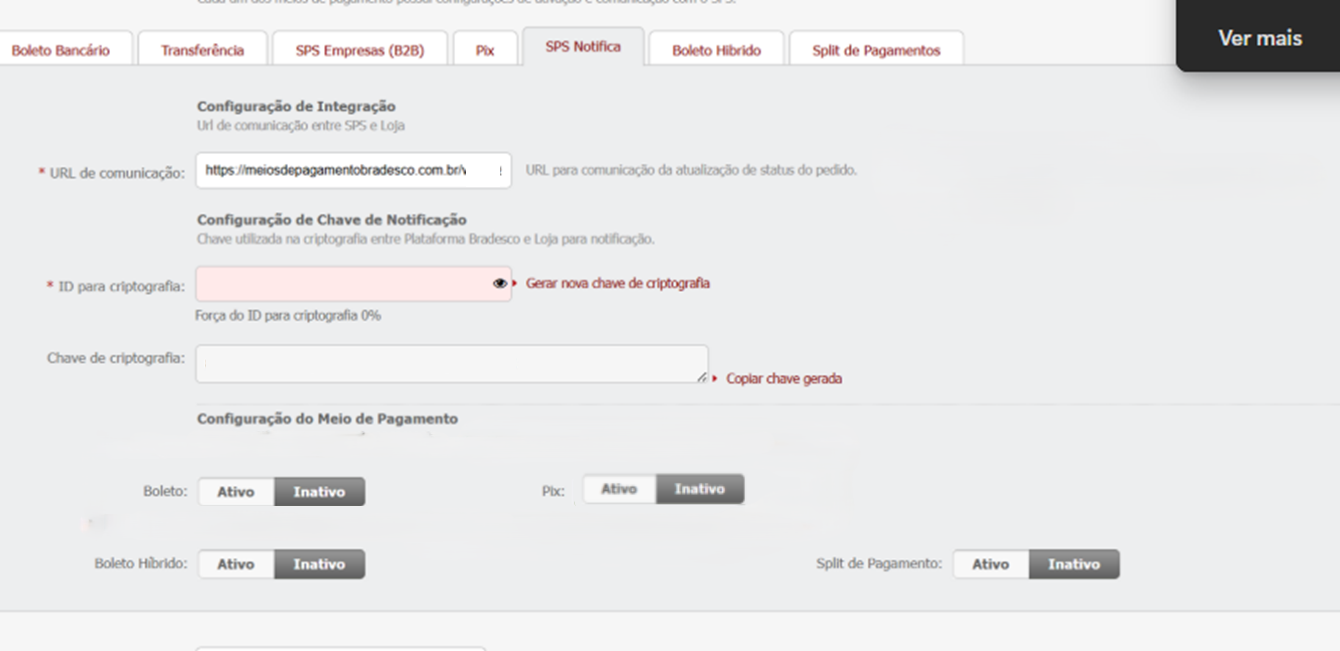
Important:In Configuração do Meio de Pagamento, set the Boleto and Pix fields to Inactive when using only Bradesco Boleto.
If you also use Bradesco Pix, keep the Pix field as Active.

Save all changes and proceed to the next step.
Boleto processing, status update, and automatic reconciliation
To enable Bradesco registered boleto processing, automatic status updates, and automatic reconciliation, you must configure the Sonda profile and the Sonda user in the Bradesco Panel.
In this section, you will find how boleto status updates work and the configurations required to enable this process.
Status Update
For the Bradesco registered boleto payment method, status updates are performed via batch polling:
- This polling occurs in the morning: 4 a.m., 6 a.m., 8 a.m., 10 a.m., and 12 p.m.
To receive payment notifications, the merchant must have the Notification URL registered and perform GET requests.
Note: Currently, the polling considers transactions with a due date within the interval of 30 days before and 30 days after the polling date.
User configuration in the Bradesco Panel
To enable boleto processing and allow automatic reconciliation, it is necessary to configure the Sonda profile and create the Sonda user in the Bradesco Panel.
- Acesse Usuários → Controle de Acesso

On the Controle de acesso screen, fill in the fields as follows:
- In the Perfil field, enter Sonda;
- In the Status field, select Ativo;
- Click Gravar to store the configuration.
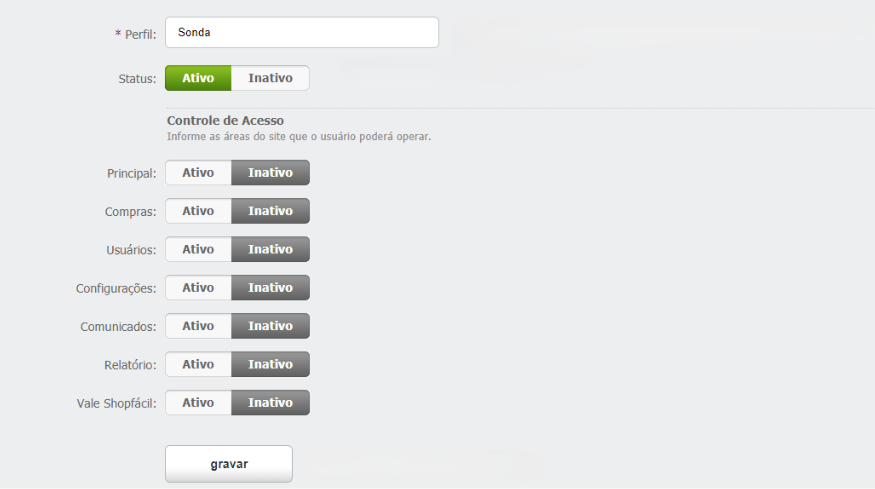
After saving the settings:
- Go to the Usuários menu;
- Click Incluir.

On the Formulário de Inclusão screen, fill in the fields as follows:
- In the Perfil field, select Sonda (configured in the previous step);
- Fill in the required fields:
- Email:
[email protected]- register a unique email for the user with the Sonda profile, which must begin with "sonda@" (this is not the same email used to log in to the Bradesco portal); - Nome: Sonda;
- Telefone: Enter the phone number.
- Email:
- In the Status field, select Ativo;
- Click Gravar.
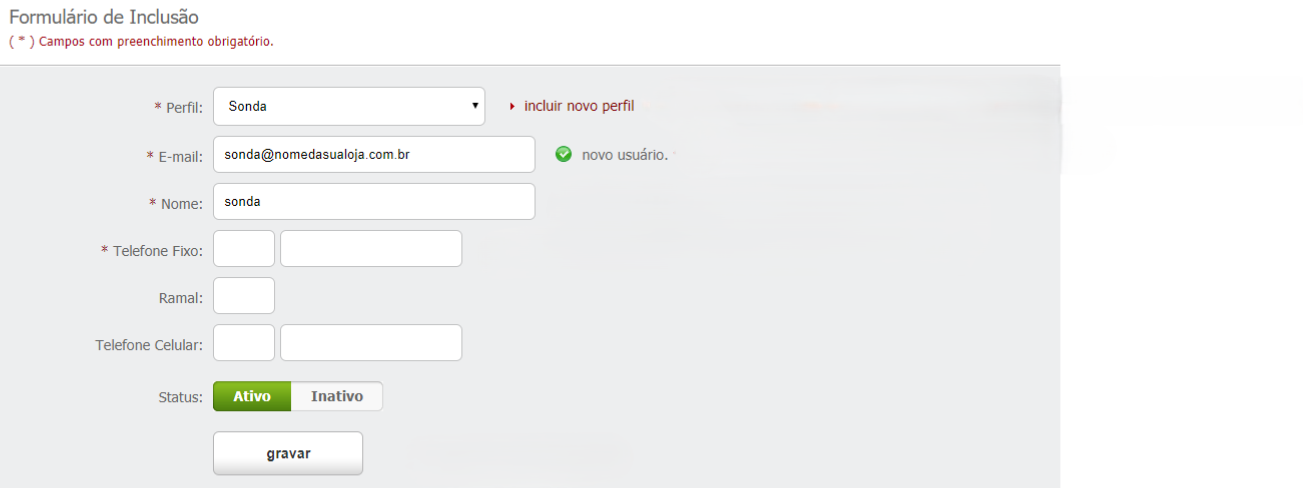
Important:The user created with the Sonda profile is used by Bradesco to send automatic updates on boleto status.
Confirm Boleto Payment
You can manually confirm the payment of boletos with a Pending status.
- On the Cielo website, go to E-commerce > Link de Pagamento > Pedidos
- Find the desired order;
- Open the transaction details.
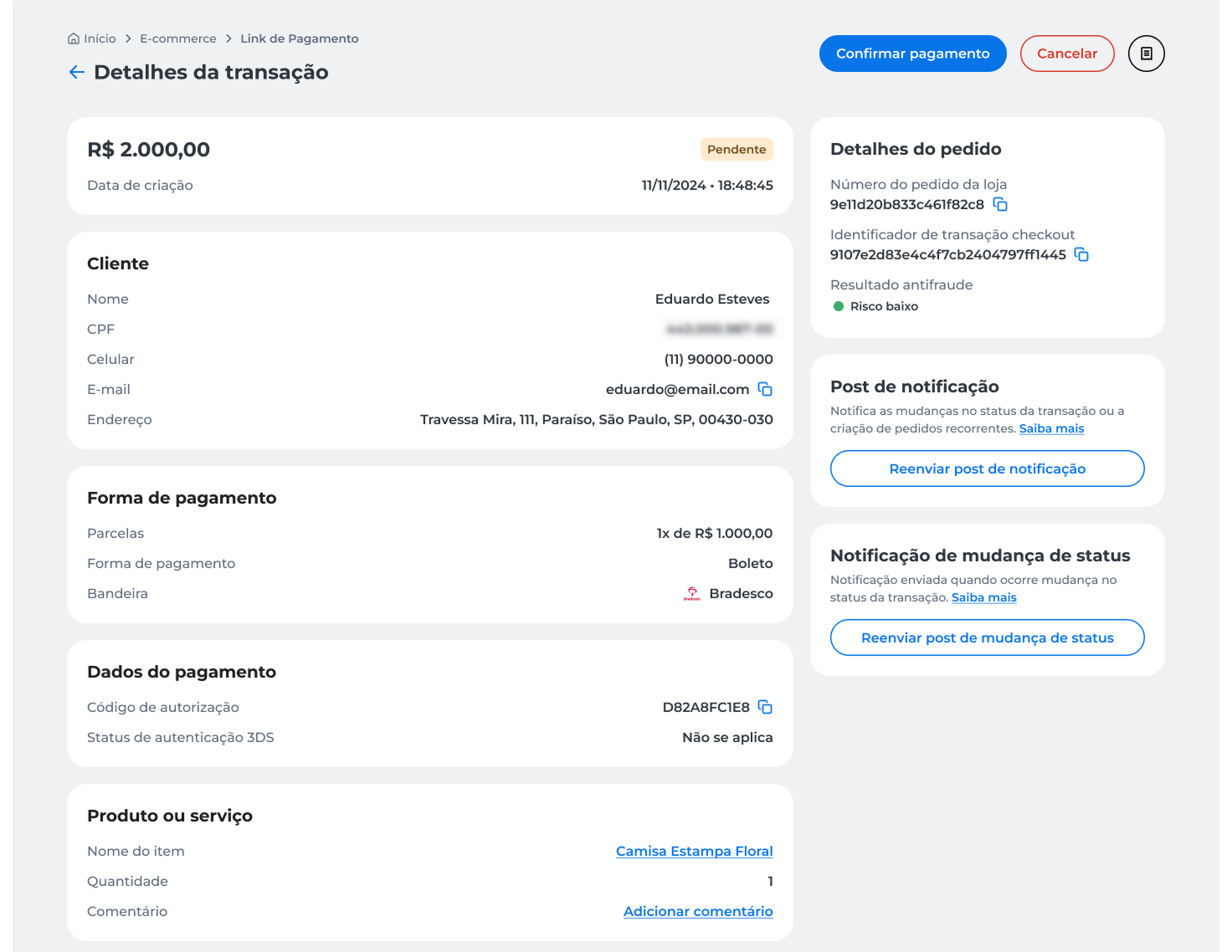
- Click Confirmar pagamento;
- Review the displayed information and click Confirmar.
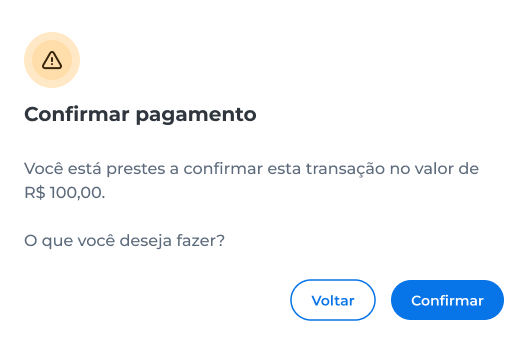
- Enter the security code sent to the registered email;
- Click Validar.
After confirmation, the transaction status will be updated to Pago, and a success message will appear on the screen.
Void Registered Boleto
You can manually void registered boletos with a Pending status.
- On the Cielo website, go to E-commerce > Link de Pagamento > Pedidos;
- Locate the desired order;
- Open the transaction details.
- Click Cancelar;
- Review the displayed information and click Cancelar to confirm the operation.
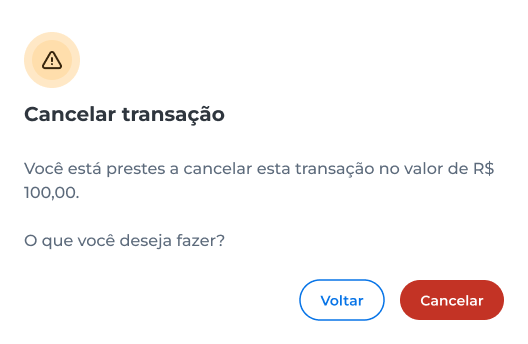
- Enter the security code sent to the registered email;
- Click Validar.
After confirmation, the transaction status will be updated to Voided.
The void process is irreversible.
Activate in the Cielo E-commerce Portal
Once all configurations in the Bradesco Panel are complete, contact Cielo support via email ([email protected] to finalize the activation of Bradesco boleto as a payment method.
When requesting activation, provide the following information:
Registration Data
The merchant must provide Cielo support with the following information:
| Data | Description | Format | Observation |
|---|---|---|---|
| Branch | Branch code | 4 digits | with or without hyphen |
| Checking account | Checking account | 7 digits | with hyphen |
| Wallet | Billing portfolio | 2 digits | Always use portfolio 26, provided by Bradesco for e-commerce operations. |
| Reconciliation | MID Bradesco (MerchantId) | 9 digits | Provided in the Bradesco control panel. MID received in the email from Bradesco's technical team (Scopus). |
| Agreement | E-commerce agreement | 6 digits | Validate with the bank if it is required for the wallet |
| Our Number | Incremental counter | 5 digits | Enter "10000" - With each boleto issued, this number increases by +1. |
| Due Date | Boleto validity period | 10 characters | Field `data_vencimento`, date type, format YYYY-MM-DD with hyphen. Example: 2026-11-30. |
| Affiliation Signature | Bradesco security key | 44 characters | Generated in the Merchant Manager, based on the keyword provided at the time of generation within the Bradesco Panel. |
Bradesco credentials will be required:
These credentials are used so that Cielo can query the boleto status.
| Credentials | Description | Example |
|---|---|---|
| User | Email used to access the Bradesco Panel | |
| Senha/Chave de Segurança | Security key created within the Bradesco Panel. It is not the password used to access the Bradesco Panel. | qcnmFA-Y2rGm4meWLzrEzSpdPARBsmblZSqfKLwq7DM |
Updated 3 months ago