

Recurring payments management
Query and manage recurring charges created through the Payment Link.
The page allows you to track recurrences, view payment history, edit billing settings, and deactivate recurrences.
How to access
- Go to the Cielo Website;
- In the main menu, click E-commerce;
- Select Link de Pagamento;
- Click the Gestão de recorrências tab.
Query recurrences
When accessing the page, the listing displays recurrences created through the Link de Pagamento.
By default, the query shows recurrences from the last 6 months.
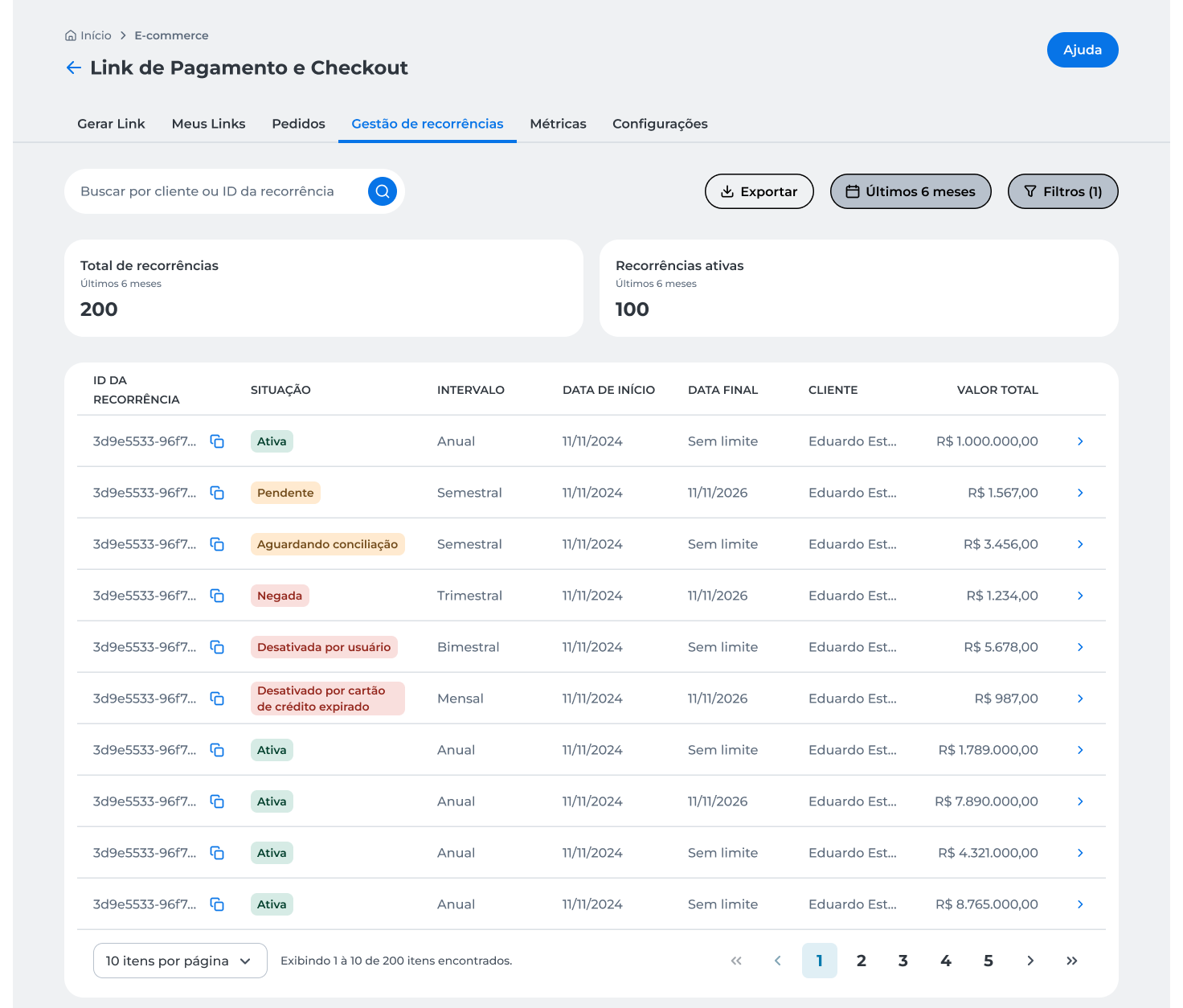
The page allows you to:
- Search recurrences by client or ID;
- Change the query period;
- Apply filters to find specific recurrences;
- Export listing data;
- Access recurrence details.
The page indicators display:
- The total number of registered recurrences;
- The number of active recurrences.
Test modeWhen test mode is active, the page displays a warning indicating that transactions do not generate real charges.
For more information, see the Test mode page.
Export report
Export the listing data for external analysis.
- On the Gestão de recorrências page, click Exportar.

After the process is completed, the file will be available for download.
The export considers the filters and the period selected in the query.
Query recurrence details
To access recurrence information:
- On the Gestão de recorrências page, select the desired recurrence.
The recurrence details screen will be displayed.
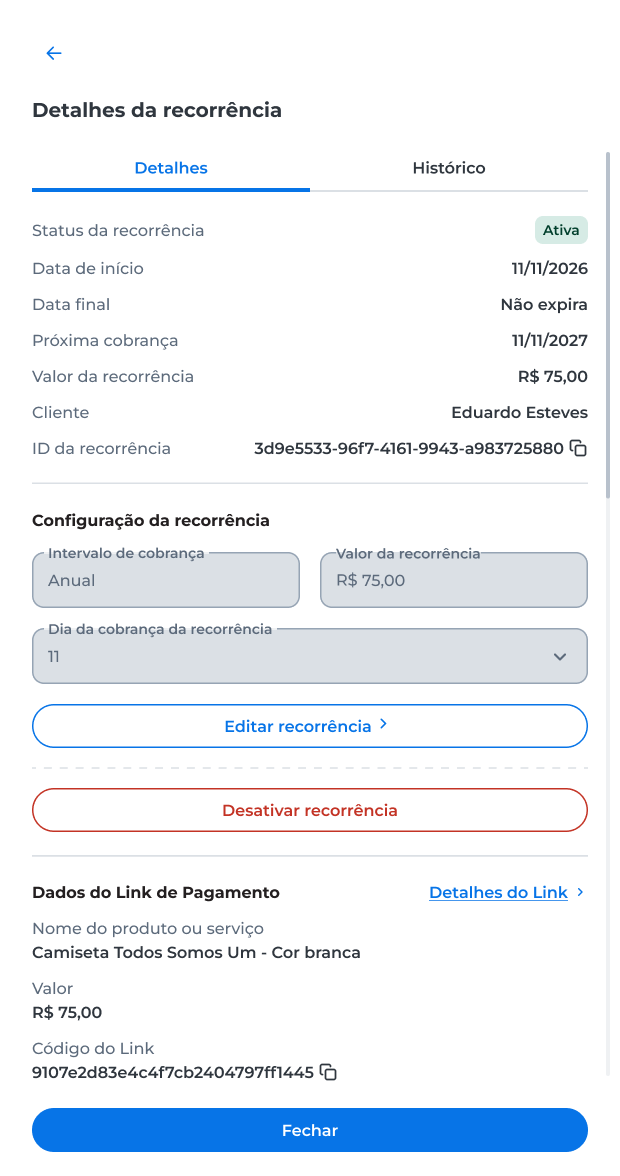
In the Detalhes tab, you can query:
- The recurrence status;
- The start, end, and next charge dates;
- The recurrence amount;
- The client information;
- The recurrence identifier;
- The recurrence settings;
- The associated Payment Link data.
Query payment history
To view the recurrence charge history, click the Histórico tab.
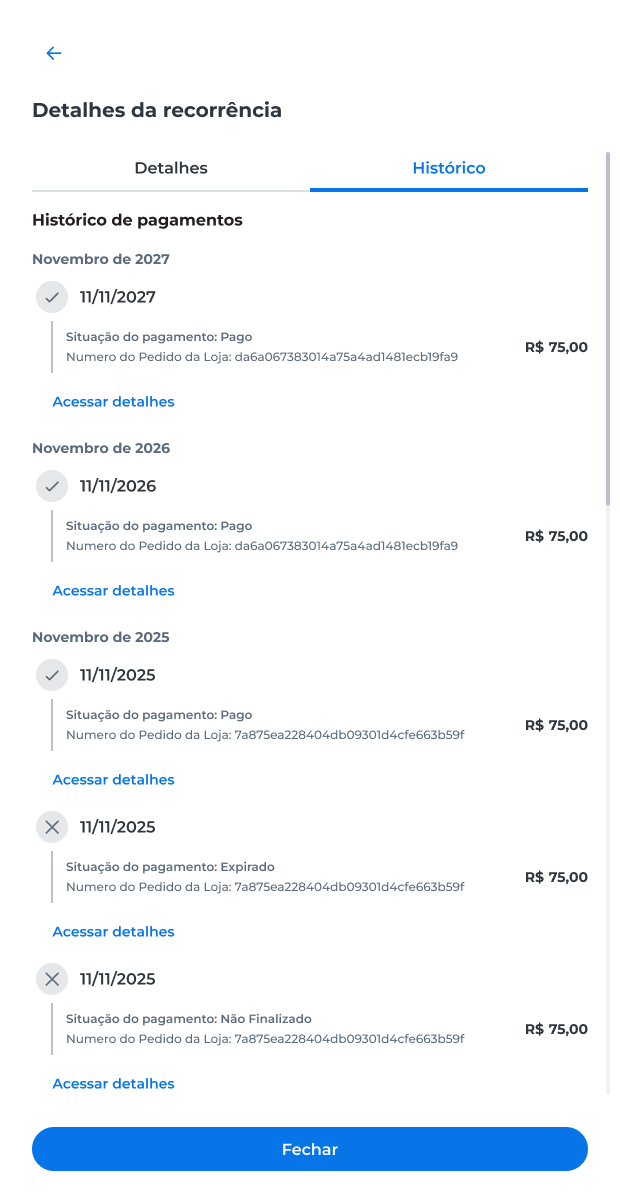
In the Histórico tab, you can query:
- The charge date;
- The payment status;
- The merchant order number;
- The charge amount.
To view more details about a charge, click Acessar detalhes.
Edit recurrence
To change recurrence settings:
- In the Detalhes da recorrência tab, click Editar recorrência.
You can modify:
- The billing interval;
- The recurrence amount;
- The billing day.
After making the changes, click Salvar alterações.
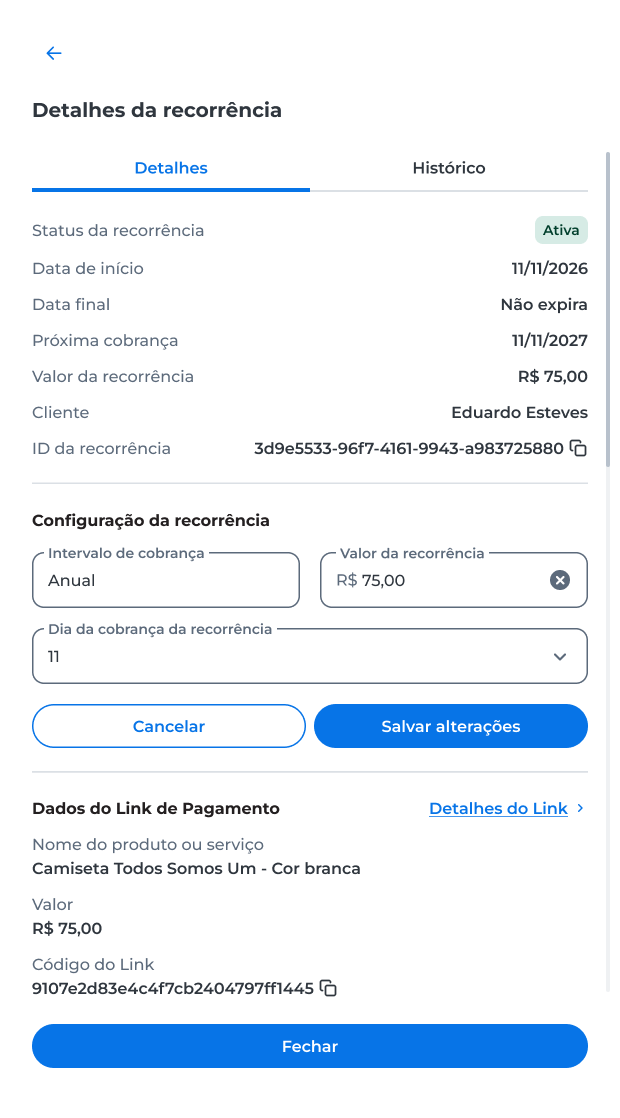
Review the displayed information and click Salvar to confirm.
After confirmation, the new settings will apply to future recurrence charges, and a success message will be displayed on the screen.
Deactivate recurrence
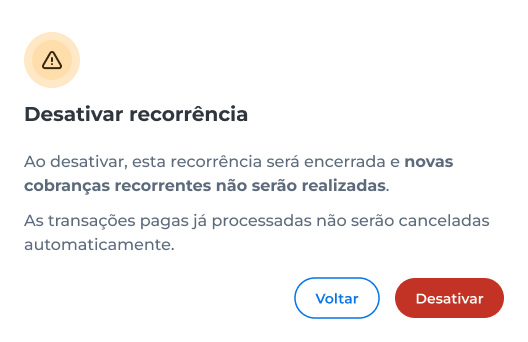
In the Detalhes tab, click Desativar recorrência.
Read the displayed information and click Desativar to confirm the operation.
- Enter the security code sent to the registered e-mail;
- Click Validar.
After confirmation, a success message will be displayed on the screen, and future automatic charges will be stopped.
Deactivating a recurrence stops only future charges.
Charges already processed are not voided.
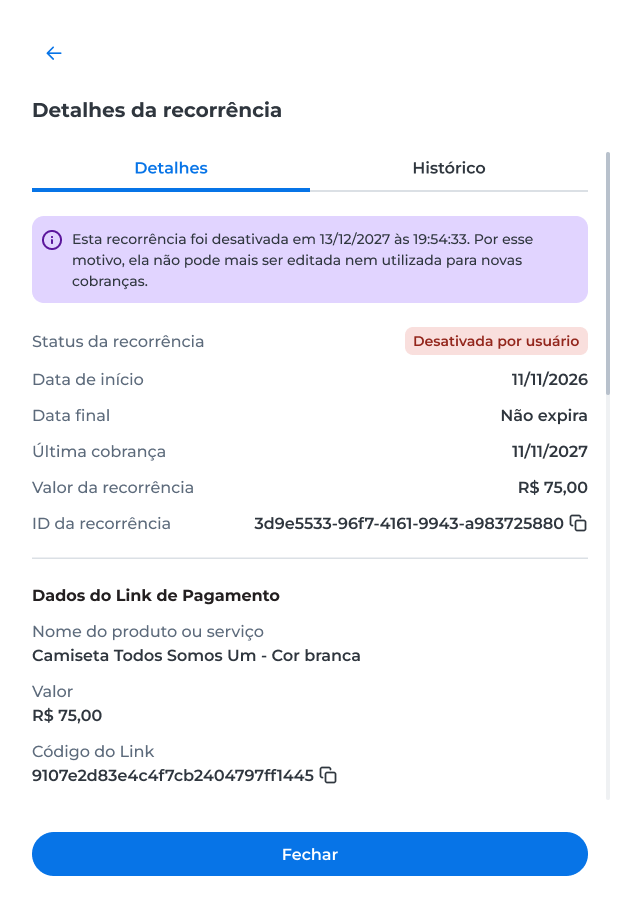
Deactivated recurrence
When a recurrence is deactivated, future charges are no longer processed, and management options become unavailable.
In this situation:
- The recurrence status is displayed as Deactivated by user;
- The date of the last charge is shown in the recurrence details;
- Recurrence information remains available for query;
- The Editar recorrência and Desativar recorrência options are no longer displayed.
Recurrence deactivation is irreversible.
To create new recurring charges, a new recurrence must be generated.
Updated about 1 month ago