

Configure anti-fraud, 3DS, and capture
Define, in the Cielo Gestão app, the authentication and capture rules for your store's transactions.
How to access
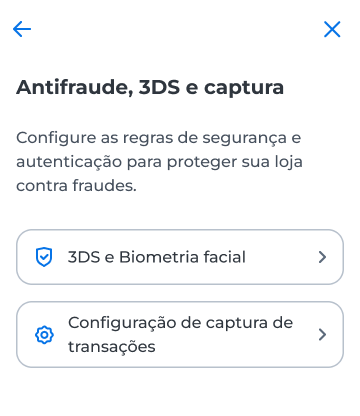
- In the Cielo Gestão app, go to Menu > Link de Pagamento > Configurações;
- Select Antifraude, 3DS e captura.
Enable 3DS 2.0
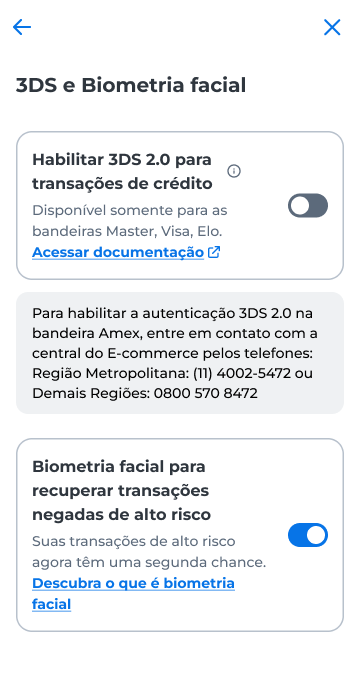
- Select 3DS e Biometria facial;
- Turn on the Habilitar 3DS 2.0 para transações de crédito option.
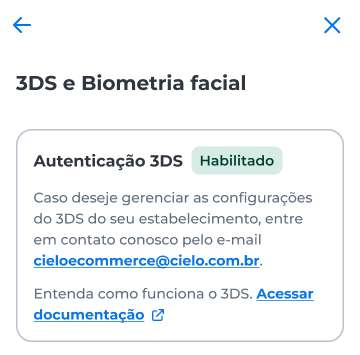
After you enable it, the app shows the Habilitado status in place of the option.
Transactions with Google Pay, Apple Pay, and Click to Pay are not authenticated with 3DS 2.0.
WarningAfter you enable it, you cannot turn off 3DS 2.0 in the app. To manage this setting, contact [email protected].
For the Amex card brand, request enablement from Cielo Support.
Turn on facial biometrics
In 3DS e Biometria facial, turn on the Biometria facial para recuperar transações negadas de alto risco option (facial biometrics to recover high-risk denied transactions).
Configure transaction capture
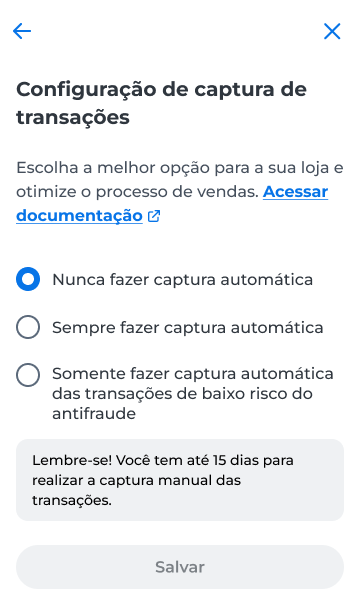
- Select Configuração de captura de transações;
- Choose an option:
- Nunca fazer captura automática (never capture automatically);
- Sempre fazer captura automática (always capture automatically);
- Somente fazer captura automática das transações de baixo risco do antifraude (capture automatically only the transactions the anti-fraud rates as low risk);
- Select Salvar.
Updated 12 days ago
Did this page help you?