

Configure payment methods
Choose, in the Cielo Gestão app, how your store receives payments in Checkout Cielo, and set minimum amounts and discounts.
How to access
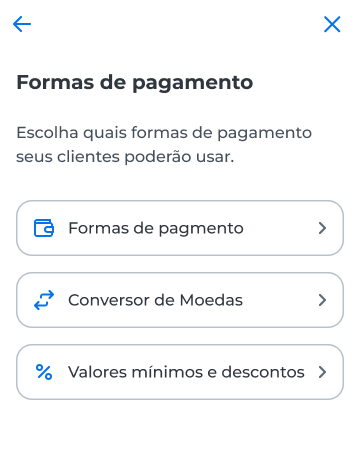
- In the Cielo Gestão app, go to Menu > Link de Pagamento > Configurações;
- Select Formas de pagamento.
Turn on payment methods
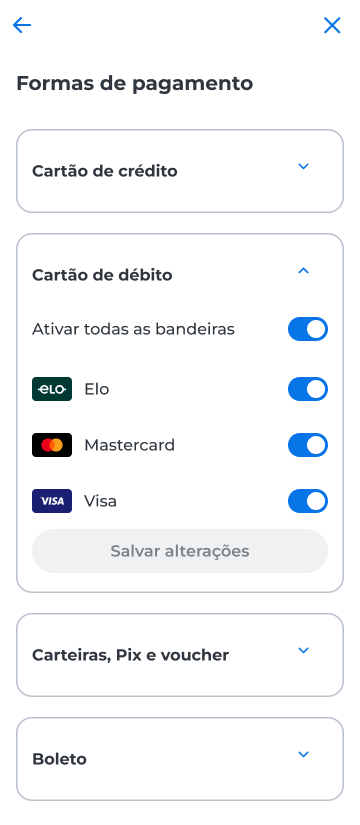
Choose the payment methods your store offers at checkout. Each section groups the options for one payment type:
| Section | What to configure |
|---|---|
| Cartão de crédito | Turn on the card brands and choose the number of installments for each one in Parcelas. |
| Cartão de débito | Turn on the Elo, Mastercard, and Visa card brands. |
| Carteiras Digitais, Pix e Cartão Multibenefícios | Turn on Apple Pay, Click to Pay, Google Pay, Pix, Pix via Open Finance, and Multibenefícios. |
| Boleto | Turn on Banco do Brasil and Bradesco. |
- In Formas de pagamento, expand the section you want;
- Turn the options on or off, one by one or all at once;
- Select Salvar alterações.
ImportantWhen you enable Click to Pay, you agree to the Mastercard terms and conditions and to the Click to Pay conditions at Cielo.
For Click to Pay and Google Pay, the maximum number of installments shown at checkout follows the installments defined for each card brand.
Set minimum amounts and discounts
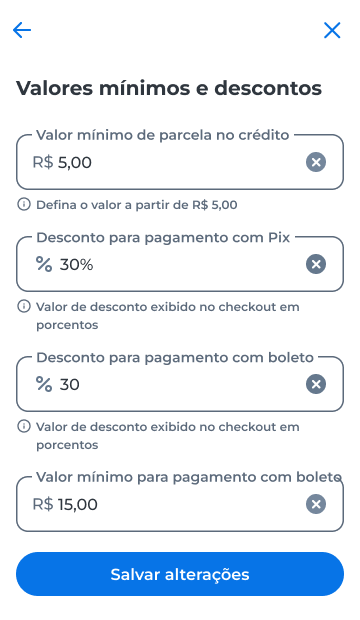
Discounts are set as percentages, and the minimum installment amount for credit starts at R$ 5.00.
- Select Valores mínimos e descontos;
- Fill in the fields you want;
- Select Salvar alterações.
Turn on the currency converter
Accept payments in foreign currency, with automatic conversion to reais.
- Select Conversor de Moedas;
- Turn on the Conversor de Moedas option.
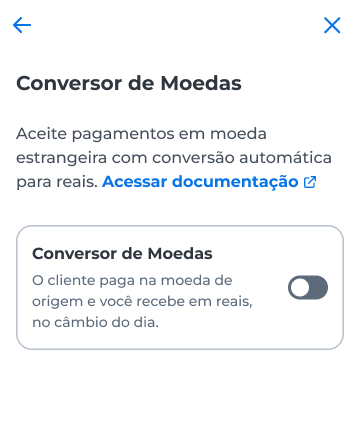
To turn it off, switch the option off and confirm with Desativar.
Updated 12 days ago