

Create a payment link via the Cielo Gestão App
Create a payment link in the logged-in area of the Cielo app and share it with your shoppers through WhatsApp, email, or social media.
Create links to receive payments through the Cielo Gestão app, with one-time or recurring charges.
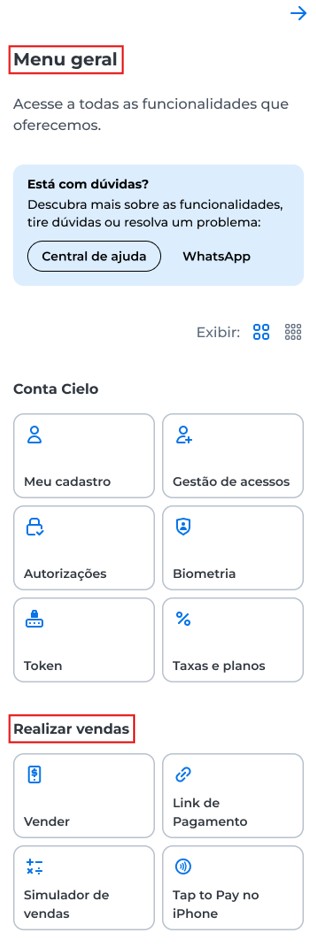
How to access
- Open the Cielo Gestão app;
- Go to the Menu tab;
- In the Realizar vendas section, select Link de Pagamento;
- Select Gerar Link.
You can also access the feature through the Link de Pagamento shortcut on the Início screen.
Generate a payment link
Fill in the charge details to generate a one-time payment link or to set up recurring charges.
- In Nome do produto ou serviço, enter a name to identify the link;
- In Valor do link, enter the charge amount;
- In Máximo de parcelas no crédito, keep Parcelamento padrão da loja or choose the maximum number of installments;
- Select Continuar.
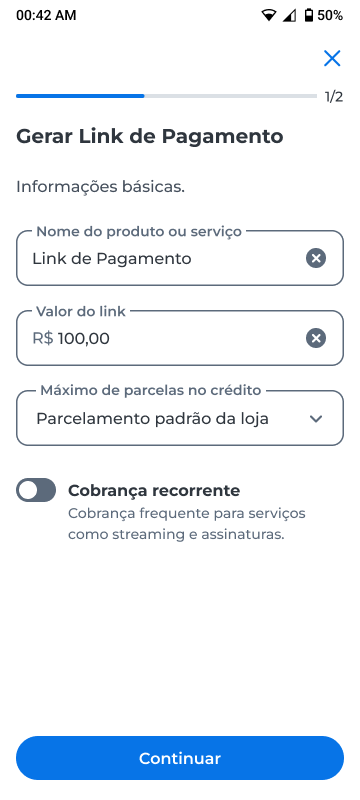
The Continuar button becomes available after you fill in the name and the charge amount.
Installments in the Cielo Gestão appIn the Cielo Gestão app, you can create payment links with installments of up to 12 times.
If the merchant is enabled for more than 12 installments, create the link on the Cielo website, where the additional installment options are available.
By default, the Cobrança recorrente option is turned off, and the link is generated for a one-time payment.
Create a recurring charge
To set up periodic charges with the same amount:
- Fill in Nome do produto ou serviço and Valor do link;
- Turn on Cobrança recorrente;
- Select Frequência e data final da cobrança;
- Choose the charge frequency;
- To set an end for the charges, turn on Recorrência com data final and enter the date;
- Select Salvar;
- Select Continuar.
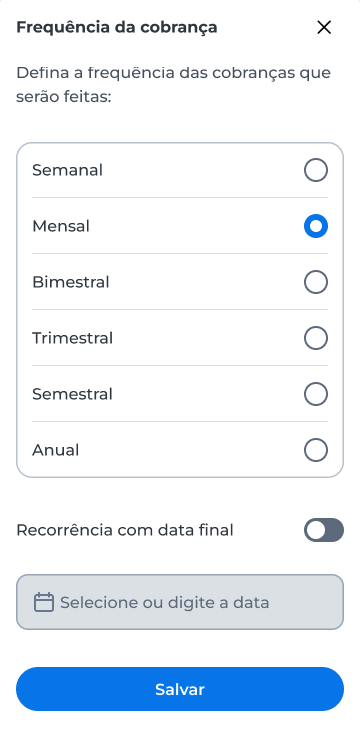
When Recorrência com data final is turned on, you must enter the date.
After you select Continuar, proceed to customize the link.
Customize the link
In the customization step, adjust the charge settings before you generate the link.
Select the option you want to change, fill in the information, and select Salvar.
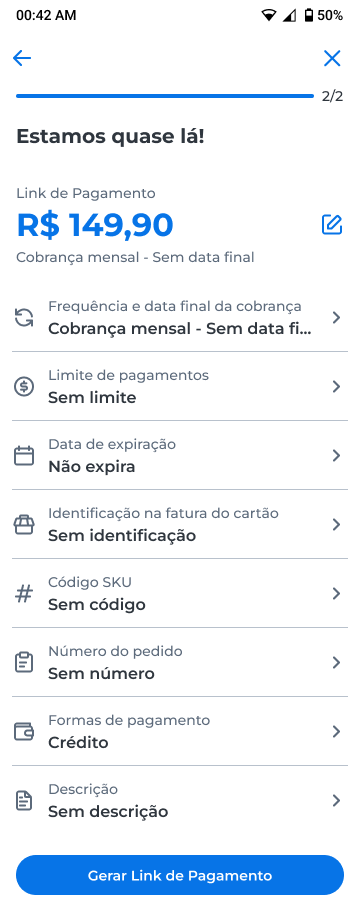
The following table lists the settings available for one-time and recurring links:
| Option | Description | Available in |
|---|---|---|
| Entrega e frete | Defines whether the link includes delivery and how shipping is charged. | One-time payment. |
| Frequência e data final da cobrança | Defines the charge frequency and the date on which the charges end. | Recurring charge. |
| Limite de pagamentos | Defines how many times the link can be paid. After the link reaches this number, shoppers can no longer pay through it. | One-time and recurring payments. |
| Data de expiração | Defines until when the link is valid. | One-time and recurring payments. |
Identificação na fatura do cartão (Soft Descriptor) | Defines the name that appears on the payer's credit card statement. It accepts up to 13 characters. | One-time and recurring payments. |
| Código SKU | Records the unique identifier of the product in stock to simplify management and traceability. | One-time and recurring payments. |
| Número do pedido | Records a unique code to identify the link and the orders related to it, which simplifies sales reconciliation. | One-time and recurring payments. |
| Parcela fixa no crédito | Defines a fixed number of installments that the shopper cannot change. | One-time payment. |
| Formas de pagamento | Defines how shoppers can pay the link. | One-time and recurring payments. |
Some options require additional settings. See the following topics to configure delivery and shipping, fixed installments on credit, and payment methods.
Configure delivery and shipping
The Entrega e frete option is available for one-time payment links.
- Select Entrega e frete;
- Turn on Link com entrega e frete;
- In Escolha o frete, select an option:
- Frete grátis, when the merchant is responsible for the delivery and the shipping cost;
- Frete fixo, when the delivery has a set price;
- For fixed shipping, enter the Nome do frete and the Valor do frete;
- Select Salvar.
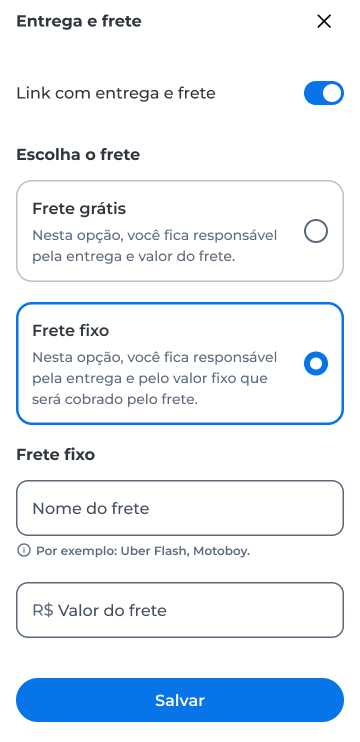
The Nome do frete and Valor do frete fields are required when Frete fixo is selected.
Set a fixed number of installments
The Parcela fixa no crédito option lets you define a number of installments that cannot be changed during payment.
- Select Parcela fixa no crédito;
- Turn on Fixar parcela do link;
- In Selecione a parcela, choose the number of installments;
- Select Salvar.
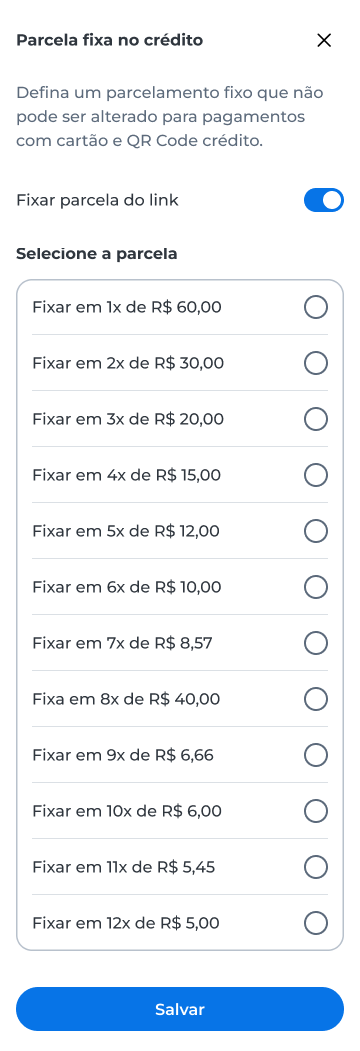
If Fixar parcela do link is turned on, you must select the number of installments before you save.
Configure the payment methods
- Select Formas de pagamento;
- Choose the options you want to offer;
- When available, enter the discount percentage;
- Select Salvar.
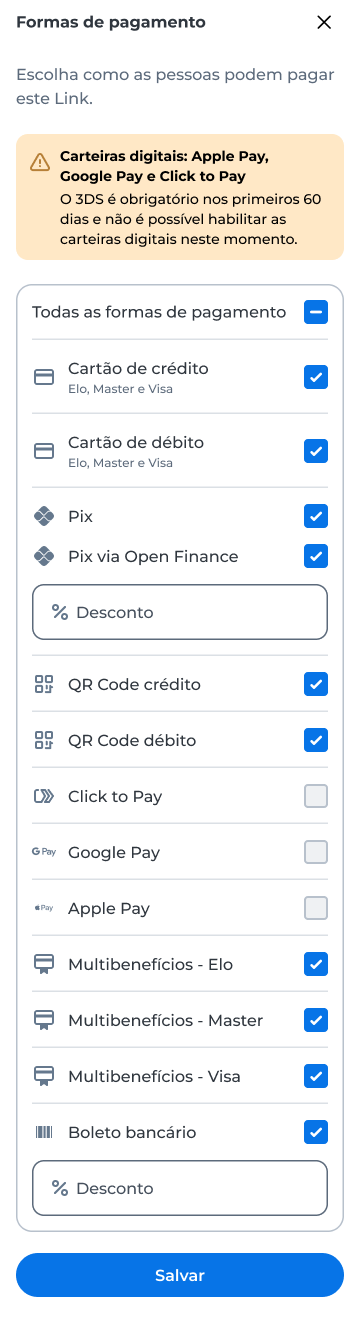
WarningIn recurring links, payment is made by credit card.
If the app displays the digital wallets notice, 3DS is required for the first 60 days. During this period, you cannot enable Apple Pay, Google Pay, and Click to Pay.
To learn about the available options and the rules for each payment method, see Payment methods.
Share the link
After you finish customizing, select Gerar Link de Pagamento.
The app displays a confirmation that the link was created and the available actions.
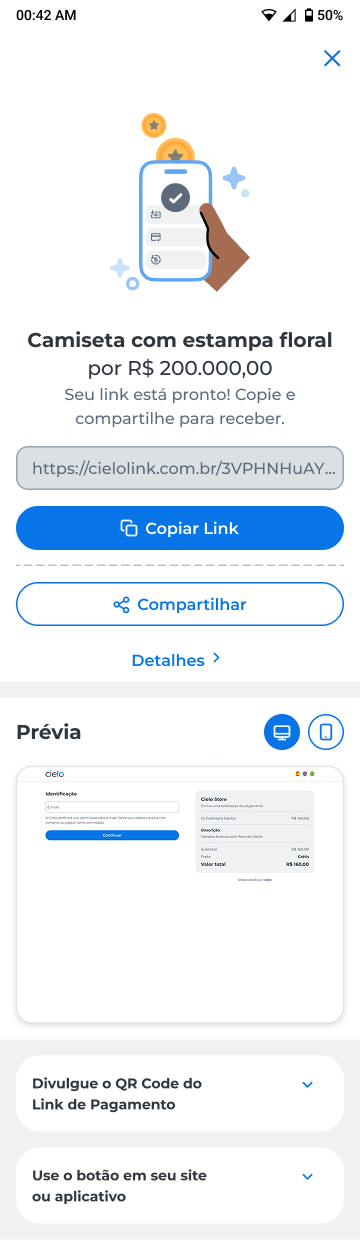
You can:
- Select Copiar Link to copy the link address;
- Select Compartilhar to access the sharing options;
- Select Detalhes to review the summary of the settings you chose.
In the Prévia section, check how the payment page will look.
To return to the previous screen after reviewing the details, select Fechar.
To view and manage the links you created, see Get or delete payment link, on the Link de Pagamento screen.
Updated 16 days ago