

Manage recurring payments in the Cielo Gestão app
View and manage the recurring payments created through Link de Pagamento in the Cielo Gestão app.
How to access
- Open the Cielo Gestão app;
- In the navigation bar, click Menu;
- Under Realizar vendas (Make sales), select Link de Pagamento;
- Select Gestão de recorrências (Recurrence management).
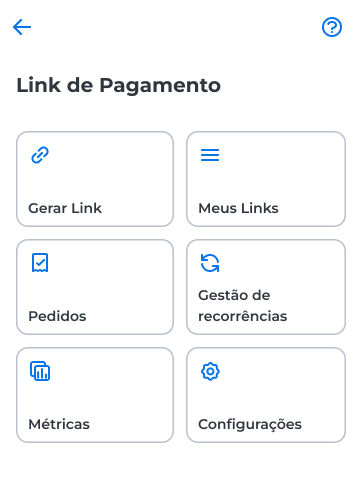
Query recurring payments
When you open the page, the list shows the recurring payments created through Link de Pagamento.
By default, the query shows the recurring payments from the last 6 months.
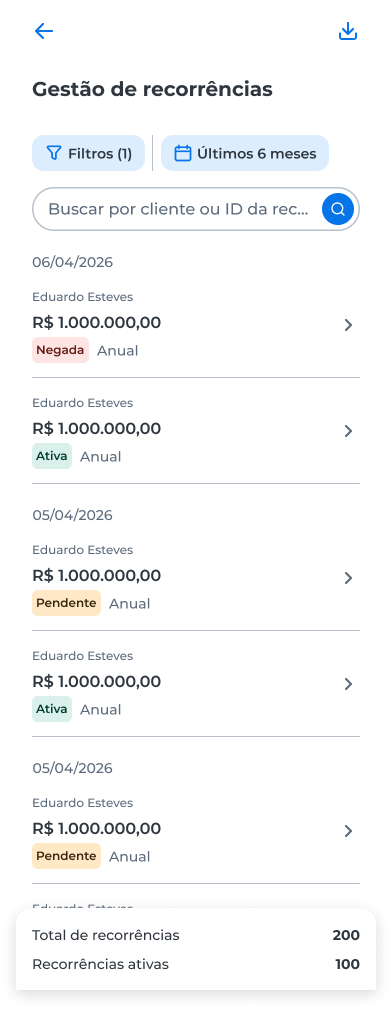
On this page, you can:
- Search for a recurring payment by its recurrence ID;
- Apply filters to find specific recurring payments;
- Export the list data;
- Open the details of a recurring payment.
The page also shows the Total de recorrências and Recorrências ativas indicators, which display the total and active recurring payments.
To refine the query, click Filtros, select the criteria you want, and click Filtrar.
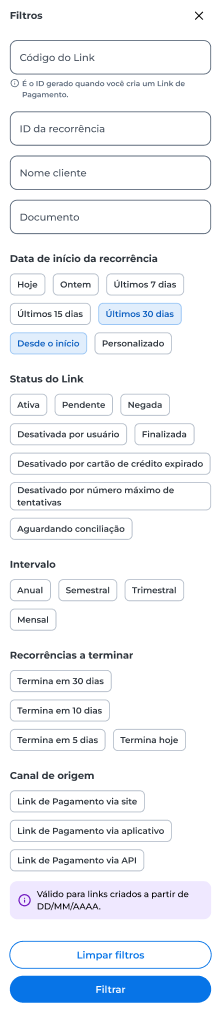
Test modeWhen test mode is active, the page displays a notice that the transactions you make do not generate real charges.
For more information, see the Test mode page.
Export a report
Export the list data for external analysis.
- On the Gestão de recorrências page, click the download icon.
When the process finishes, the file is available for download. The export uses the filters and period you selected in the query.
View recurring payment details
- In the list, select the recurring payment you want.
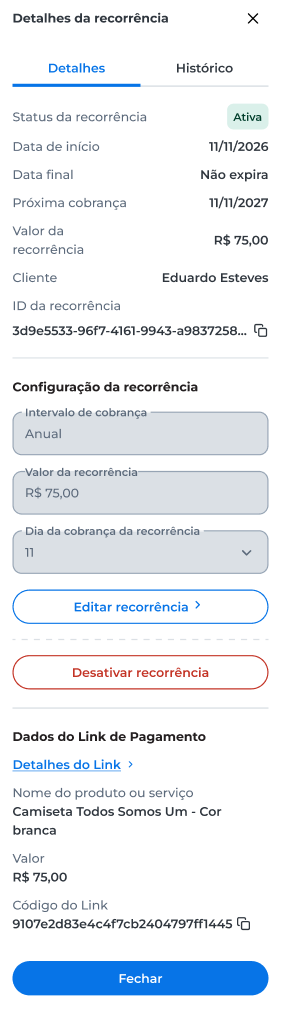
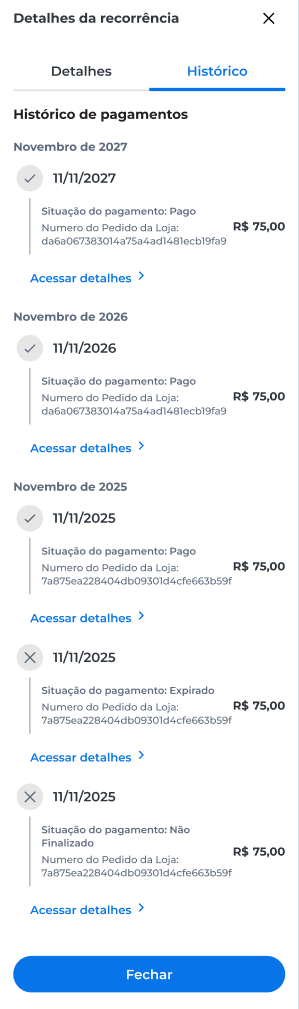
The Detalhes da recorrência (Recurrence details) panel has two tabs: Detalhes and Histórico (History). In the Detalhes tab, you can view:
- The status of the recurring payment;
- The start and end dates and the next charge date;
- The amount of the recurring payment and the client information;
- The recurrence ID, which you can copy;
- The recurrence settings;
- The data of the associated Link de Pagamento, such as the Código do Link, which you can also copy.
View the payment history
Track the charges of a recurring payment.
- In the Detalhes da recorrência panel, select the Histórico tab.
In the Histórico tab, you can view:
- The charge date;
- The payment status;
- The merchant order number;
- The charge amount.
To view more information about a charge, click Acessar detalhes.
Edit a recurring payment
Change the billing settings of a recurring payment.
- In the Detalhes tab, click Editar recorrência (Edit recurrence);
- Change the Intervalo de cobrança, the Valor da recorrência, or the Dia da cobrança da recorrência;
- Click Salvar alterações;
- Review the information in the confirmation window and click Salvar.
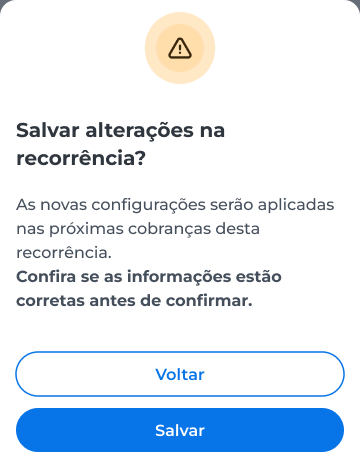
After you confirm, the new settings apply to the next charges of the recurring payment, and the app displays a success message.
Deactivate a recurring payment
Stop the next charges of a recurring payment.
- In the Detalhes tab, click Desativar recorrência (Deactivate recurrence);
- Read the information in the confirmation window and click Desativar;
- Enter the security code sent to your registered email address and confirm.
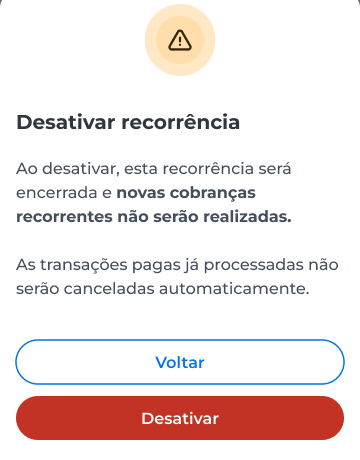
WarningDeactivation is irreversible and stops only future charges. Charges that were already processed are not voided. To create new recurring charges, create a new recurring payment.
After you confirm, the app displays a success message, and the next automatic charges are no longer made.
Deactivated recurring payment
A deactivated recurring payment no longer processes new charges, but its information remains available for query. In this case:
- The status of the recurring payment is displayed as Desativada por usuário (Deactivated by user);
- The date of the last charge appears in the recurring payment details;
- The Editar recorrência and Desativar recorrência options are no longer displayed.
Updated 12 days ago