

Manage payment links in the Cielo Gestão app
View the payment links you created and manage each one in Meus Links (My Links) in the Cielo Gestão app.
How to access
- Open the Cielo Gestão app;
- Click Menu;
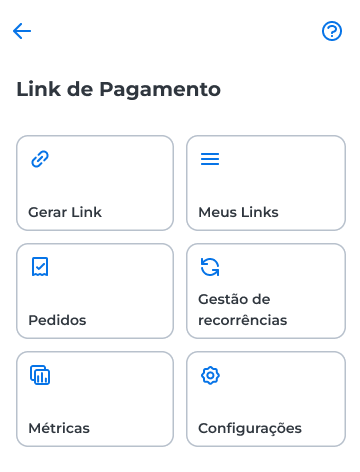
- Under Realizar vendas (Make sales), select Link de Pagamento;
- Select Meus Links (My Links).
Query links
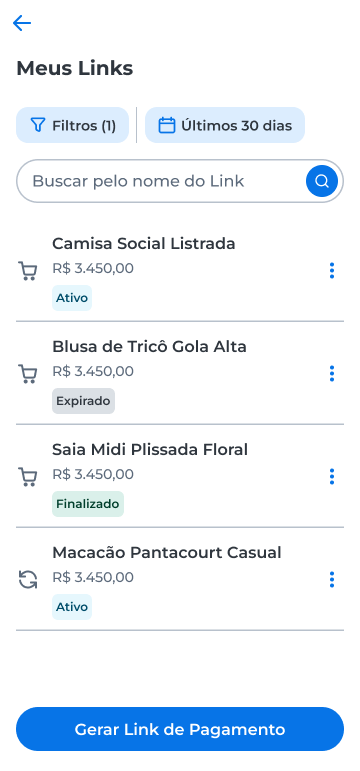
The Meus Links screen lists the links you created, with the name, amount, and status of each one: Ativo (Active), Expirado (Expired), or Finalizado (Completed).
By default, the screen shows the links from the Últimos 30 dias (Last 30 days).
To find a specific link:
- Enter the link name in the Buscar pelo nome do Link (Search by link name) field; or
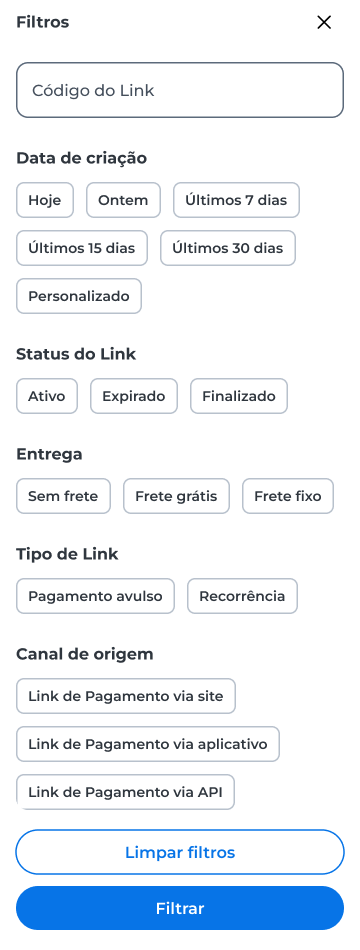
- Click Filtros (Filters) and select the options you want.
If there are no results
When the query returns no links, the screen explains why and suggests an action:
- Sem resultados no período (No results in the period): select another period or click Gerar Link de Pagamento (Generate payment link);
- Nenhum resultado encontrado (No results found), with filters applied: click Limpar filtros (Clear filters) or Alterar filtros (Change filters);
- Nenhum resultado encontrado, after a search: click Limpar busca (Clear search);
- Ocorreu um erro ao carregar as informações (An error occurred while loading the information): click Atualizar página (Refresh page) or try again in a few moments.
ImportantTo manage recurring charges, see the Manage recurring page.
Manage a link
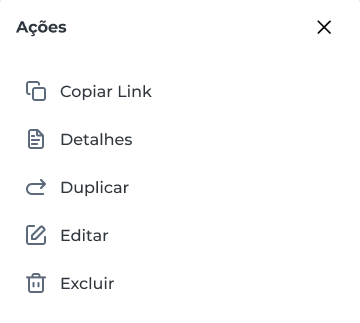
Copy, view, duplicate, edit, or delete a link in the Ações (Actions) panel. To open it, click the three-dot icon next to the link.
Copy a link
Use the Copiar Link (Copy link) option to copy the payment link URL. After you copy it, the system displays a confirmation message.
View link details
Click Detalhes (Details) to open the Detalhes do Link (Link details) panel, which has three tabs:
- Detalhes: the status, name, and amount of the link, plus the settings you defined, such as installments, delivery and shipping, payment limit, expiration date, and payment methods. The tab also shows the creation date and the link code;
- Pagamentos (Payments): the payments made through the link, with a field to search by client. While there are no payments, the tab displays the Compartilhar Link (Share link) option;
- Histórico (History): the link's change history, with a record of its creation and changes, who made them, and when.
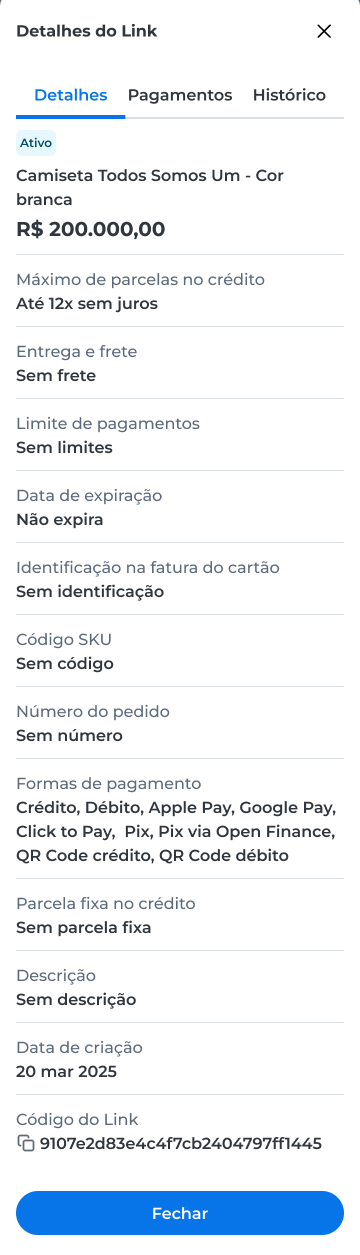
To return to the list, click Fechar (Close).
Duplicate a link
Create a new link from an existing one:
- Click the three-dot icon next to the link and select Duplicar (Duplicate);
- Change the information you need;
- Click Duplicar.
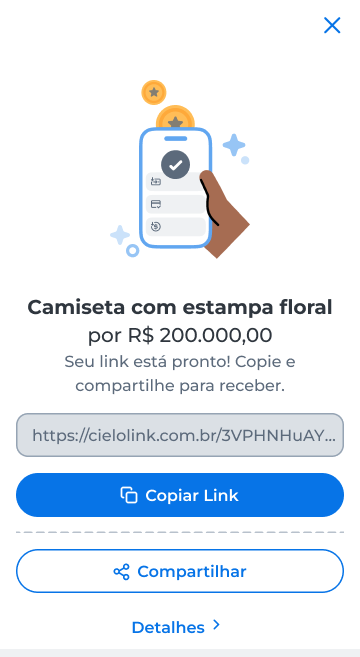
After you duplicate the link, the app opens the new link's screen with the Copiar Link, Compartilhar (Share), and Detalhes options.
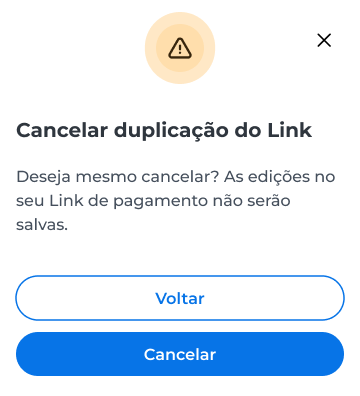
To leave without duplicating, click Cancelar (Cancel) and confirm in the Cancelar duplicação do Link (Cancel link duplication) window. Your edits are not saved.
Edit a link
Change the settings of an existing link, such as the amount, delivery, and payment methods.
- Click the three-dot icon next to the link and select Editar (Edit);
- Change the information you want;
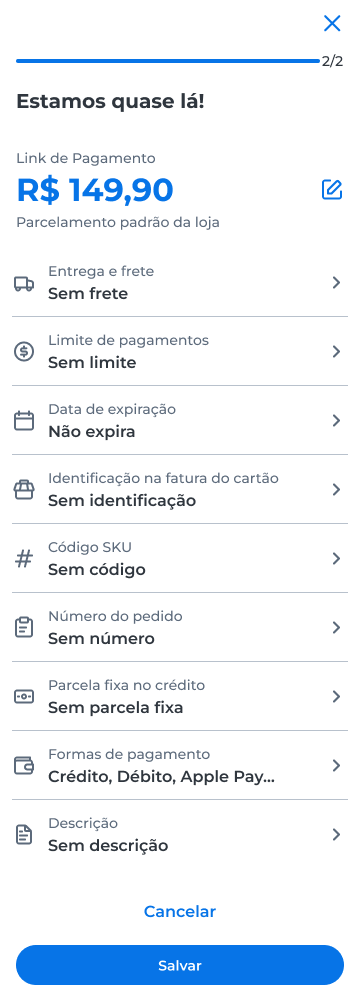
- Click Salvar (Save);
- In the Editar Link (Edit link) window, confirm the change by clicking Salvar.
After you confirm, the app opens the link's screen with the Copiar Link, Compartilhar, and Detalhes options.
To leave without saving, click Cancelar and confirm in the edit cancellation window.
Delete a link
Delete a link that should no longer receive payments.
- Click the three-dot icon next to the link and select Excluir (Delete);
- In the Deseja excluir este link? (Do you want to delete this link?) window, click Excluir.
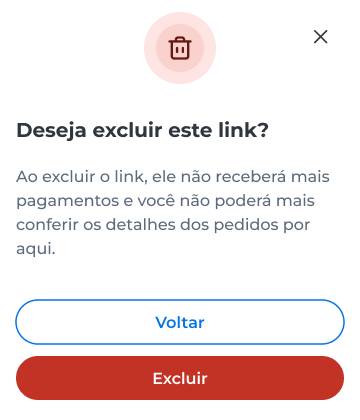
To keep the link, click Voltar (Back).
After you delete the link, the app displays the message Pronto! Link excluído com sucesso. (Done! Link deleted successfully.)
Updated 16 days ago