

Orders (pedidos)
Query the charges generated by one-time and recurring payment links.
On this page, you can track orders, apply filters, export reports, and access details of each transaction.
How to access
- Go to the Cielo Website;
- In the main menu, click E-commerce;
- Select Link de Pagamento;
- Click the Pedidos tab;
Query orders
When accessing the page, you can switch between the Pedidos avulso and Pedidos recorrentes tabs.
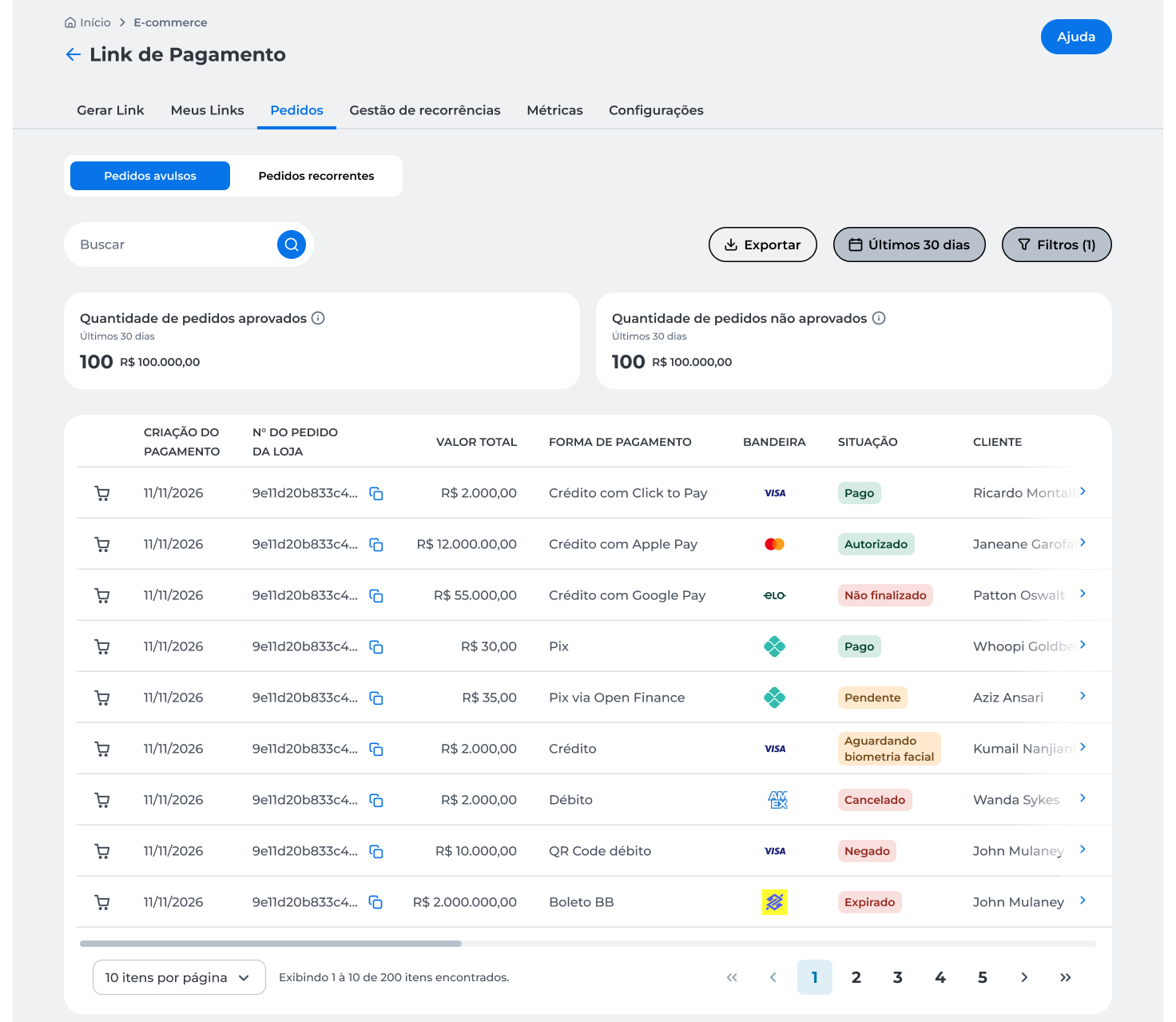
Each tab displays a type of charge:
- Pedidos avulso, to query individual charges;
- Pedidos recorrentes, to query charges linked to recurring payments.
The default periods displayed in each tab are:
- Pedidos avulso: last 30 days;
- Pedidos recorrentes: last 6 months.
The page indicators also consider the period shown in each view.
Test modeWhen the test mode is active, the page displays a warning indicating that transactions made do not generate real charges.
For more information, see the Test mode page.
Export report
You can export the listing data for external analysis.
- On the Pedidos page, click Exportar;
- Select one of the available options:
- Pedidos, to export the orders listing;
- Lista de cliente, to export the complete list of clients.
- Wait for the export process to finish.
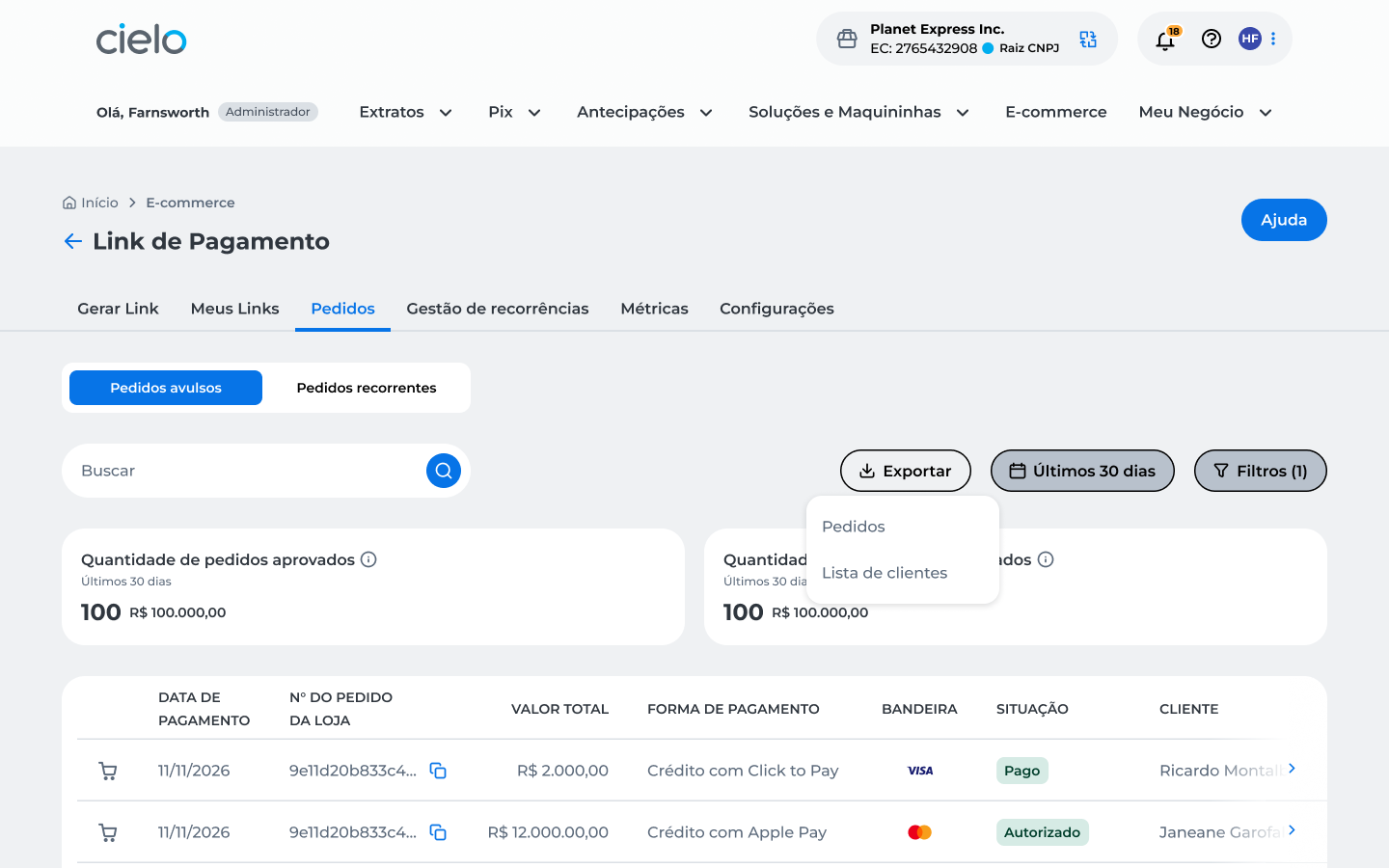
Once the process is completed, a success message will be displayed on the screen.
ImportantThe Pedidos export considers the filters and period selected in the query.
The Lista de cliente export generates the entire list of clients, regardless of the filters applied.
Query order details
To access an order’s information:
- On the Pedidos page, select the desired order.
The order details screen will be displayed.
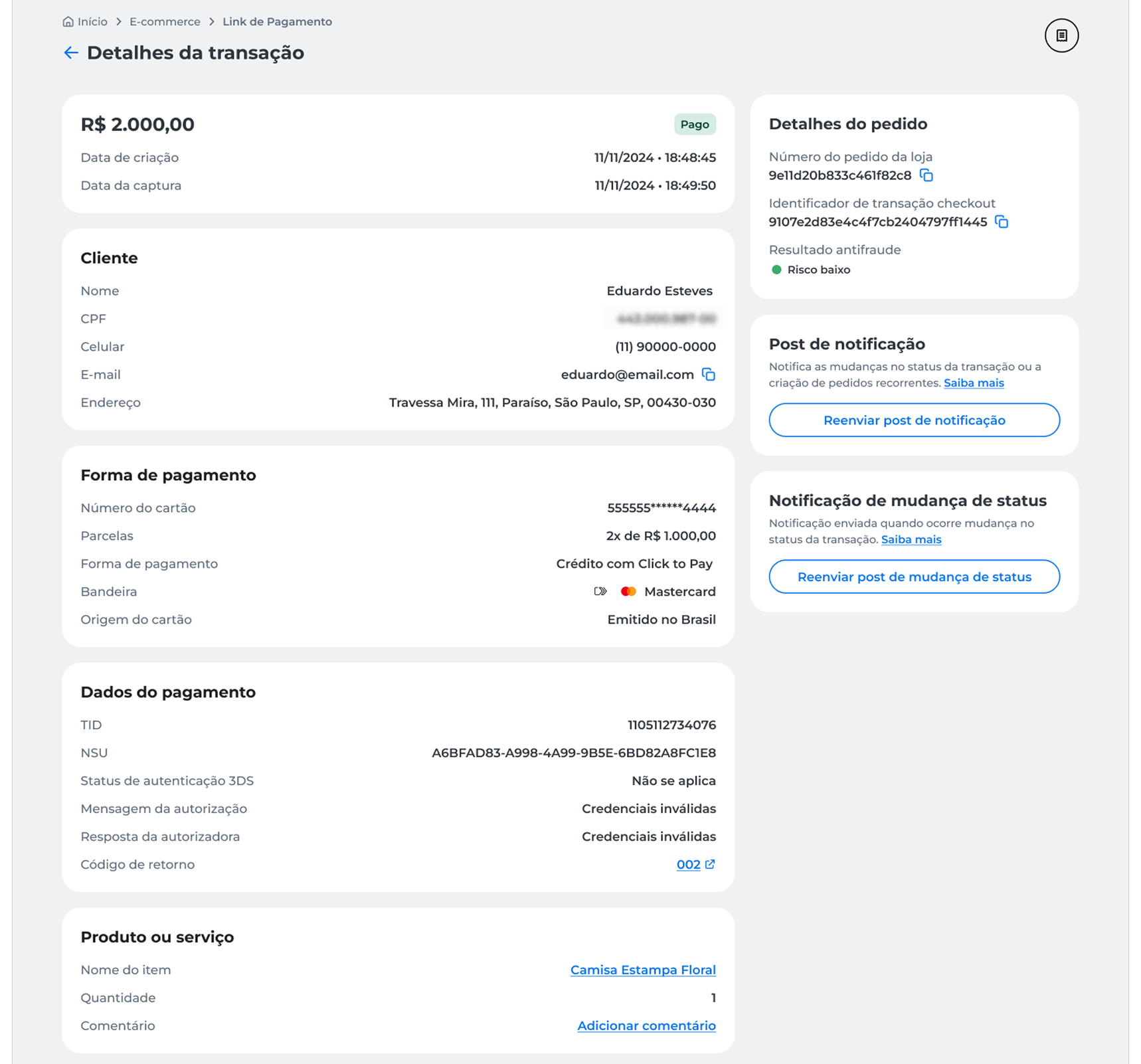
The page gathers the main transaction information.
On the details screen, you can query:
- Transaction information;
- Client data;
- Payment method;
- Payment details;
- Product or service information;
- Antifraude analysis results.
Depending on the transaction status, additional information may also be displayed, such as facial authentication or Antifraude warnings.
Some information and actions may vary according to the transaction status.
Resend notifications
On the order details page, you can resend notifications related to the transaction.
The following options are available:
- Reenviar post de notificação, to resend notifications about transaction status changes or the creation of recurring orders;
- Reenviar notificação de mudança de status, to resend the latest transaction status update.
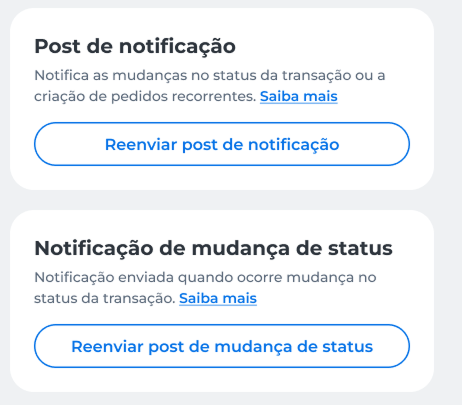
Select the type of notification you want to resend according to your needs.
- Locate the notification to resend;
- Click the corresponding button;
- Wait for the request confirmation.
After resending, a success message will be displayed on the screen.
Query facial authentication (ID Pay)
When a transaction includes facial authentication, the information is available in the Autenticação facial section of the transaction details page.
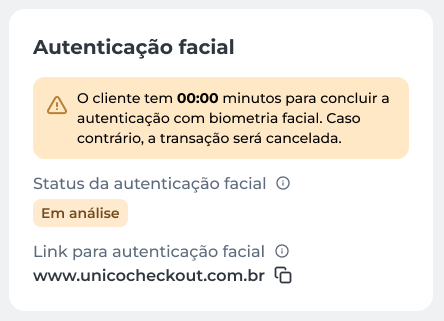
In the Autenticação facial section, you can:
- Query the facial authentication status;
- Copy the facial authentication link to share it again with the shopper;
- Query alerts related to authentication, when available.
Query link data
On the order details page, click the product name displayed in the Produto ou serviço section.
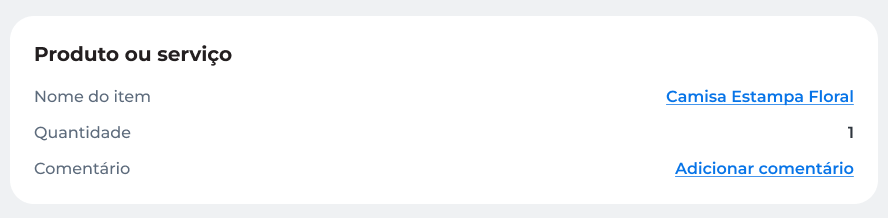
A side panel will appear showing the payment link information that originated the charge.
In this area, you can query details of the link used in the transaction.
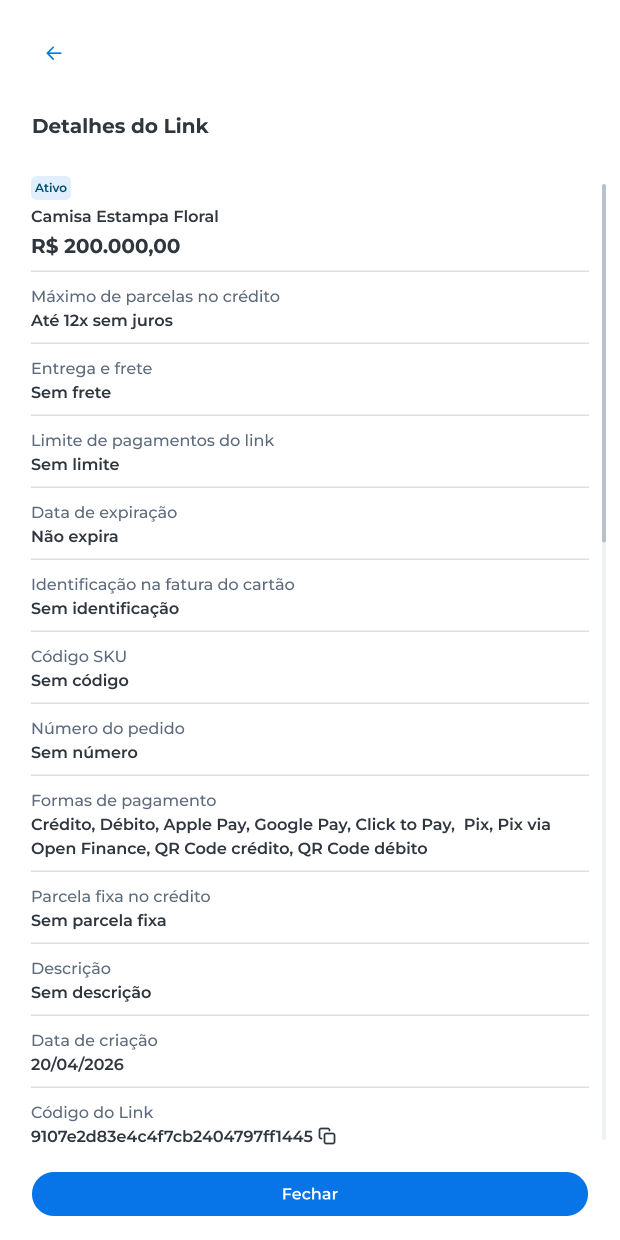
The information displayed in this panel is for query purposes only.
To return to the order details page, click Fechar.
Add comments
On the order details page, locate the Produto ou serviço section and click Adicionar comentário.
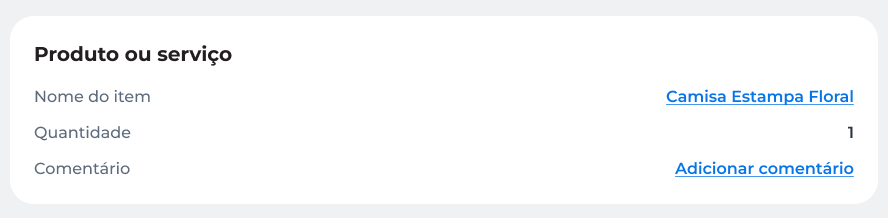
Enter the desired comment and click Salvar.
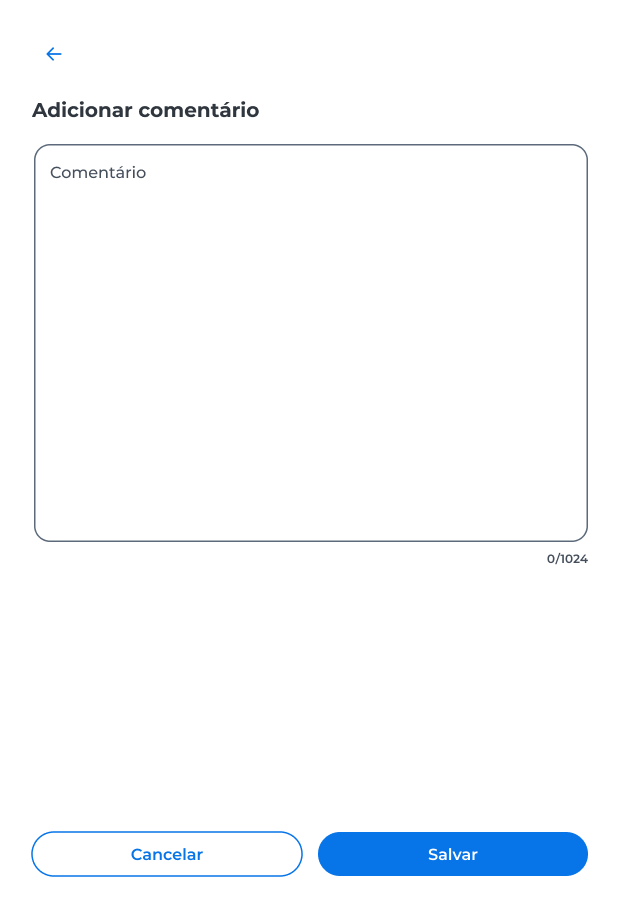
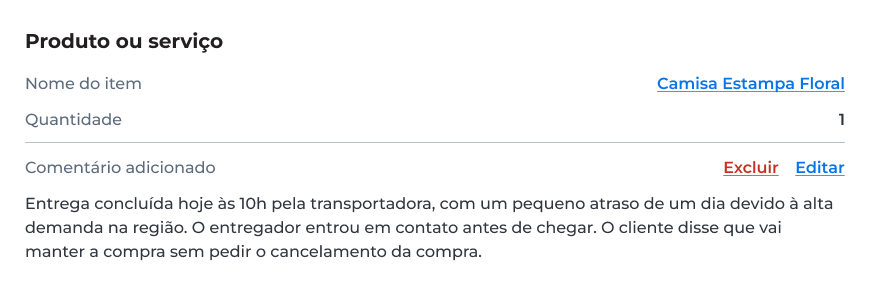
After being added, the comment will be available in the Produto ou serviço section.
To edit or remove an existing comment, use the Editar or Deletar options displayed next to the comment.
Query recurrence information
Recurrence information is available only for recurring orders.
Query recurrence details
To query recurrence information:
- On the Pedidos page, click the Pedidos recorrentes tab;
- Select the desired order.
In the Detalhes do pedido section, you can query the following recurrence information:
- The recurrence identifier;
- The Antifraude analysis result;
- The recurrence status.
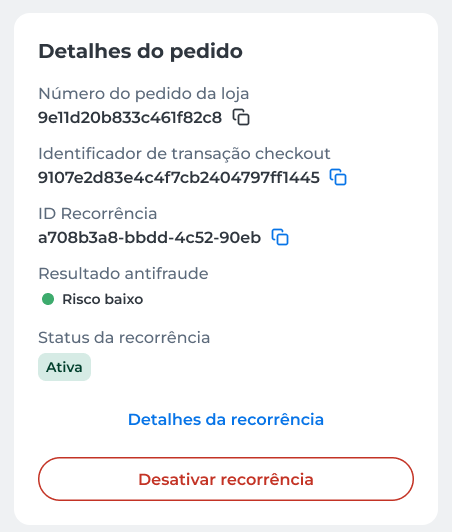
To view more information, click Detalhes da recorrência.
A side panel will appear showing the recurrence details.
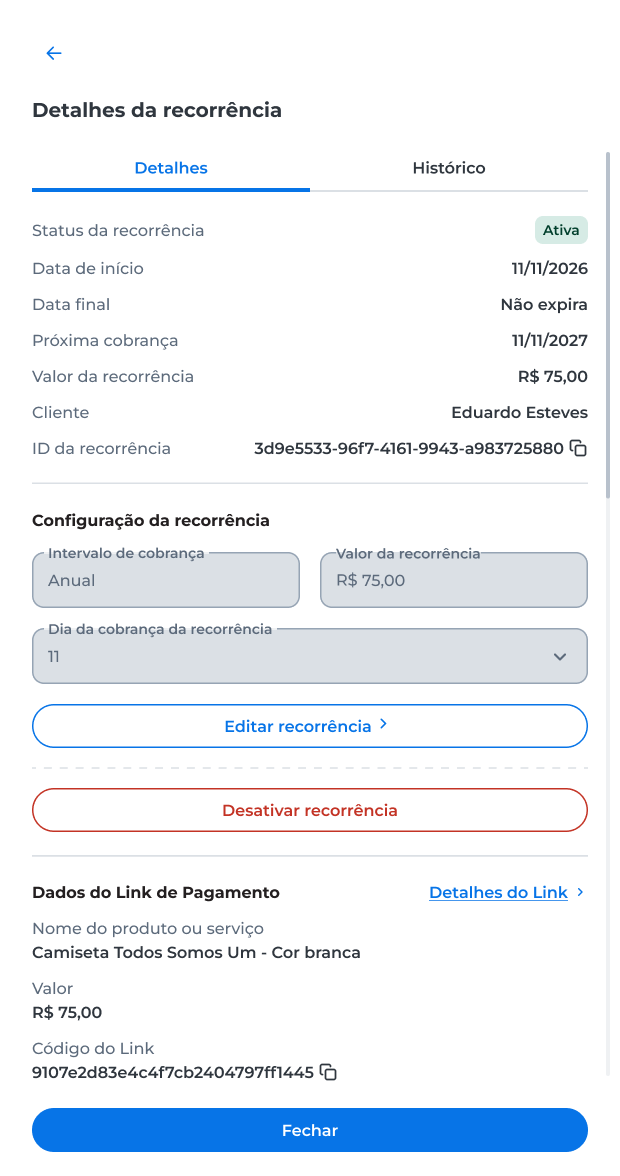
In the Details section, you can query:
- The recurrence status;
- The start date, end date, and next charge date;
- The recurrence amount;
- The client information;
- The recurrence identifier.
To view the recurrence records, click the History tab.
Edit recurrence
In the Detalhes da recorrência panel, click Editar recorrência.
You can change:
- The billing interval;
- The recurrence amount;
- The billing day.
After making the changes, click Salvar alteraçõe.
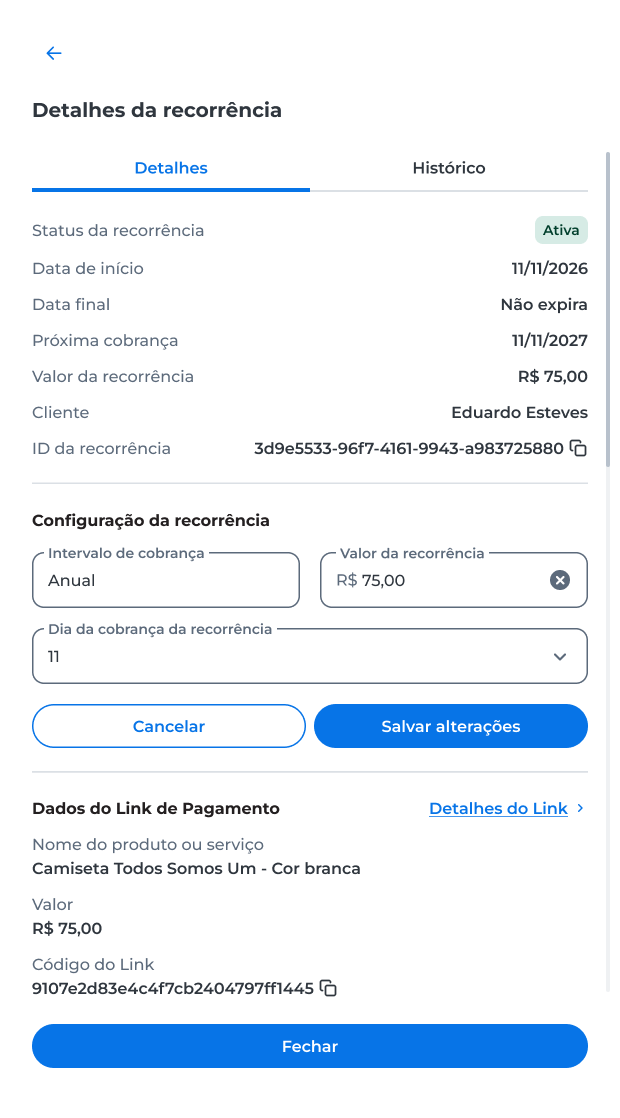
Review the information and click Salvar to confirm the changes.
After confirmation, a success message will be displayed on the screen.
Deactivate recurrence
In the Detalhes da recorrência panel, click Desativar recorrência.
Read the displayed information and click Desativar to confirm the operation.
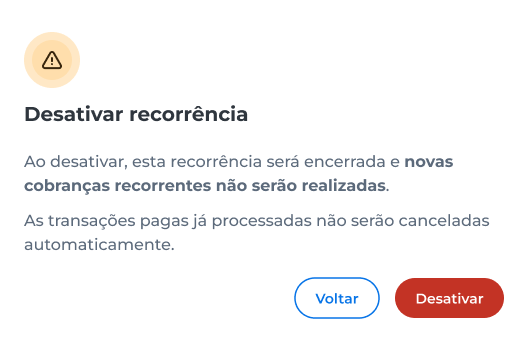
- Click Desativar recorrência;
- Enter the security code sent to the registered e-mail;
- Click Validar.
After confirmation, a success message will be displayed and future automatic charges will be stopped.
ImportantDeactivating a recurrence stops only future charges.
Charges already processed are not voided.
Next sections
Updated about 1 month ago