
Enabling microservices
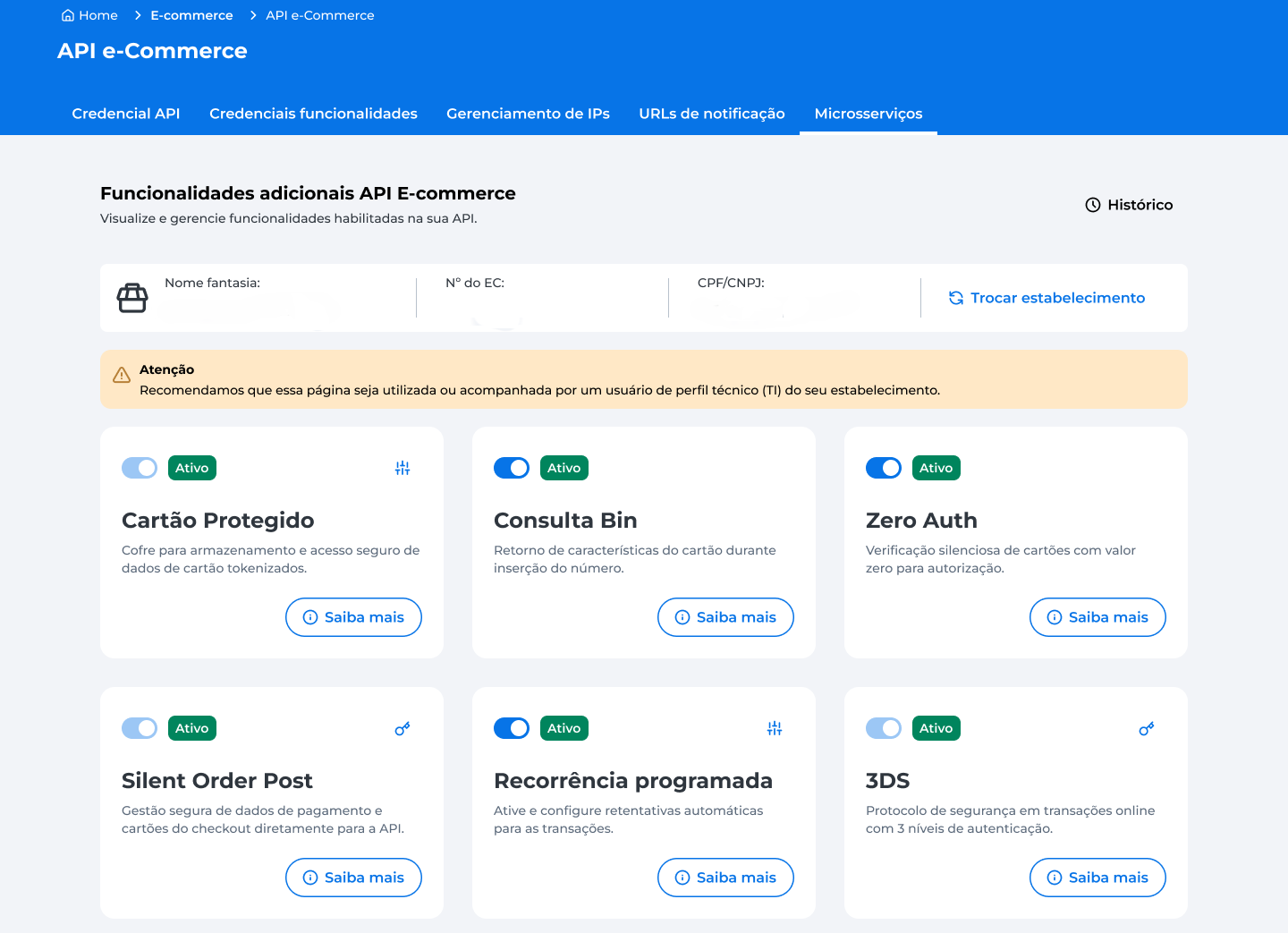
In the Microservices tab, you can view, enable, and configure additional features:
The settings described can only be performed by users with Administrador (Administrator), Técnico (Technician), or Analista (Analyst) permissions.
Manage access for each profile in Meu cadastro > Gestão de Acessos and learn more about the different types of access in Entenda a diferença entre cada perfil.
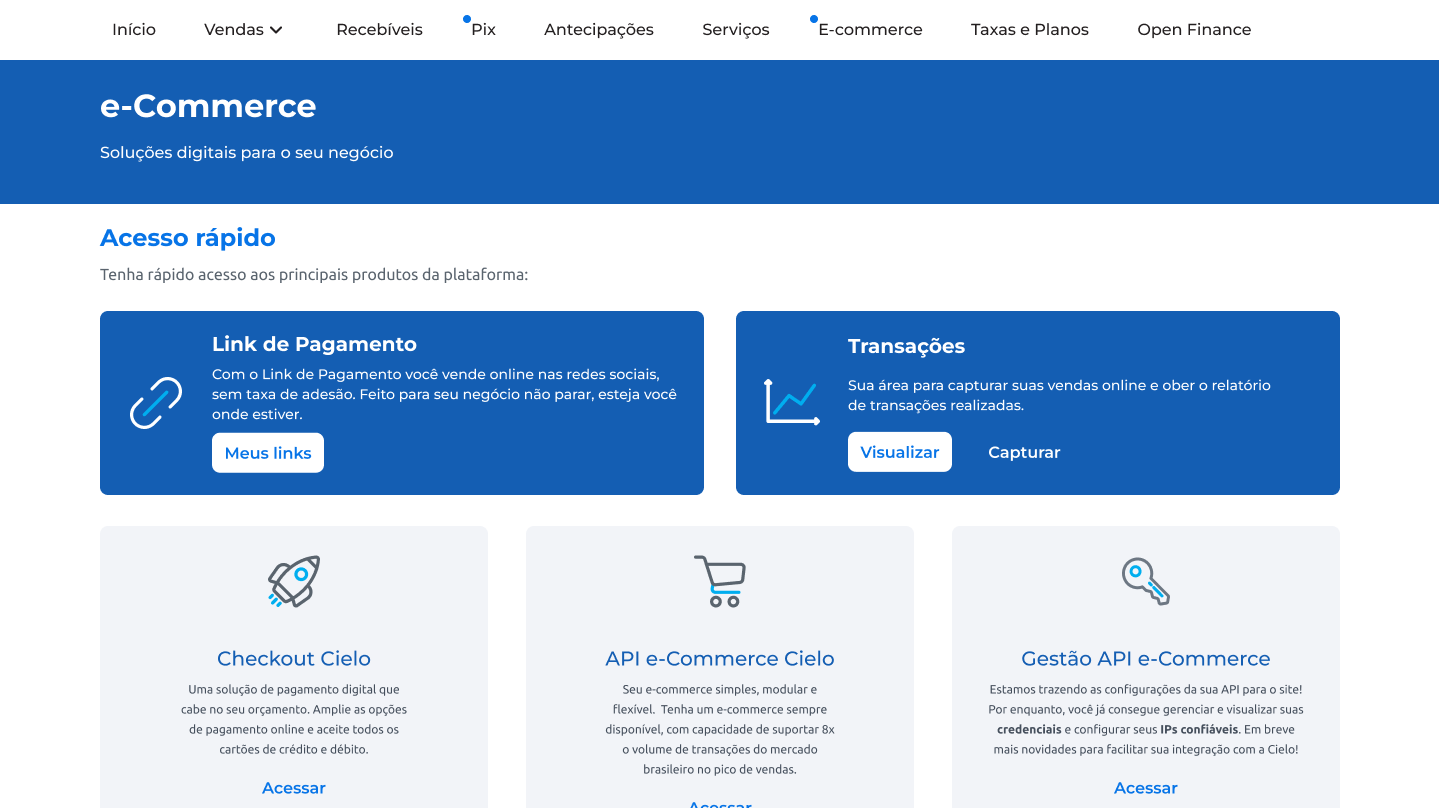
To access the Microservices tab, log in to the Cielo website and go to the E-commerce tab. In API E-commerce Management, click Access:
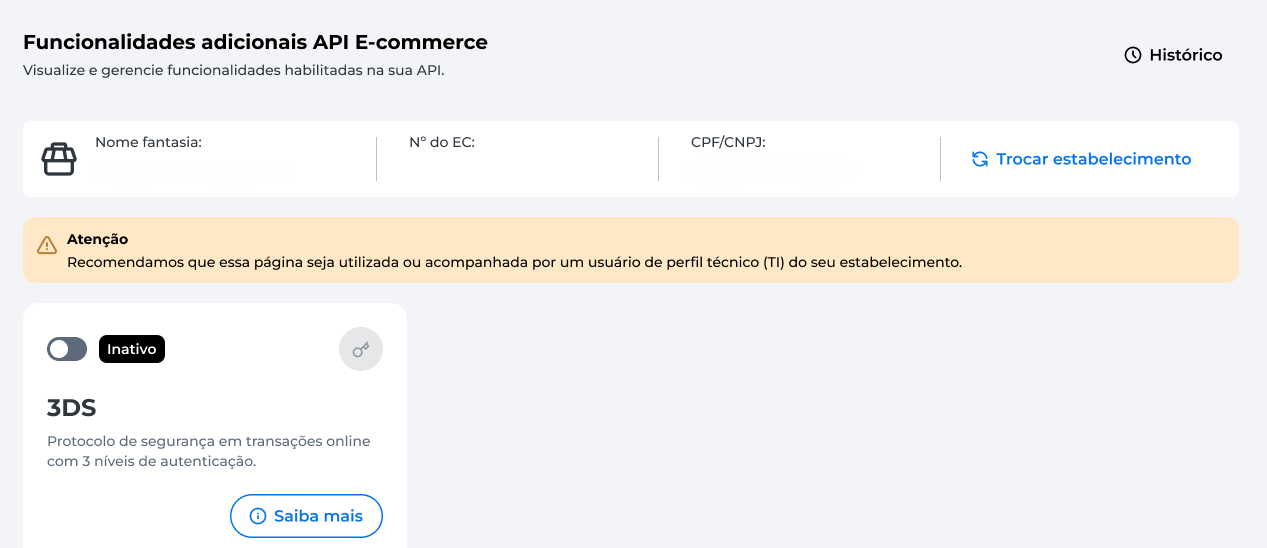
The additional features you have configured will be displayed, and you can enable, disable, and configure microservices. Click Learn more to get details about each service:
If you want to enable additional features for another merchant, click Change merchant and select the merchant:
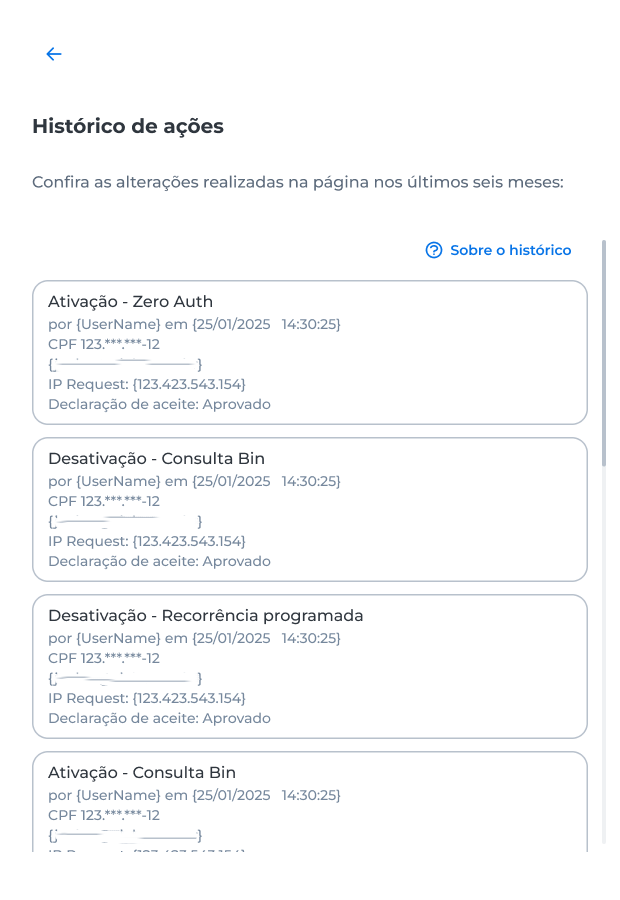
>> You can access the configuration history for all displayed features by clicking History:
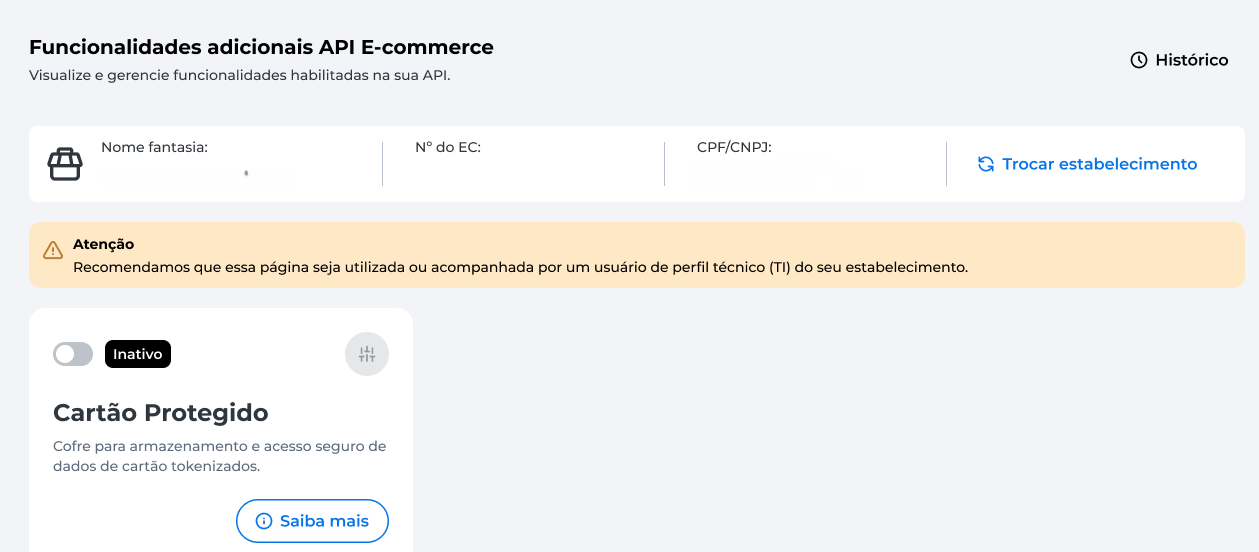
Cartão Protegido
- To enable the Cartão Protegido feature, click the activation toggle:
- The Terms of Use screen will appear. Read and click I declare that I agree and I agree;
- Next, a token will be sent to your Cielo Gestão app or to your email. Enter the token for authentication:
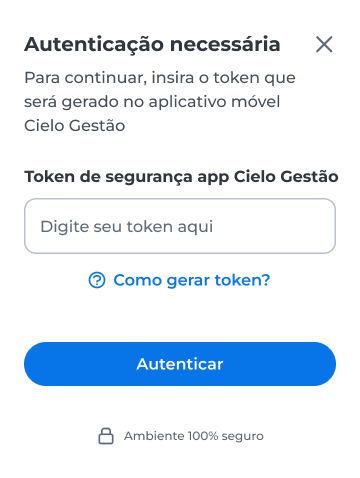
- A screen will appear confirming the change was successful:

After activation, Cartão Protegido cannot be disabled via the Cielo website.If you want to disable it, contact Cielo Support.
Consulta BIN
- To enable the Consulta BIN feature, click the activation toggle:
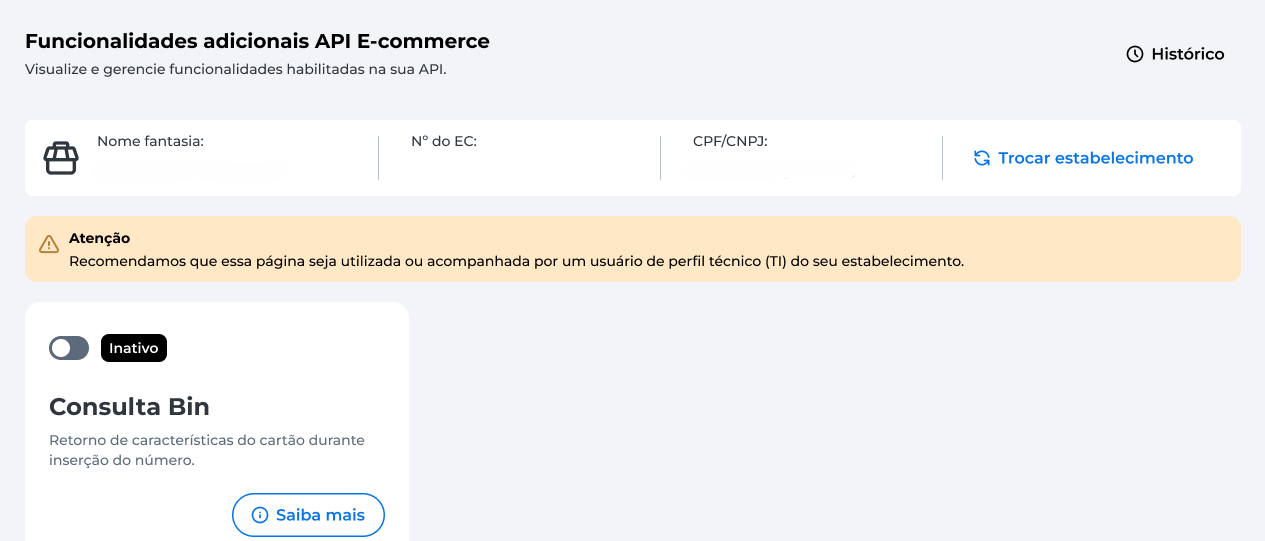
- The Terms of Use screen will appear. Read and click I declare that I agree and I agree;
- Next, a token will be sent to your Cielo Gestão app or to your email. Enter the token for authentication:
- A screen will appear confirming the change was successful:
Zero Auth
- To enable the Zero Auth feature, click the activation toggle:
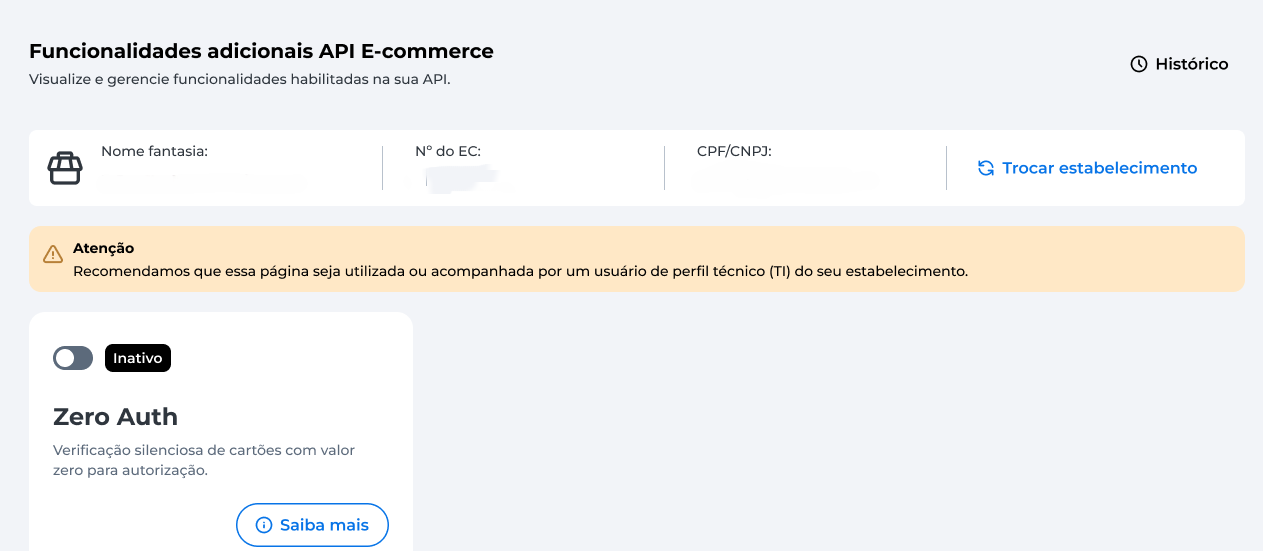
-
The Terms of Use screen will appear. Read and click I declare that I agree and I agree.
-
Next, a token will be sent to your Cielo Gestão app or to your email. Enter the token for authentication:
- A screen will appear confirming the change was successful:
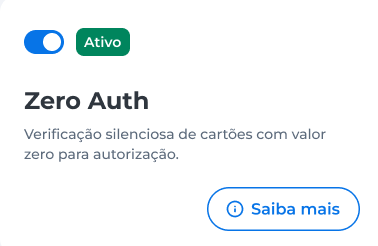
To disable Zero Auth, click the toggle:
Then, authenticate via the Cielo Gestão app or by email. Once authenticated, the change will be completed successfully.
Silent Order Post
- To enable the Silent Order Post feature, click the activation toggle:
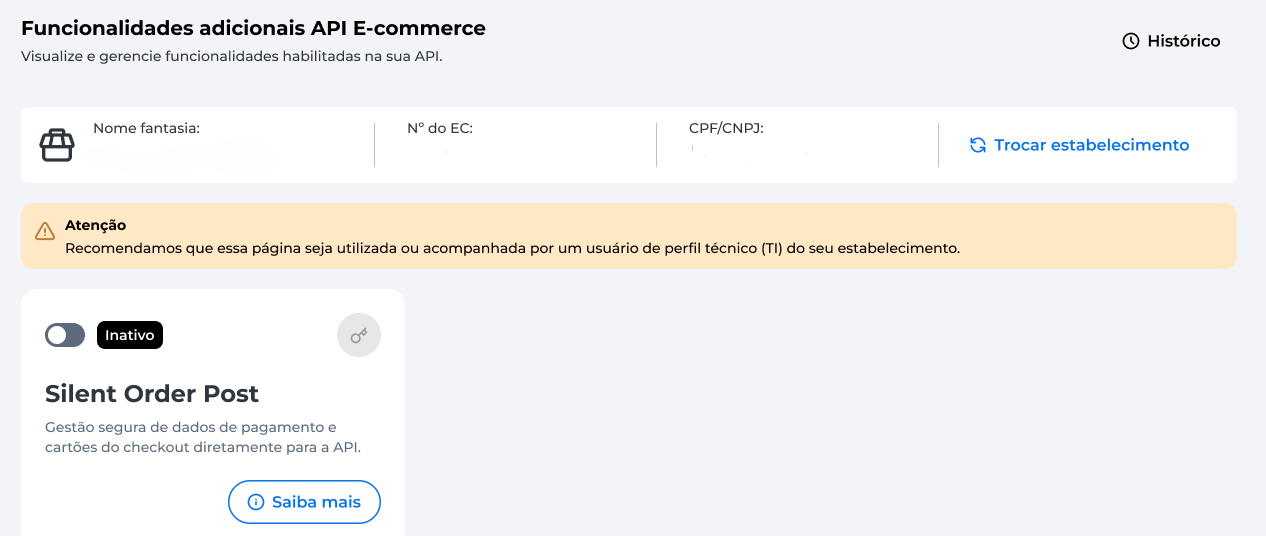
- The Terms of Use screen will appear. Read and click I declare that I agree and I agree;
- Select Silent Order Post on the credential generation screen, review your merchant information, and click Generate credential:
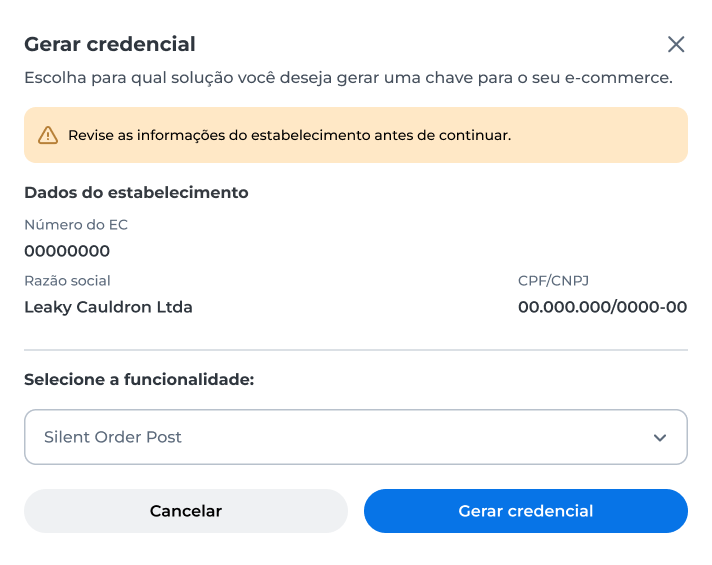
- Next, a token will be sent to your Cielo Gestão app or to your email. Enter the token for authentication:
- A screen will appear with the
Client IDandClient Secret. The timer indicates how long these credentials will be available to copy:
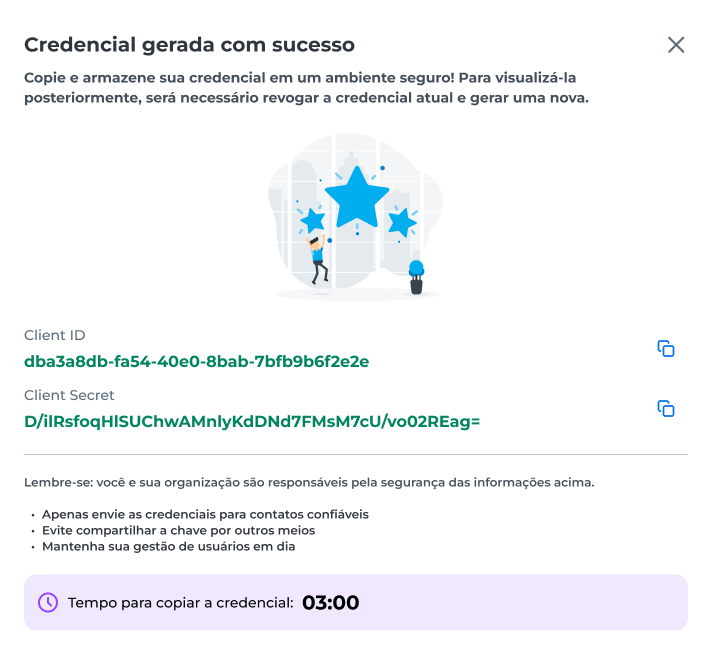
After activation, Silent Order Post cannot be disabled via the Cielo website.To revoke the used credentials, you can create new credentials.
Scheduled recurrence
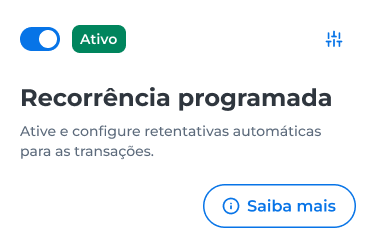
- To enable the Scheduled recurrence feature, click the activation toggle:
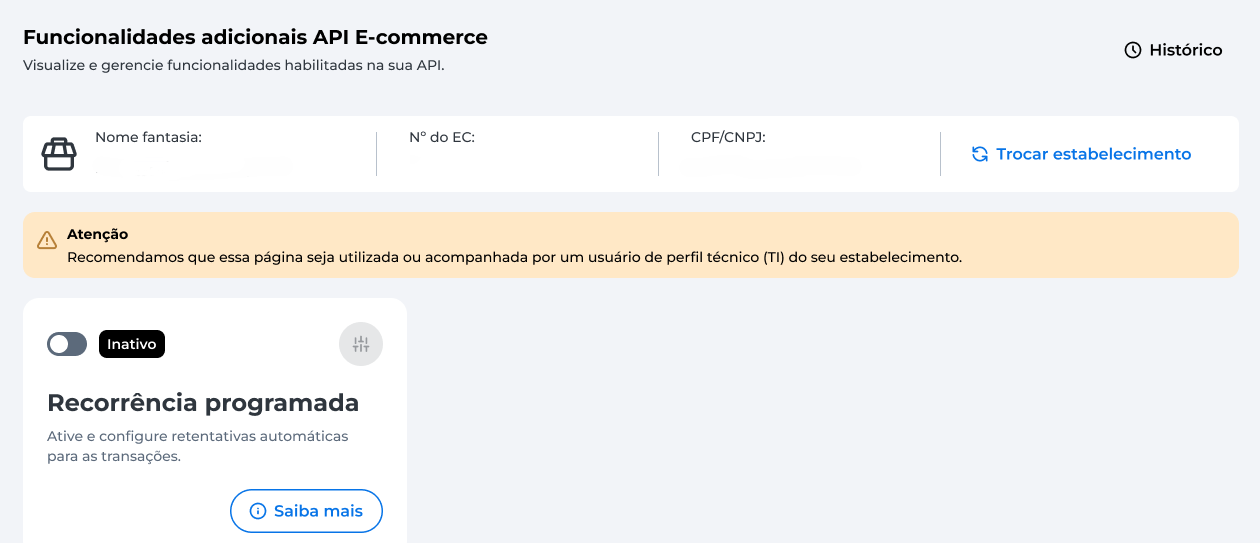
- The Terms of Use screen will appear. Read and click I declare that I agree and I agree;
- Set the number of automatic attempts and the interval between them. Select the option if you want the recurrence to be disabled after all attempts are exhausted. Click Save:
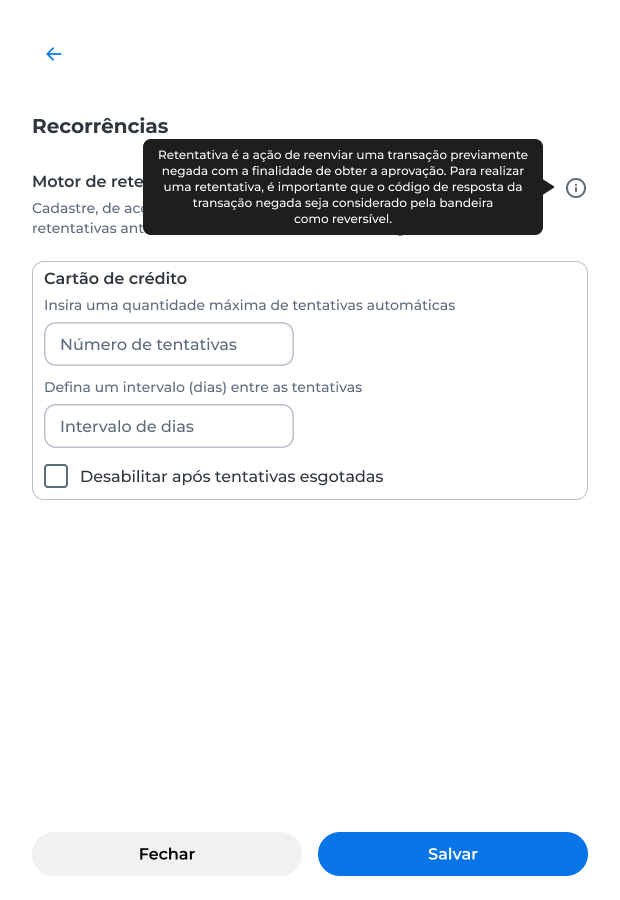
You can edit the settings later if needed.
- Next, a token will be sent to your Cielo Gestão app or to your email. Enter the token for authentication:
- A screen will appear confirming the change was successful:
To disable Scheduled recurrence, click the toggle:
Then, authenticate via the Cielo Gestão app or by email. Once authenticated, the change will be completed successfully.
3DS
- To enable the 3DS feature, click the activation toggle:
- The Terms of Use screen will appear. Read and click I declare that I agree and I agree;
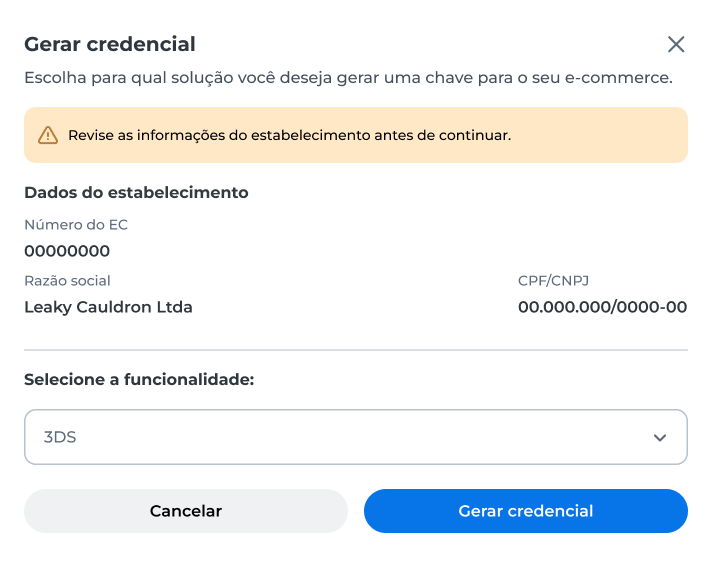
- Select 3DS on the credential generation screen, review your merchant information, and click Generate credential:
- Next, a token will be sent to your Cielo Gestão app or to your email. Enter the token for authentication:
- A screen will appear with the
Client IDandClient Secret. The timer indicates how long these credentials will be available to copy:
After activation, 3DS cannot be disabled via the Cielo website.To revoke the used credentials, you can create new ones.
Updated 3 months ago