
Enable e-wallets via Cielo Portal
You can enable the e-wallets: Apple Pay, Google Pay, and Samsung Pay directly on the Cielo Portal. To enable them, follow the steps below:
-
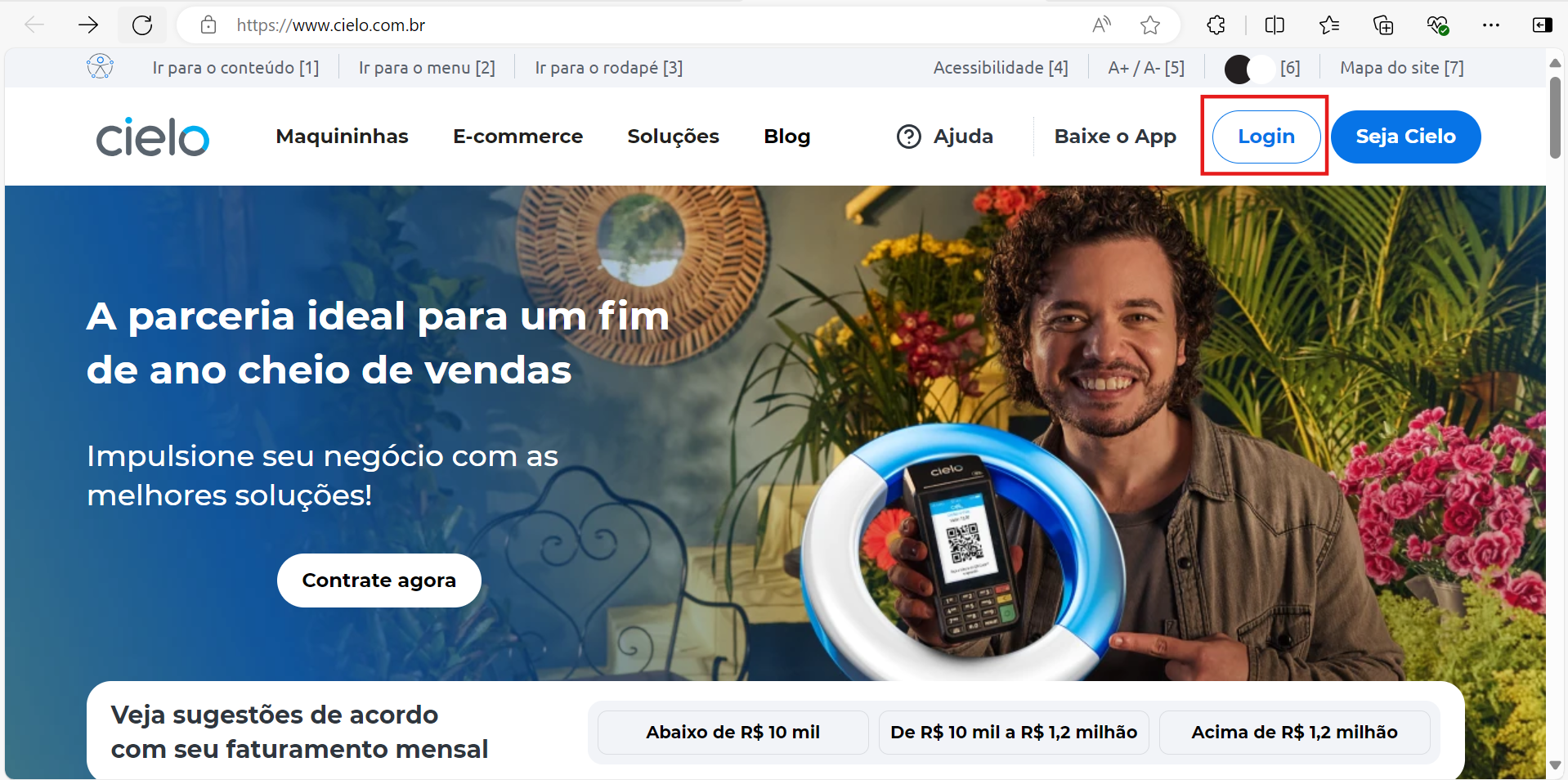
Access the Cielo portal and click on Login;
-
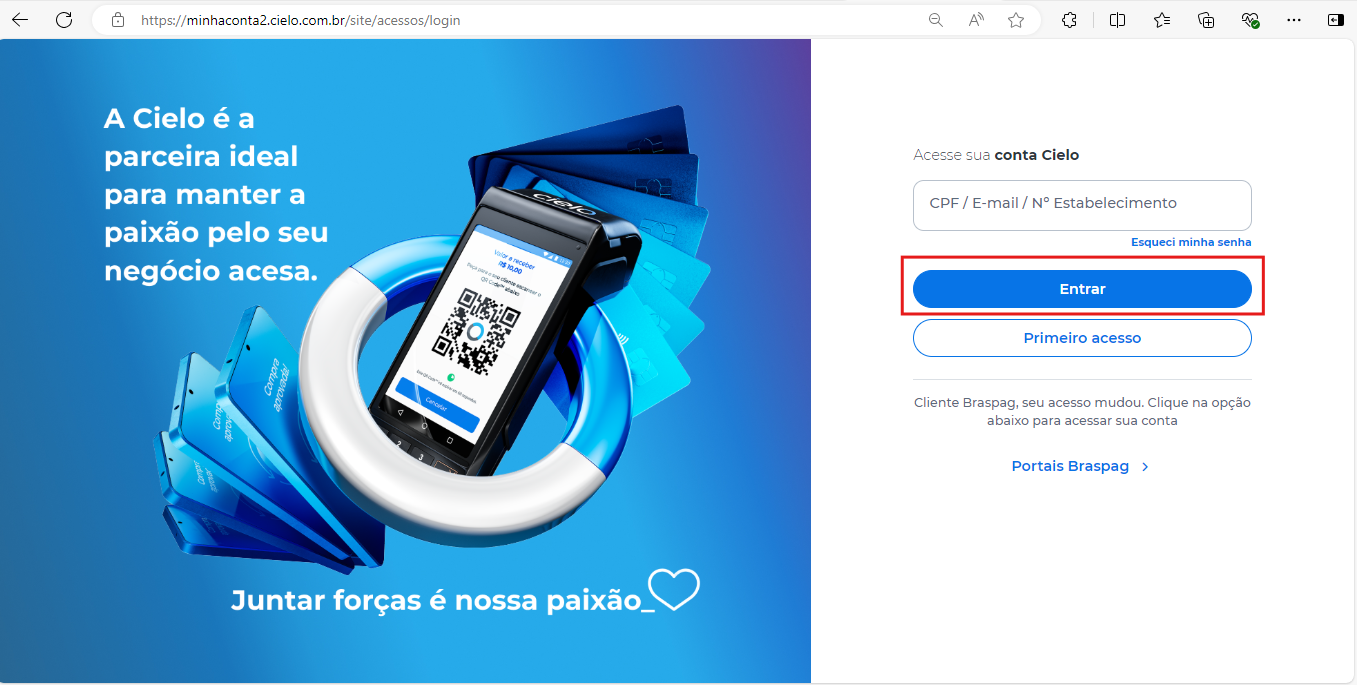
Access the Minha Conta Cielo with the created merchant number, and click on Entrar;
-
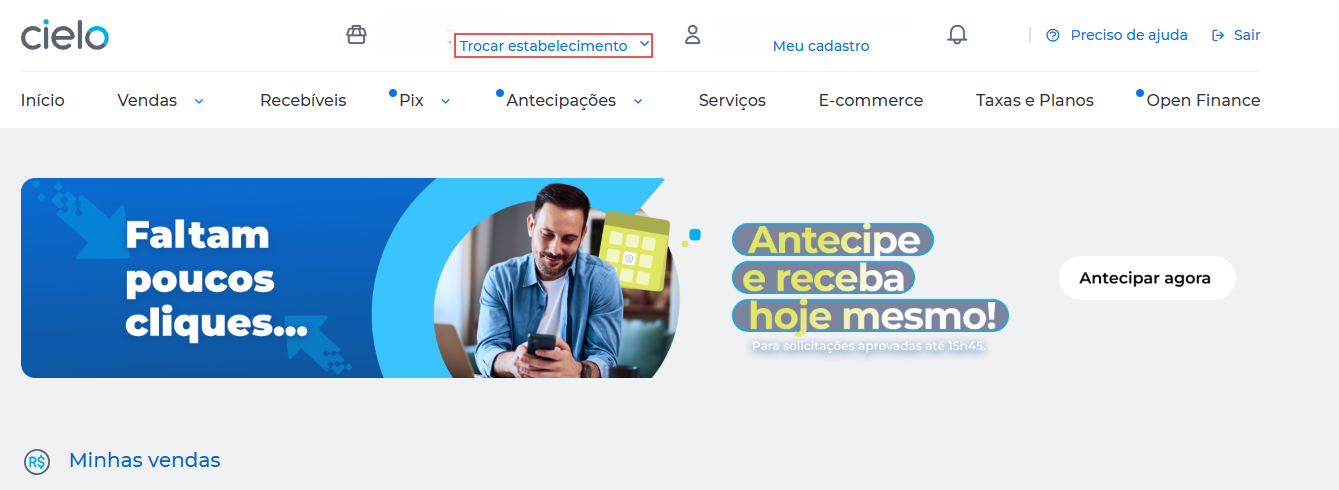
If you have more than one merchant and need to switch, click on Trocar estabelecimento;
-
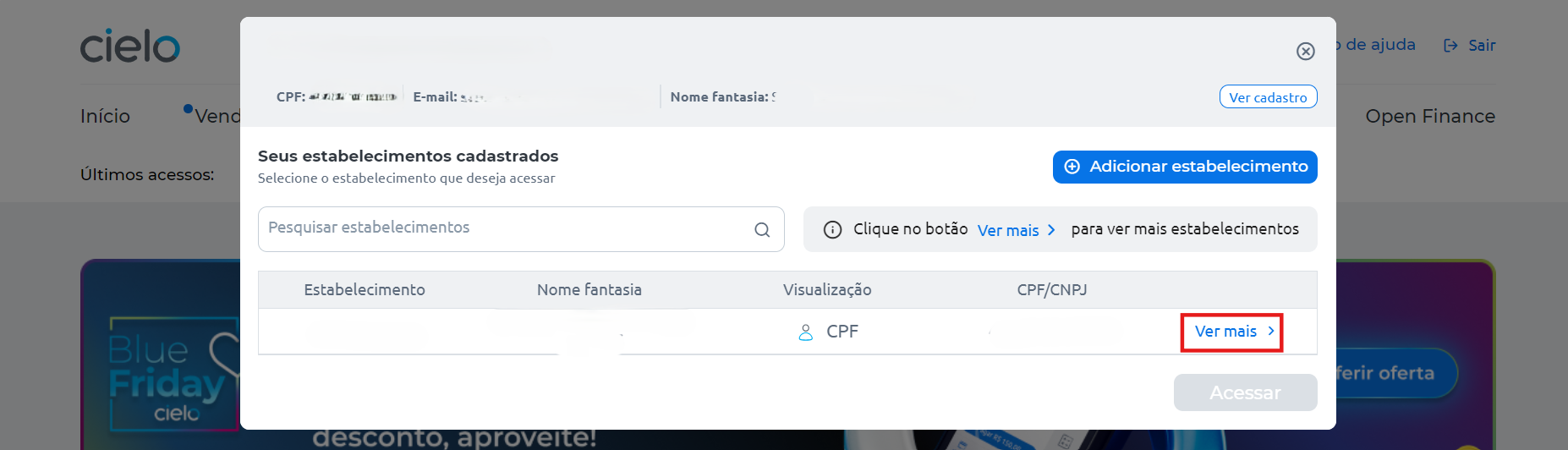
Click on Ver mais;
-
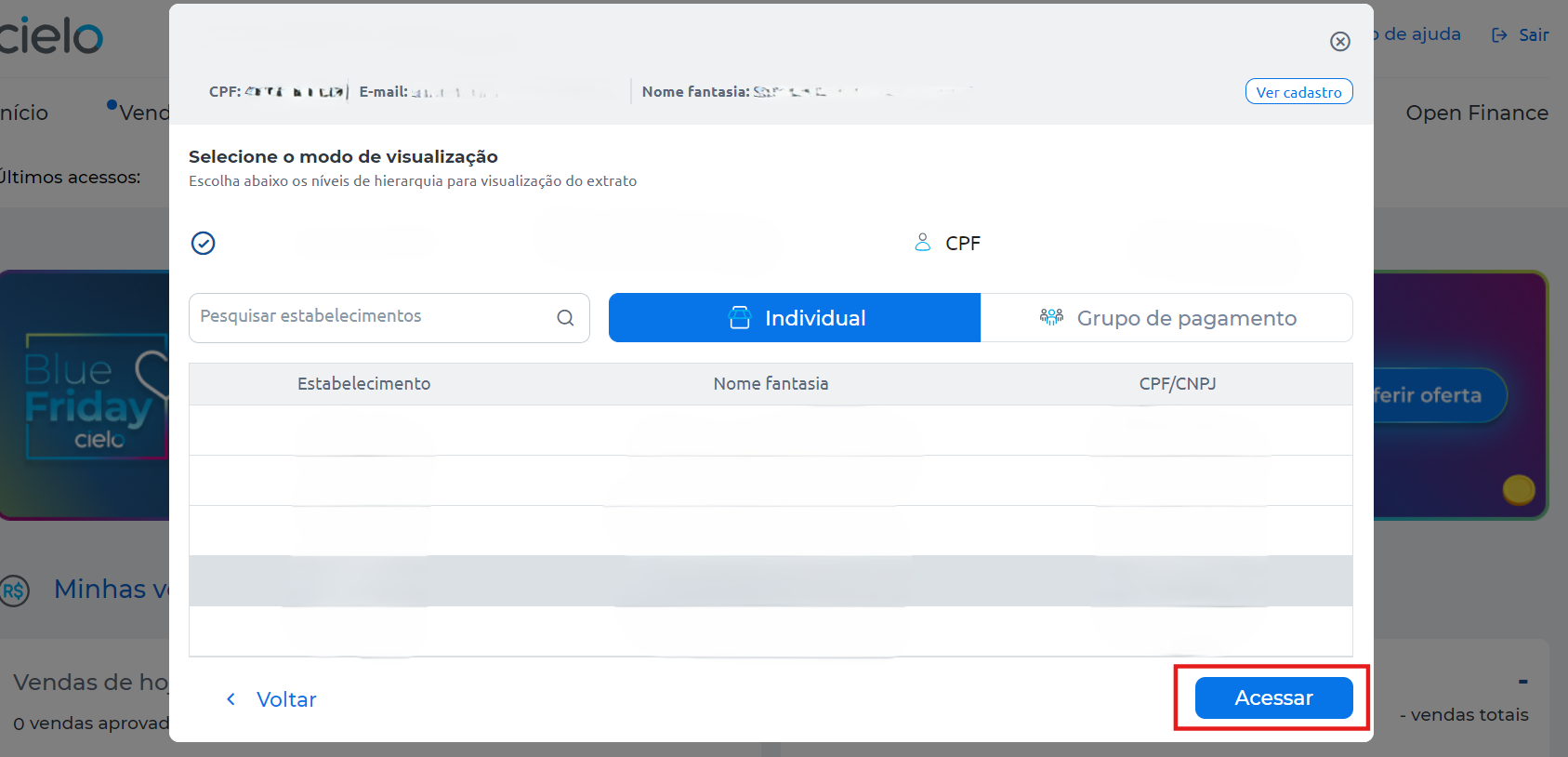
Select the desired merchant, (The merchant number for the Cielo E-commerce API can be found in the welcome email sent by Cielo) and click onAcessar;
-
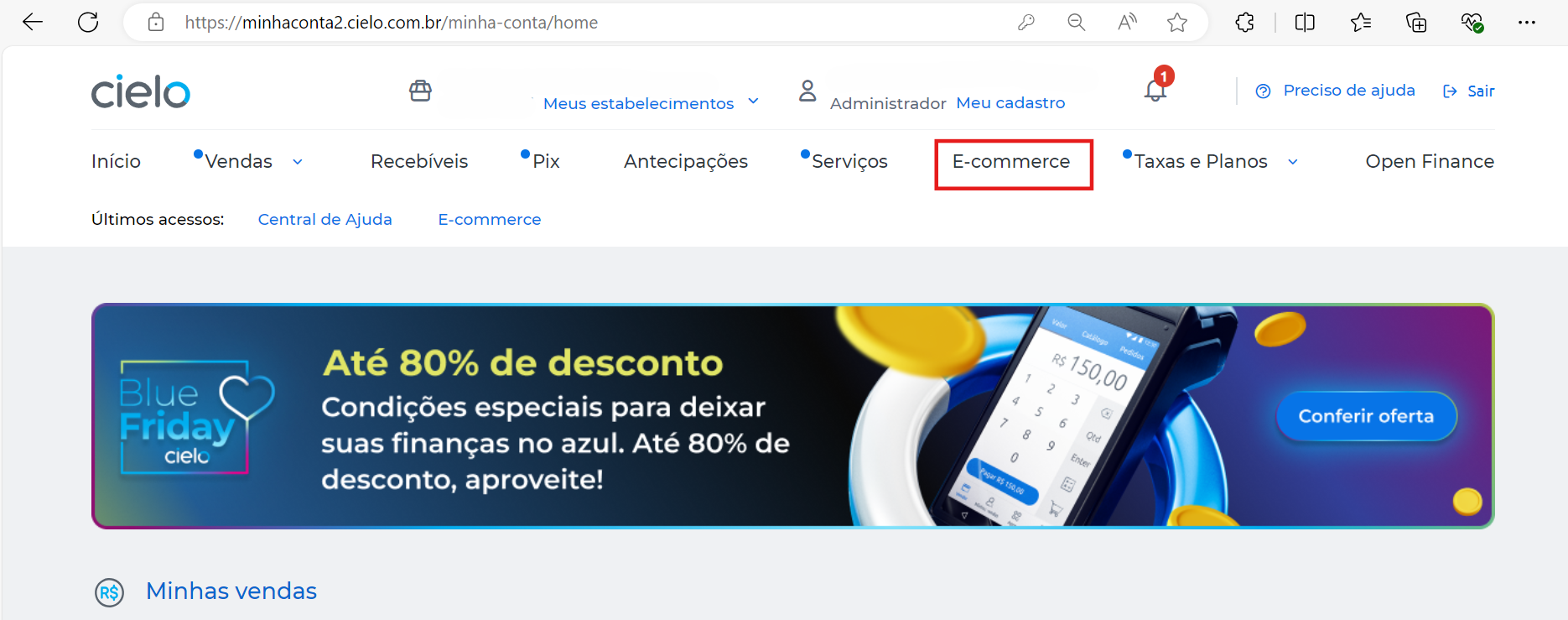
Click on E-commerce;
- In Meios de pagamento click on Acessar;

- In Carteiras digitais com criptografia, enable the desired wallet.
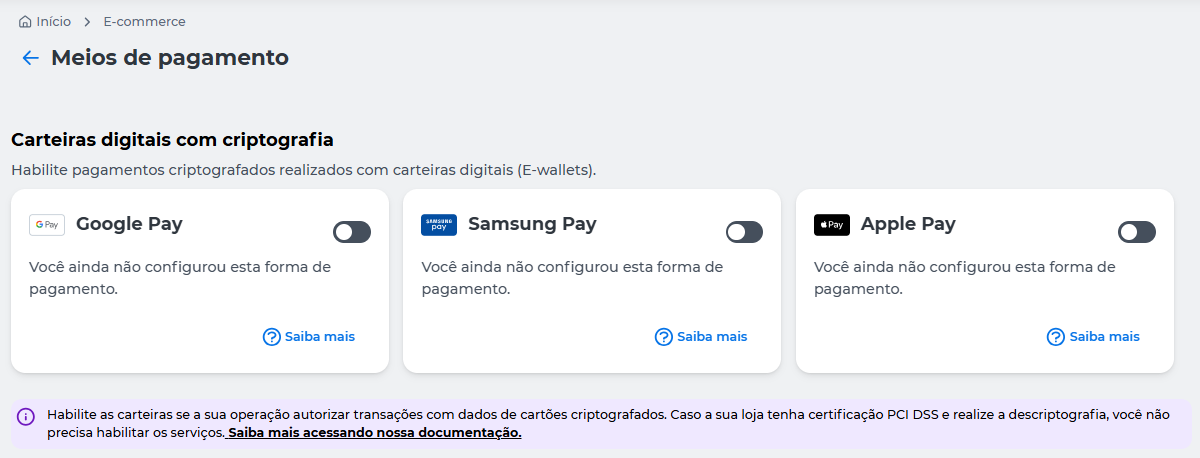
*To consult information about the documentation and data required to enable the wallet, access Saiba Mais.
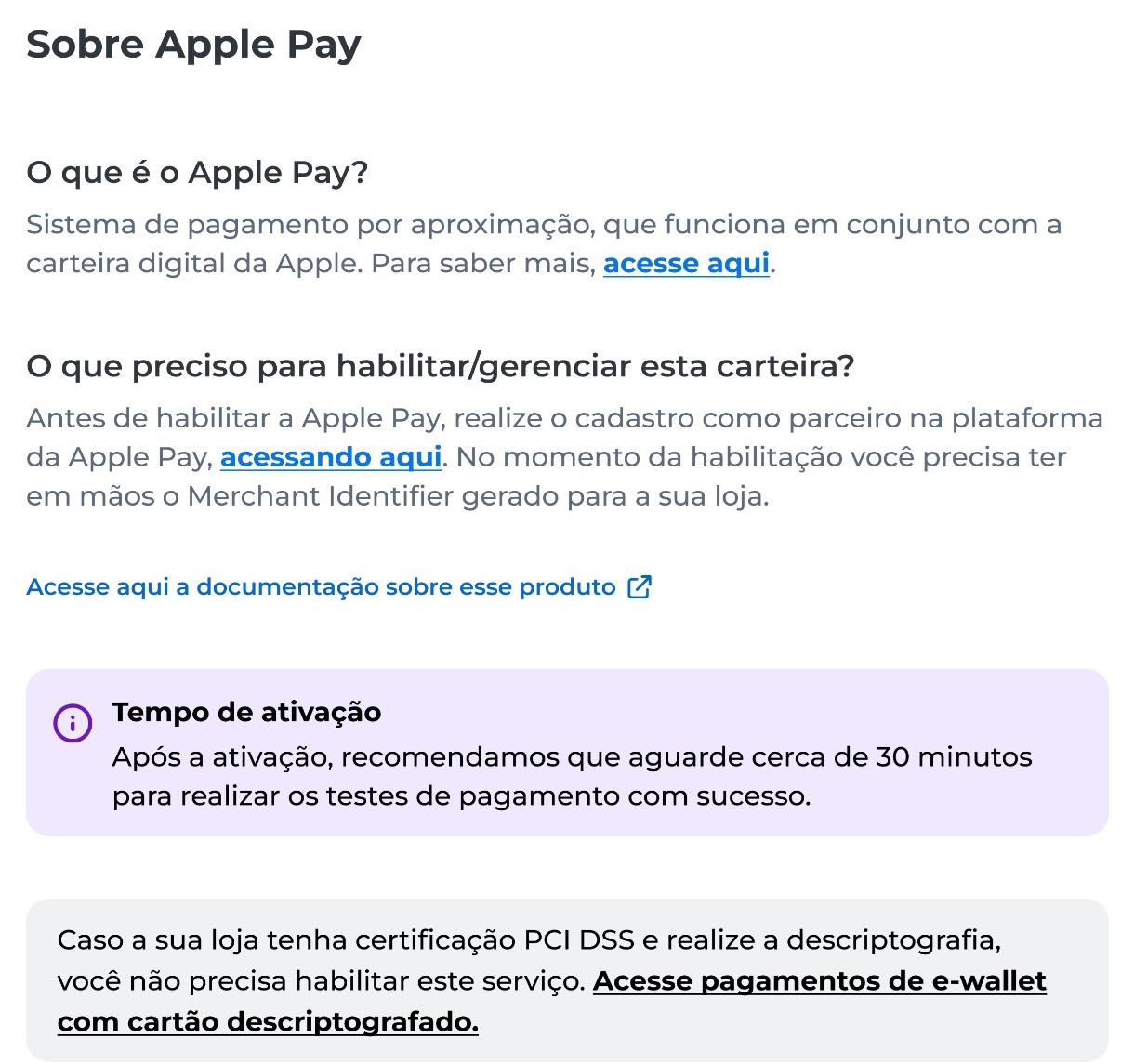
Apple Pay
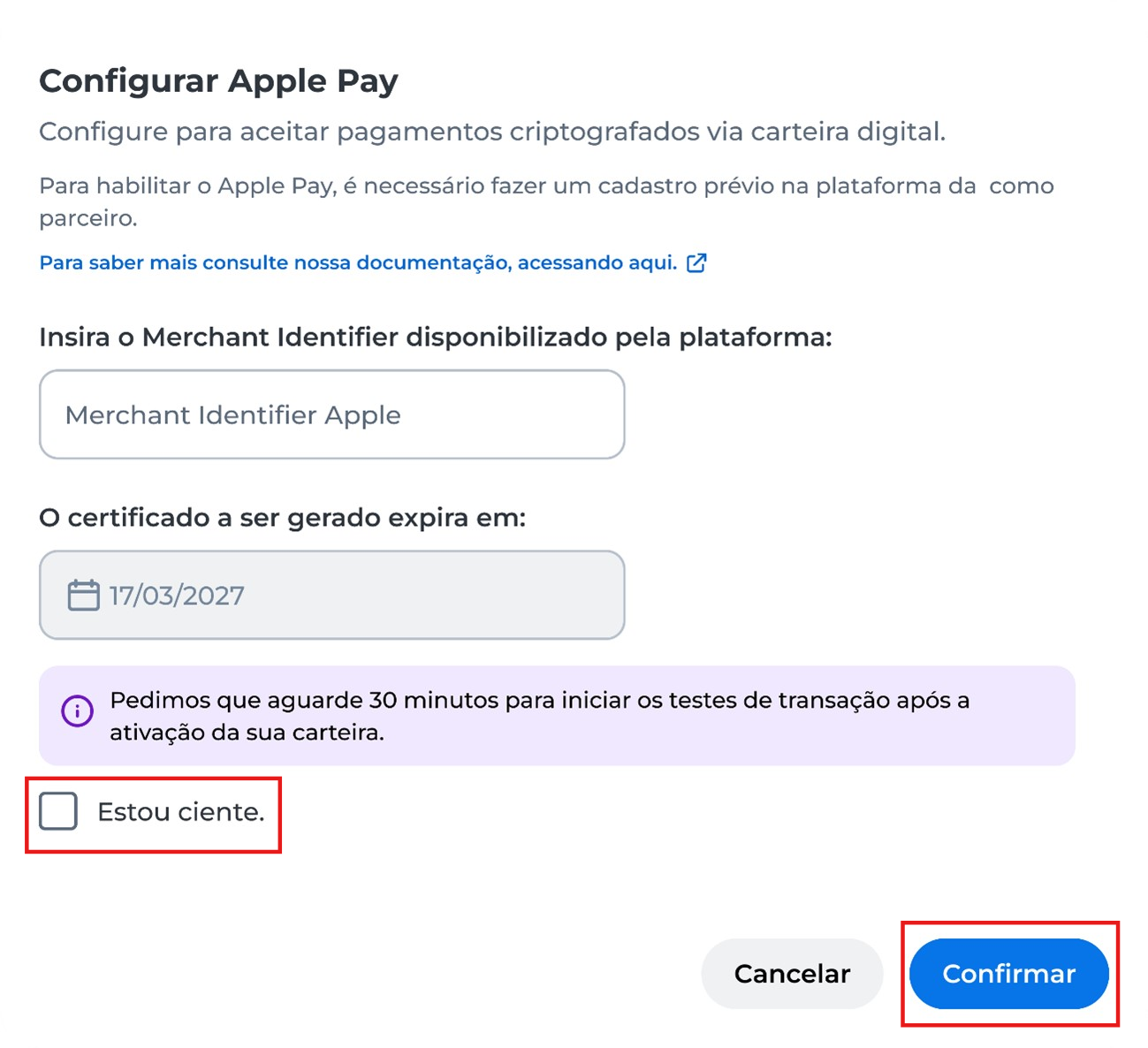
To complete the Apple Pay wallet enablement, enter the Merchant Identifier provided by the platform and the expiration date. Then, click Estou ciente and Confirmar;
Google Pay or Samsung Pay
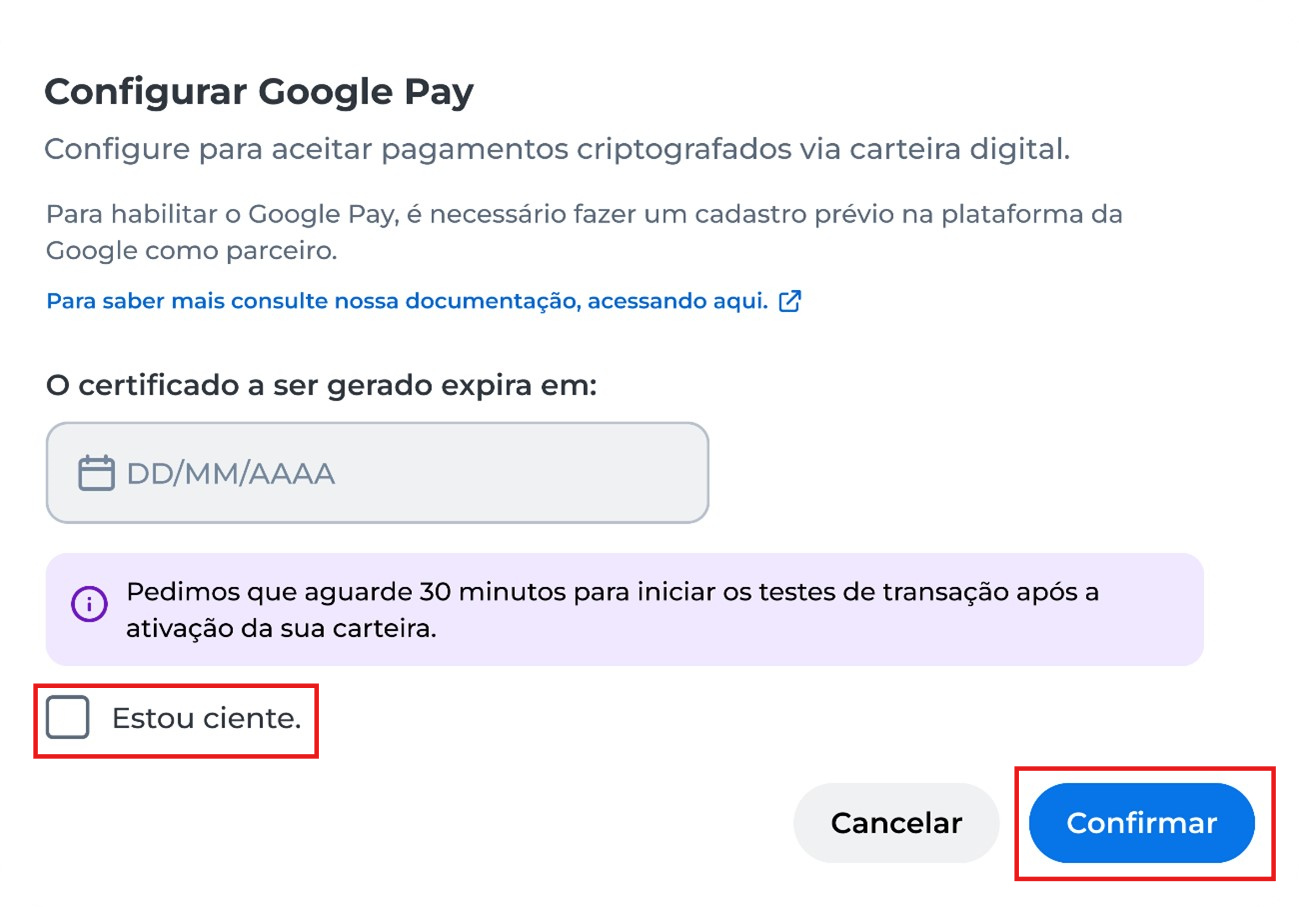
To complete the enablement of the Google Pay or Samsung Pay wallet, enter the expiration date, click Estou ciente, and then Confirmar.
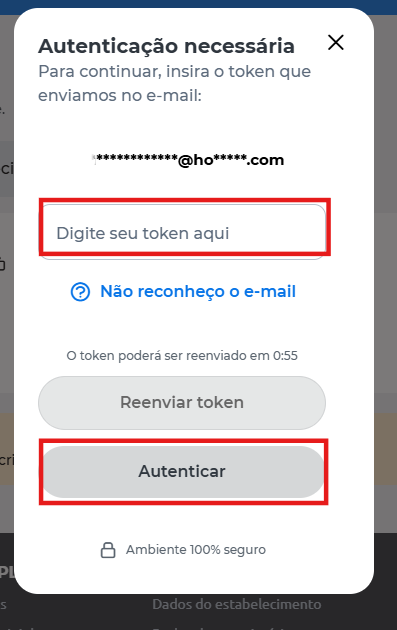
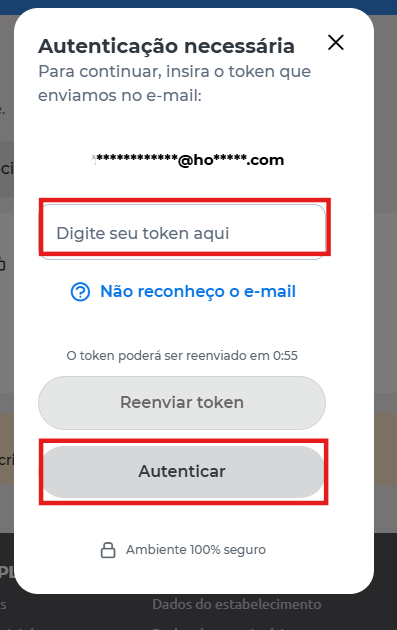
- Enter the token sent by the Cielo Gestão app or by email and click Autenticar.
- Done! The wallet enablement has been successfully completed. Now you can access the documentation to finalize the integration with the provider.

Regenerate Samsung Pay certificate
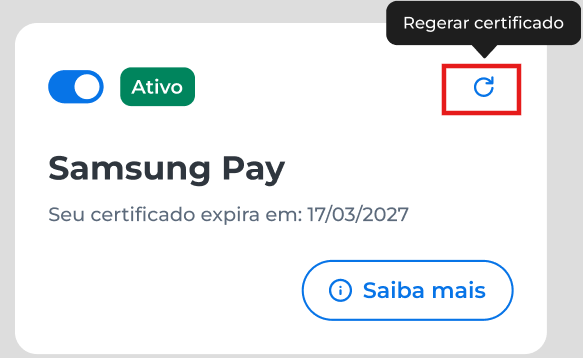
- For the Samsung Pay wallet, you can regenerate the certificate. In the Funcionalidades tab, under Carteiras digitais com criptografia > Samsung Pay, click Regerar certificado.
- Enter the token sent by the Cielo Gestão app or by email and click Autenticar. Done! The certificate is available for use.
Updated about 2 months ago