
Bradesco
Please refer to the API Reference for the full request and response examples.
How it works
- After selecting a product, the shopper chooses the Boleto Bradesco payment method;
- The merchant sends a request to Cielo calling the corresponding payment method;
- Cielo communicates with Bradesco’s application to request boleto registration;
- If the registration is successful, the bank responds with billing details (barcode, digitable line, etc.) and the Boleto URL;
- Cielo includes the link in the response so the merchant can open a pop-up displaying the boleto;
- The client accesses the boleto URL (rendering) and can then make the payment;
- Boleto reconciliation is performed through Cielo’s query service to Bradesco’s system;
- To receive payment notifications, the merchant must register a Notification URL or use the query service.
Configuring Boleto
Bradesco Boleto requires settings to be made both in the Painel Bradesco and in the Portal Cielo E-commerce.
ImportantTo use Bradesco registered boleto, the merchant must contract the registered wallet directly with the bank. Boleto issuance will only be enabled after Bradesco completes the release.
Contracting the service with Bradesco
The merchant must contact the Bradesco manager and request the contracting of the registered boleto service via API.
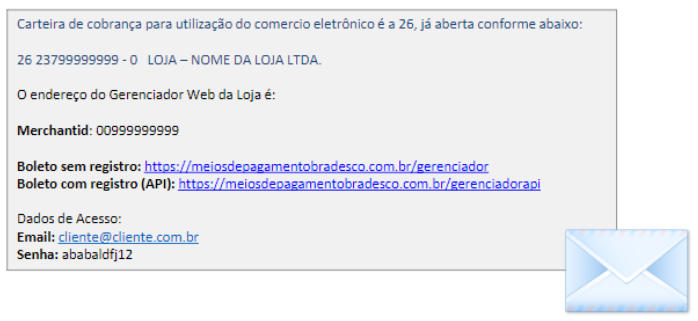
After the request, Bradesco's technical team (Scopus) will send by email:
- Access to the Bradesco Panel (API Manager);
- Username, password, and other credentials required to configure the payment method.
Accessing the Bradesco Panel
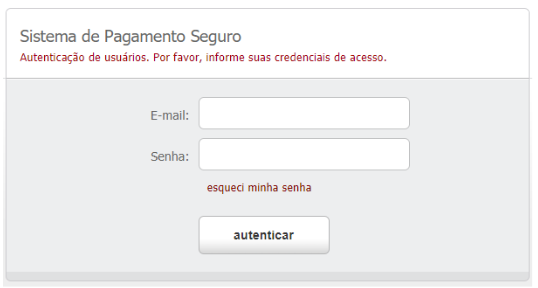
After receiving the credentials sent by the bank, access the API Manager and log in using the provided information.
Setting up the payment method in the Bradesco Panel
- Access the payment method settings
In the Bradesco Panel:
- Go to Configurações → Meios de pagamento.

- Configuring credentials
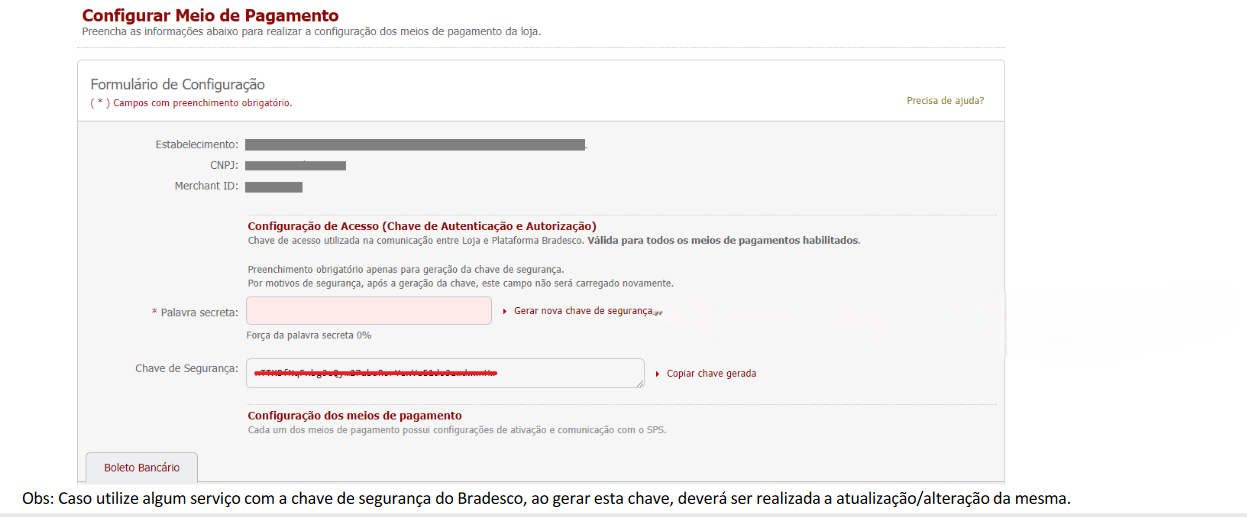
Still on the Payment methods screen, locate the access configuração de acesso (chave de Autenticação e Autorização).
- Fill in the Secret word field with a password defined by the merchant;
- Click Gerar nova chave de segurança to create the Security key used by Cielo to query boleto status.
ImportantThe security key is not the password to access the Bradesco Panel. It is used exclusively for communication between Bradesco and Cielo.
- Configuring the integration
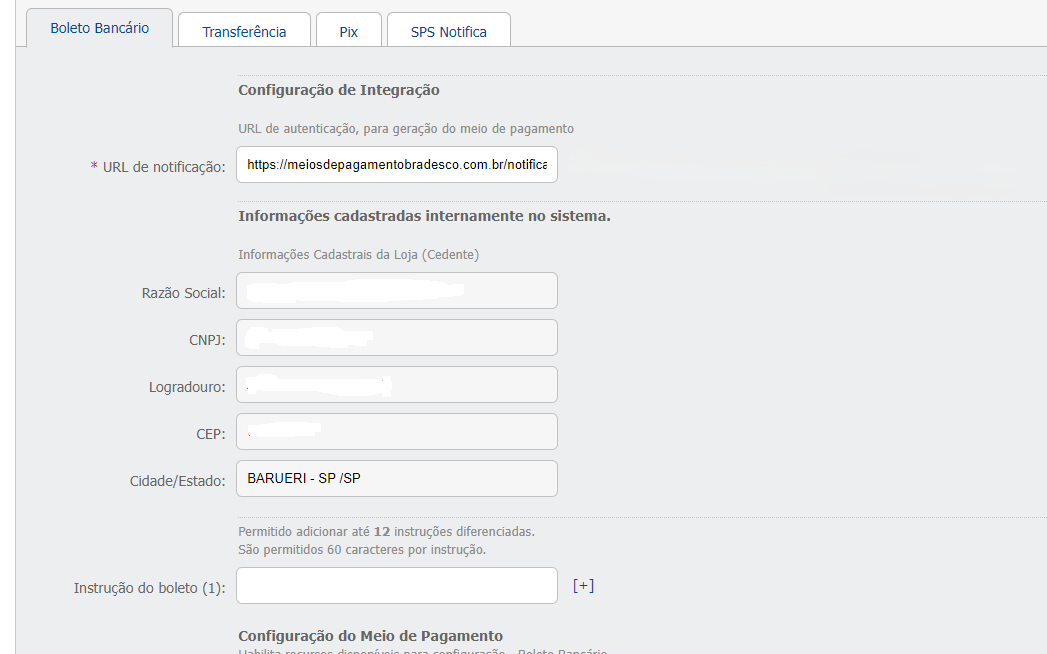
On the same Meios de pagamento screen, right after the credentials fields, the Configuração de integração section appears.
In the Notification URL field, enter:
https://meiosdepagamentobradesco.com.br/notification
- Adjusting bank slip options
Still on the same page, the merchant finds the Configuração do Meio de Pagamento section. Adjust the options as needed:
- Habilitar "frase" do boleto: Active;
- Habilitar "referência" do boleto: Active;
- Apresentar Agência e Conta: Active;
- Vencimento: 3 days.
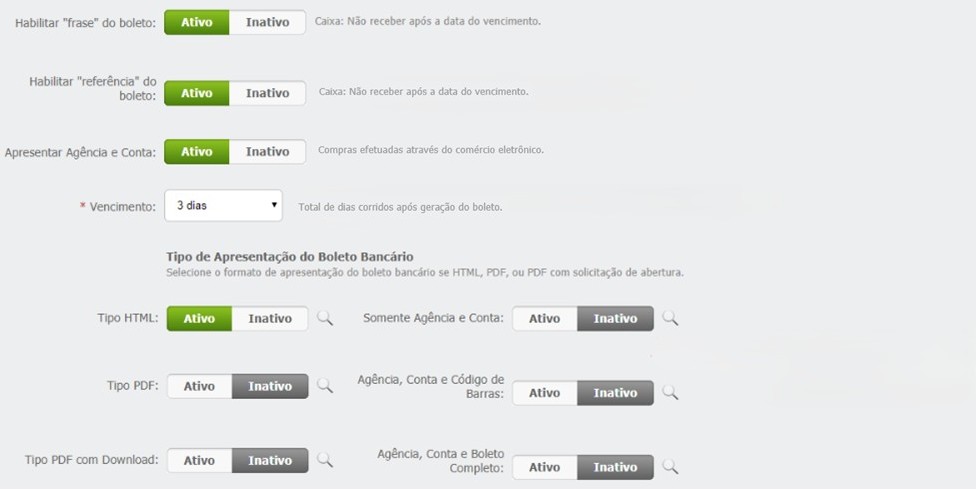
The Configuração do Meio de Pagamento section contains optional settings, which can be used according to the merchant's preference.
- SPS Notifica configuration
In the SPS Notifica tab, locate the Configuração de integração section. In the URL de comunicação field, enter:
https://meiosdepagamentobradesco.com.br/notification
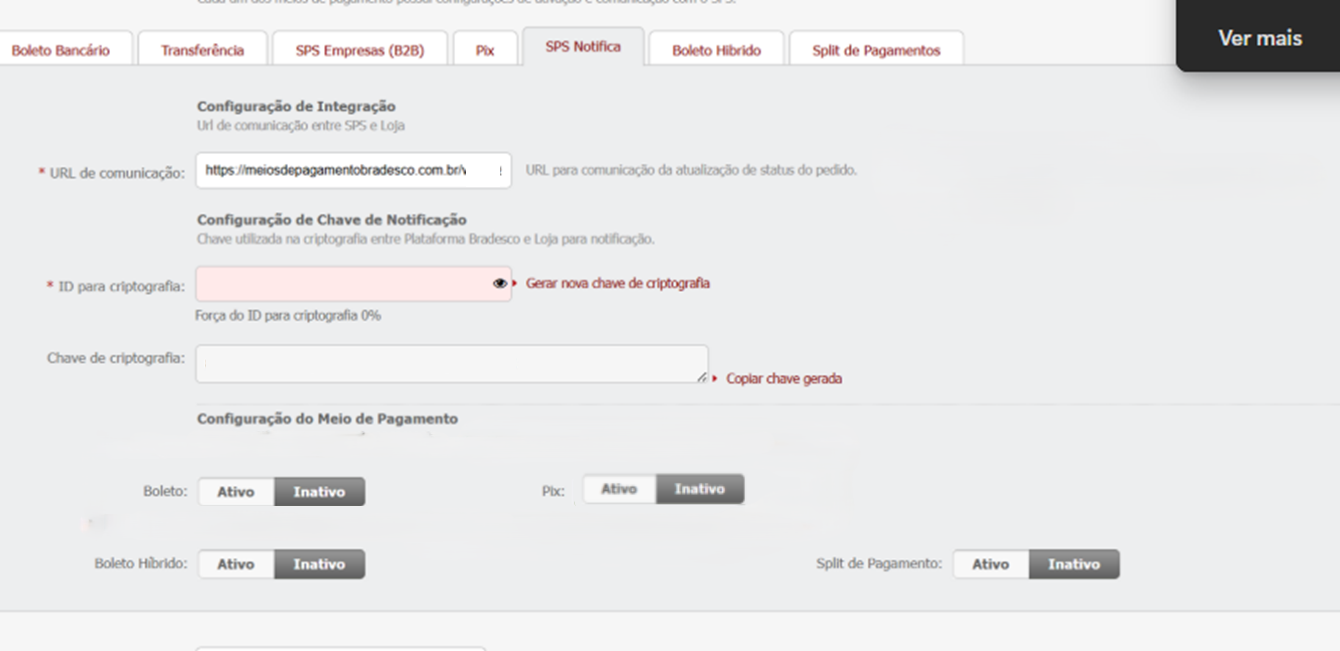
Important:In Configuração do Meio de Pagamento, set the Boleto and Pix fields to Inactive when using only Bradesco Boleto.
If you also use Bradesco Pix, keep the Pix field as Active.

Save all changes and proceed to the next step.
User Configuration in the Bradesco Panel
To enable boleto processing and allow automatic reconciliation, it is necessary to configure the Sonda profile and create the Sonda user in the Bradesco Panel.
- Acesse Usuários → Controle de Acesso

On the Controle de acesso screen, fill in the fields as follows:
- In the Perfil field, enter Sonda;
- In the Status field, select Ativo;
- Click Gravar to store the configuration.
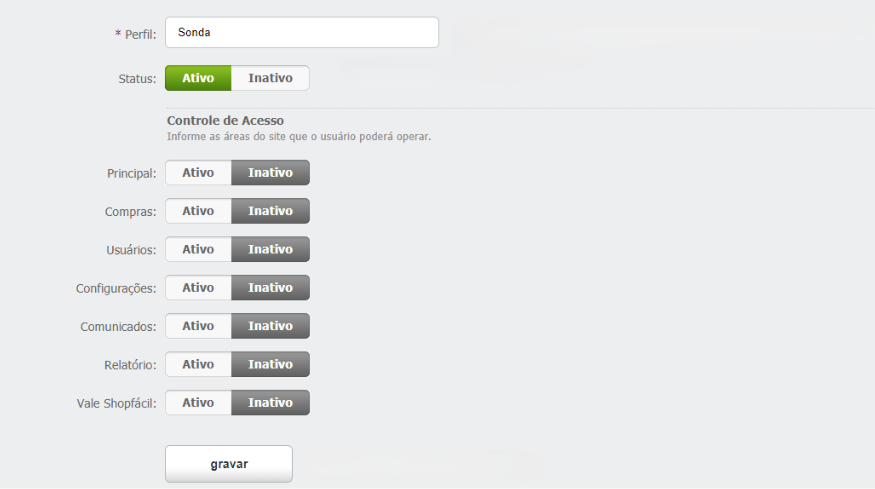
After saving the settings:
- Go to the Usuários menu;
- Click Incluir.

On the Formulário de Inclusão screen, fill in the fields as follows:
- In the Perfil field, select Sonda (configured in the previous step);
- Fill in the required fields:
- Email:
[email protected] - Nome: Sonda;
- Telefone: Enter the phone number.
- Email:
- In the Status field, select Ativo;
- Click Gravar.
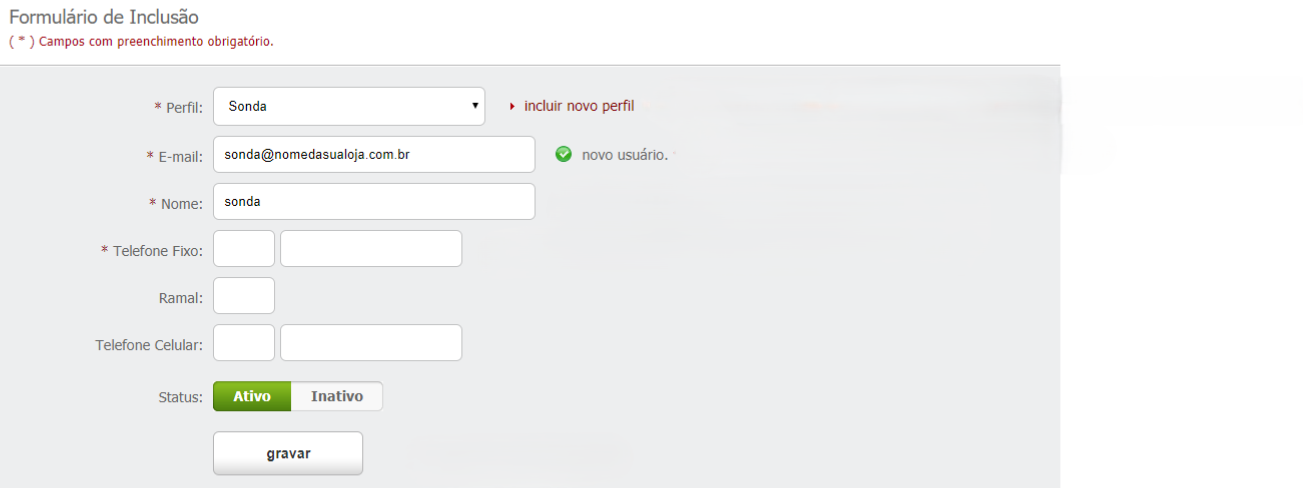
Important:The user created with the Sonda profile is used by Bradesco to send automatic updates on boleto status.
Activate in the Cielo E-commerce Portal
With all Bradesco Panel settings completed, access the Portal Cielo E‑commerce and finalize the payment method activation by following the instructions in Como habilitar uma integração com meios de pagamento.
Status Update
For the Bradesco registered boleto payment method, status updates are performed via batch polling:
- This polling occurs in the morning: 4 a.m., 6 a.m., 8 a.m., 10 a.m., and 12 p.m.
To receive payment notifications, the merchant must have the Notification URL registered and perform GET requests.
Note: Currently, the polling considers transactions with a due date within the interval of 30 days before and 30 days after the polling date.
Status updates are not available for Checkout and Link de Pagamento clients.
Manual Boleto Reconciliation
Boleto reconciliation can be performed manually in the Portal Cielo when needed. To reconcile:
- Locate the order in the Portal Cielo;
- Access Detalhes da transação;
- Click Conciliar to update the status from Unpaid to Paid.
Support
Bradesco Support
For questions about credentials, access, notifications, or banking configurations:
[email protected] [email protected] [email protected] [email protected]
Cielo Support
If you have questions at any stage or need further technical information, contact the Cielo E-commerce Web Support through the following channels:
- E-mail: [email protected]
- Major cities 4002-5472
- Other locations: 0800 570 8472
- Service hours: 24 hours a day, 7 days a week.
Cielo environment
Registration Data
The merchant must provide Cielo support with the following information:
| Data | Description | Format | Observation |
|---|---|---|---|
| Branch | Branch code | 4 digits | with or without hyphen |
| Checking account | Checking account | 7 digits | with hyphen |
| Wallet | Not required for registered boleto | 2 digits | N/A |
| Reconciliation | Billing agreement number | 7 digits | Provided in the Bradesco control panel |
| Agreement | E-commerce agreement | 6 digits | Validate with the bank if it is required for the wallet |
| Our Number | Incremental counter | 5 digits | Optional - Control number that increases by +1 with each boleto issuance |
| Due Date | Boleto validity period | 6 digits | This is the default value if no other value is sent via API |
| Affiliation Signature | Bradesco security key | 5 digits | Provided in the Bradesco Panel |
Bradesco credentials will be required:
These credentials are used so that Cielo can query the boleto status.
Credentials | Description | Example |
|---|---|---|
User | Email used to access the Bradesco Panel | |
Senha/Chave de Segurança | Security key created within the Bradesco Panel. | qcnmFA-Y2rGm4meWLzrEzSpdPARBsmblZSqfKLwq7DM |
Updated 3 months ago